
Page History
...
- The plugin: the knowledge wiki, the "idna-wikilookup" skill and the Companion's operating instructions. The plugin also works on its own: without a connection to iDNA, it answers from the wiki only (restricted wiki mode) and says tells you so.
It is installed from panagenda's plugin marketplace on GitHub: - The MCP connection: connects the AI client to your iDNA appliance for live data. It requires that your iDNA administrator has enabled the MCP server (see Setting up the MCP Server in iDNA Applications).
...
Not supported: claude.ai Chat, and the Chat mode of the Claude desktop app. The Companion needs 's skill depends on other files in its plugin files next to its skill, and they package, which are not available there. In the Claude desktop app, use Cowork or Code.
Limited support: Microsoft Copilot Desktop app. Copilot does not support local MCP connections at the time of releasing iDNA 3.5.0. To keep part of the plugin's capabilities, place the plugin files in the user's OneDrive. Copilot indexes them and can then answer questions about iDNA content and dashboards and help write SQL queries. The plugin files are the folder plugins/idna-companion in the release archive (see Machines Without Access to github.com, step 1).
Prerequisites
- Client: one of the supported clients, installed and signed in.
- Installation source: access to github.com, or an offline copy of the plugin (see Machines Without Access to github.com).
- License: installing or using the plugin is subject to its license, which is part of the plugin and of the repository on GitHub.
- For live data:
- the MCP server is enabled on your iDNA appliance (iDNA Applications 3.5.0 or later),
- your iDNA user has the MCP role (ask your iDNA administrator),
- your machine reaches the appliance over HTTPS (through VPN where applicable),
- a personal MCP token (see the next section).
...
- Install Node.js from https://nodejs.org/en/download/ if it is not installed yet. To check, run
npm -vin a command prompt. Install mcp-remote:
Code Block language bash npm install -g mcp-remote
To check, run
mcp-remote test. The command ends with an error likecode: 'ERR_INVALID_URL', input: 'test', which is expected: it shows that mcp-remote is installed.- Open the configuration: on Windows, the menu (three horizontal bars at the top left) → [File] → [Settings] → [Developer] → [Edit config]; on macOS, [Claude] → [Settings] → [Developer] → [Edit config]. This opens the file
claude_desktop_config.json(or the folder that contains it); open the file in a text editor.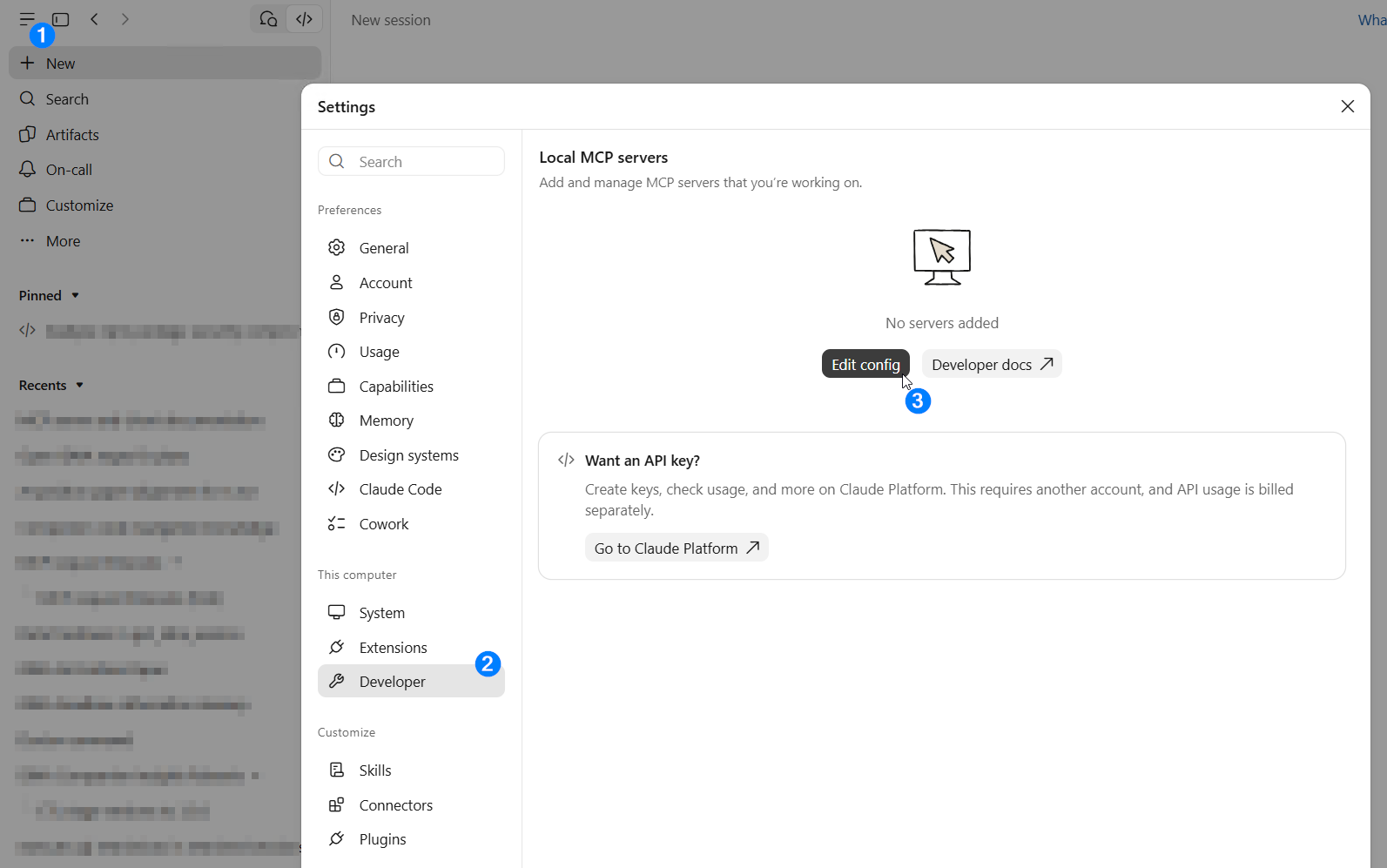
- Exit Claude completely before you edit the file: closing the window is not enough. On Windows, right-click the Claude icon in the notification area of the taskbar and select [Exit]; on macOS, quit Claude.
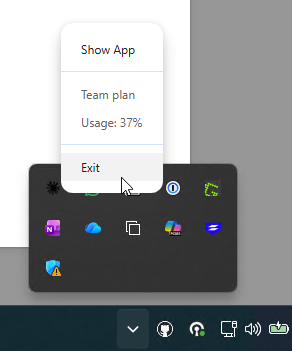
Add the iDNA Applications entry under
"mcpServers". If the file already contains other settings, keep them and add only the "iDNA Applications" block; if there is no"mcpServers"section yet, add it. Make sure the file remains valid JSON (commas, braces).Code Block language javascript { "mcpServers": { "iDNA Applications": { "command": "mcp-remote", "args": [ "https://<your iDNA host>/mcp", "--header", "Authorization: Bearer <your token>" ] } } }- Save the file and start Claude again. In [Settings] → [Developer], the "iDNA Applications" server is now listed as running.
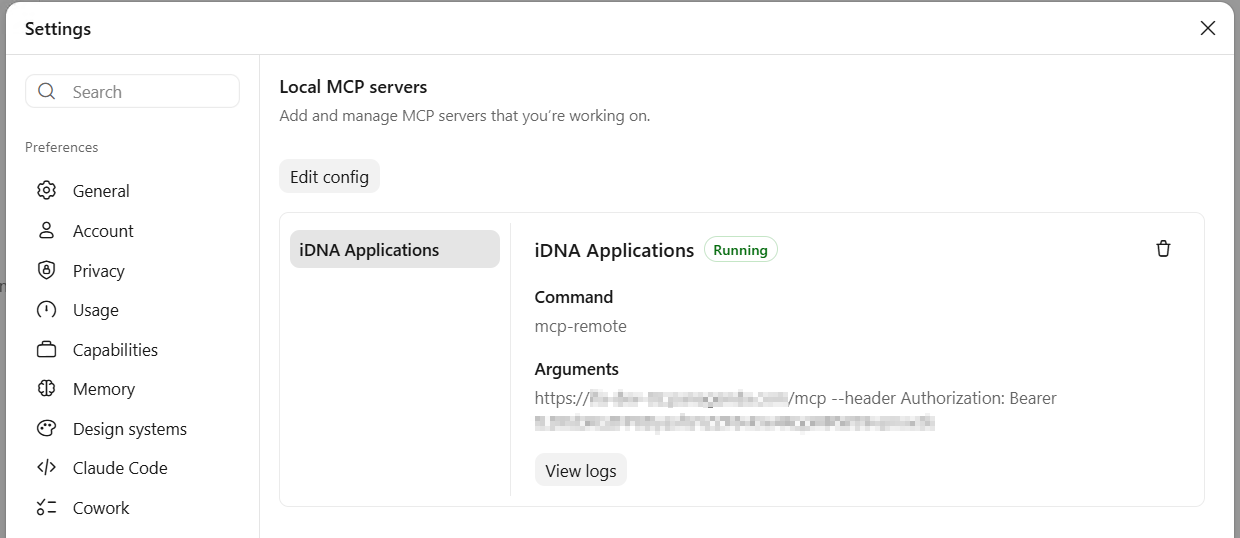
...
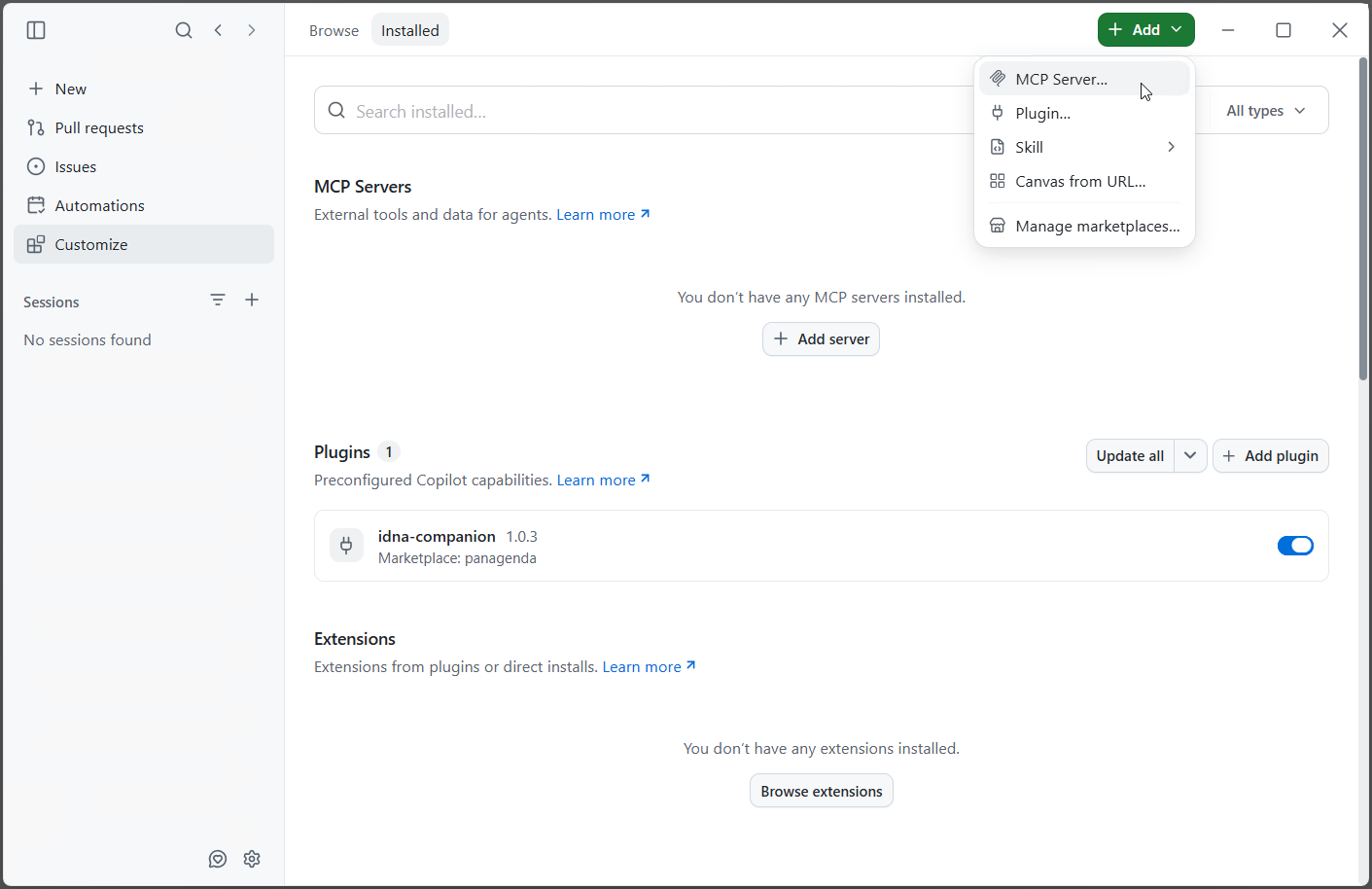
- Open [Customize] in the left bar and select [+ Add ▾] → [Manage marketplaces...].
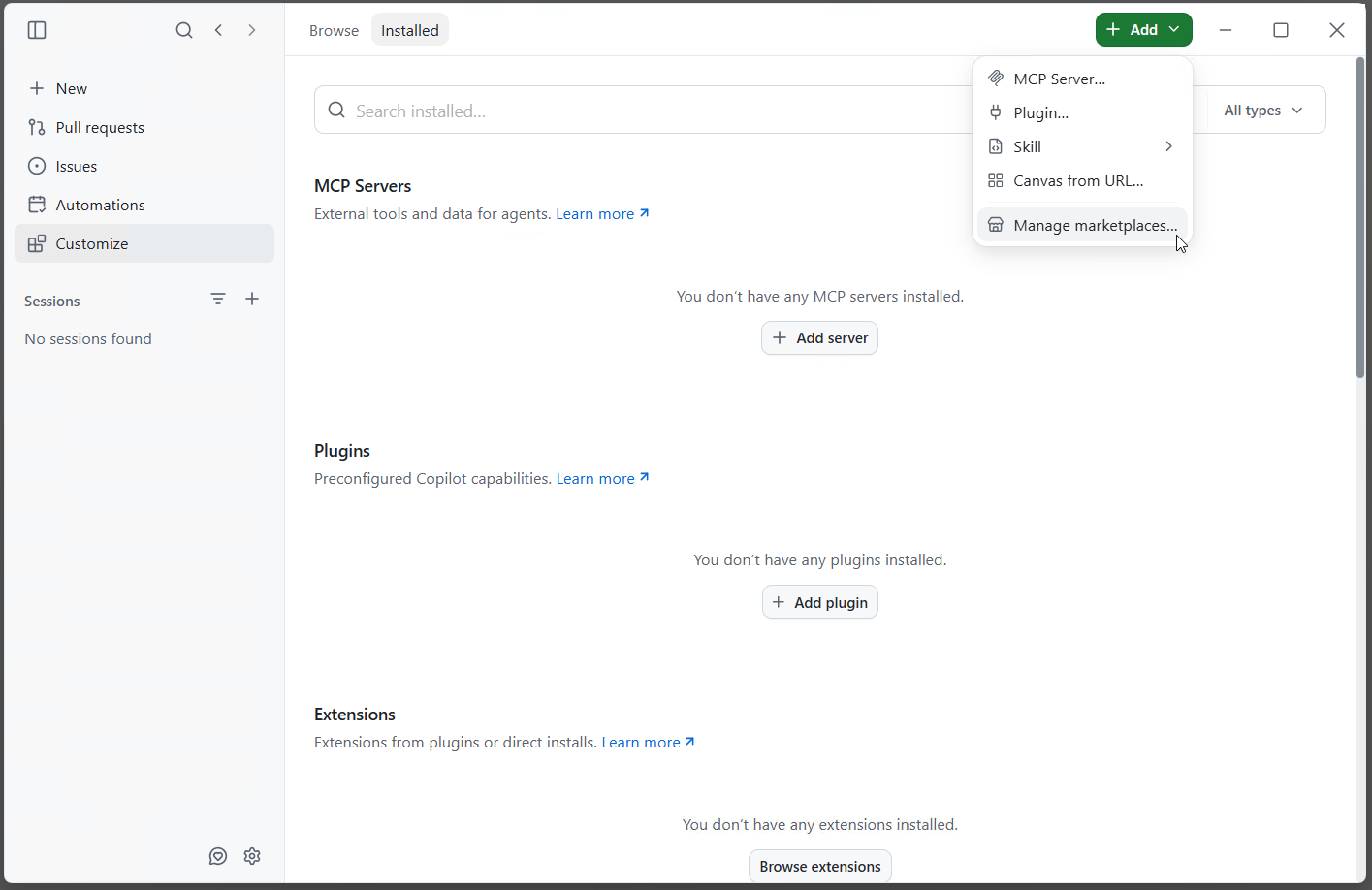
- Under Source, enter
https://github.com/panagenda/idna-companionand click [Add].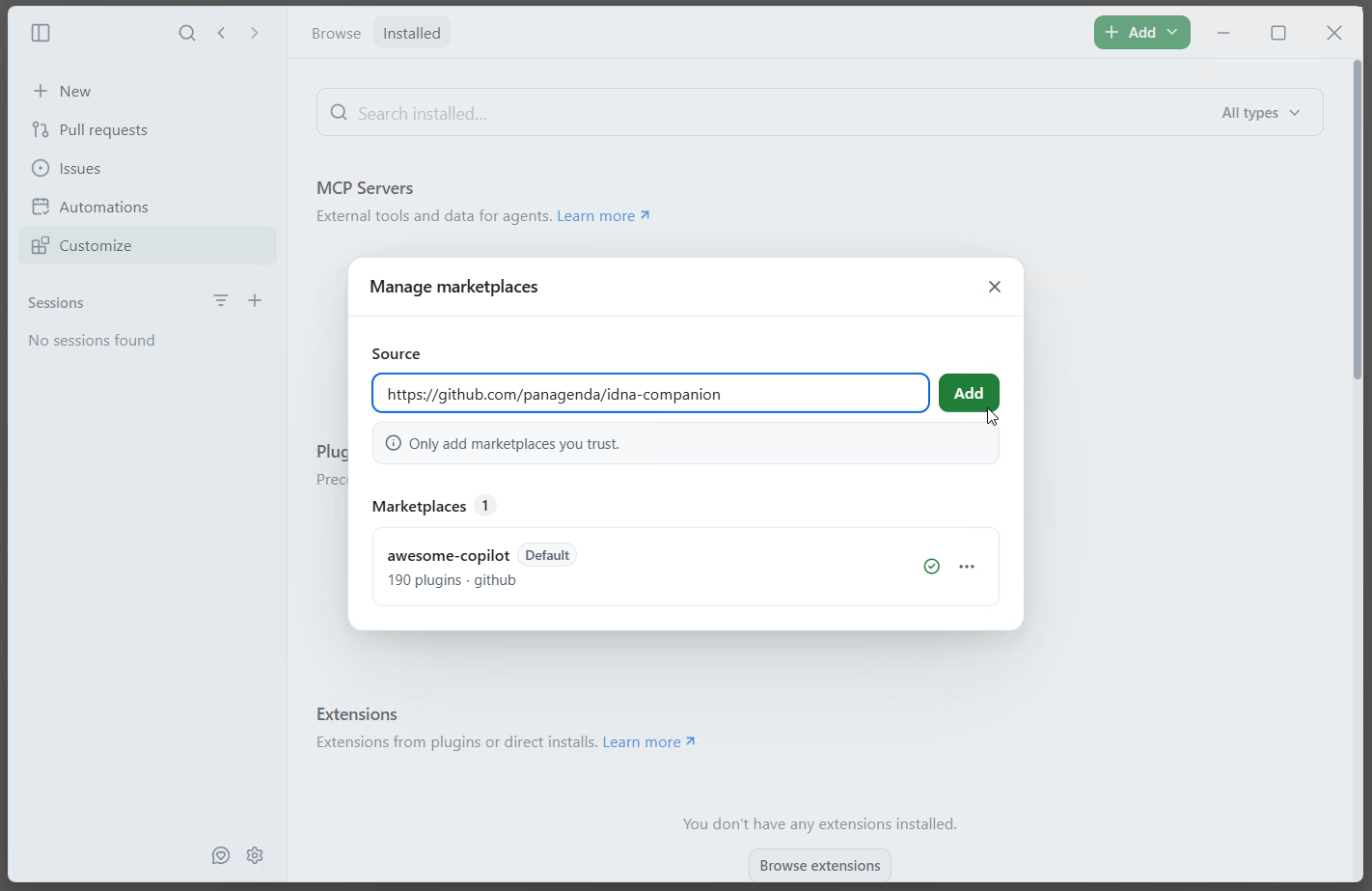
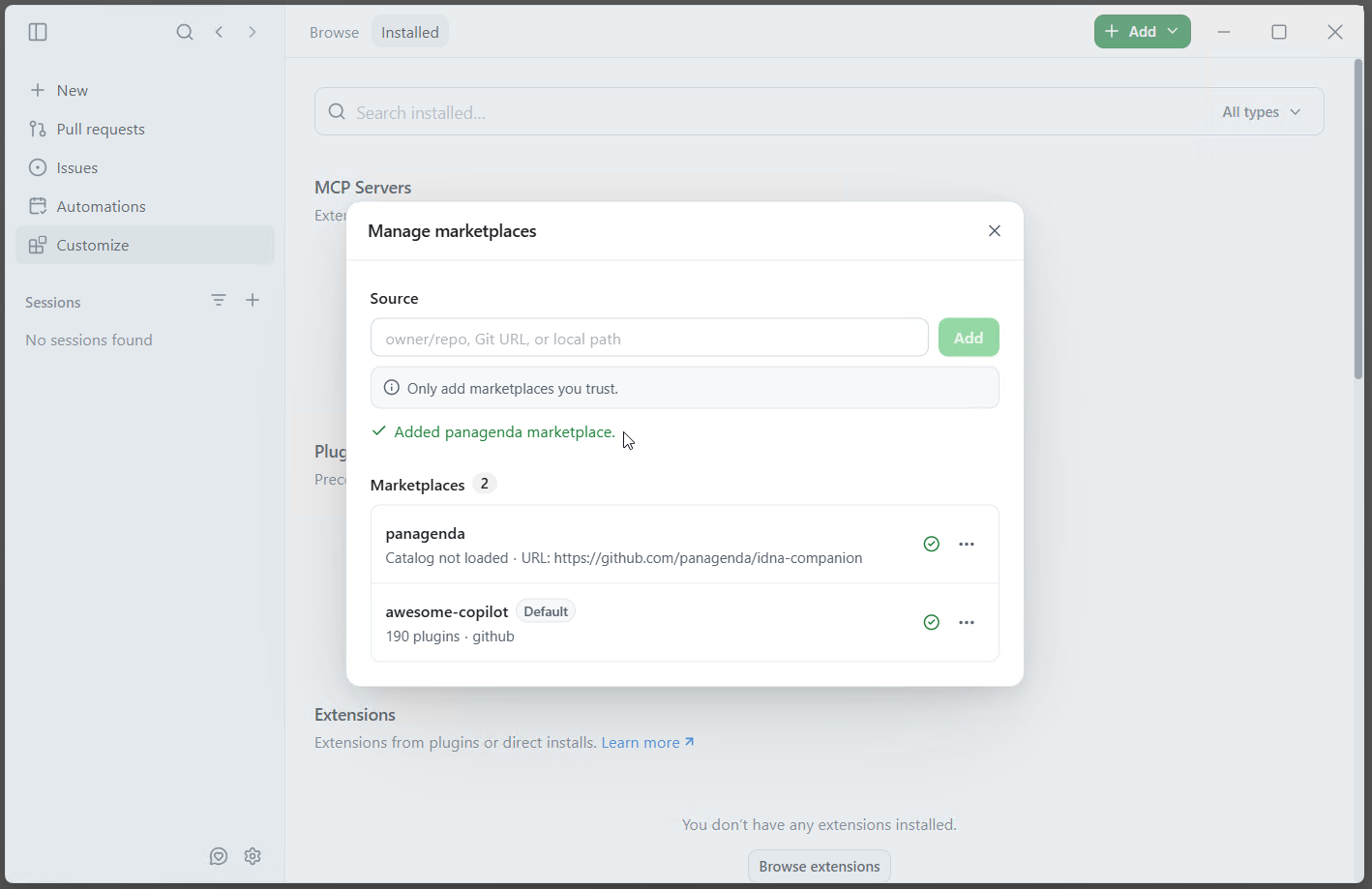
- The dialog confirms "Added panagenda marketplace" and lists the panagenda marketplace. Close the dialog.
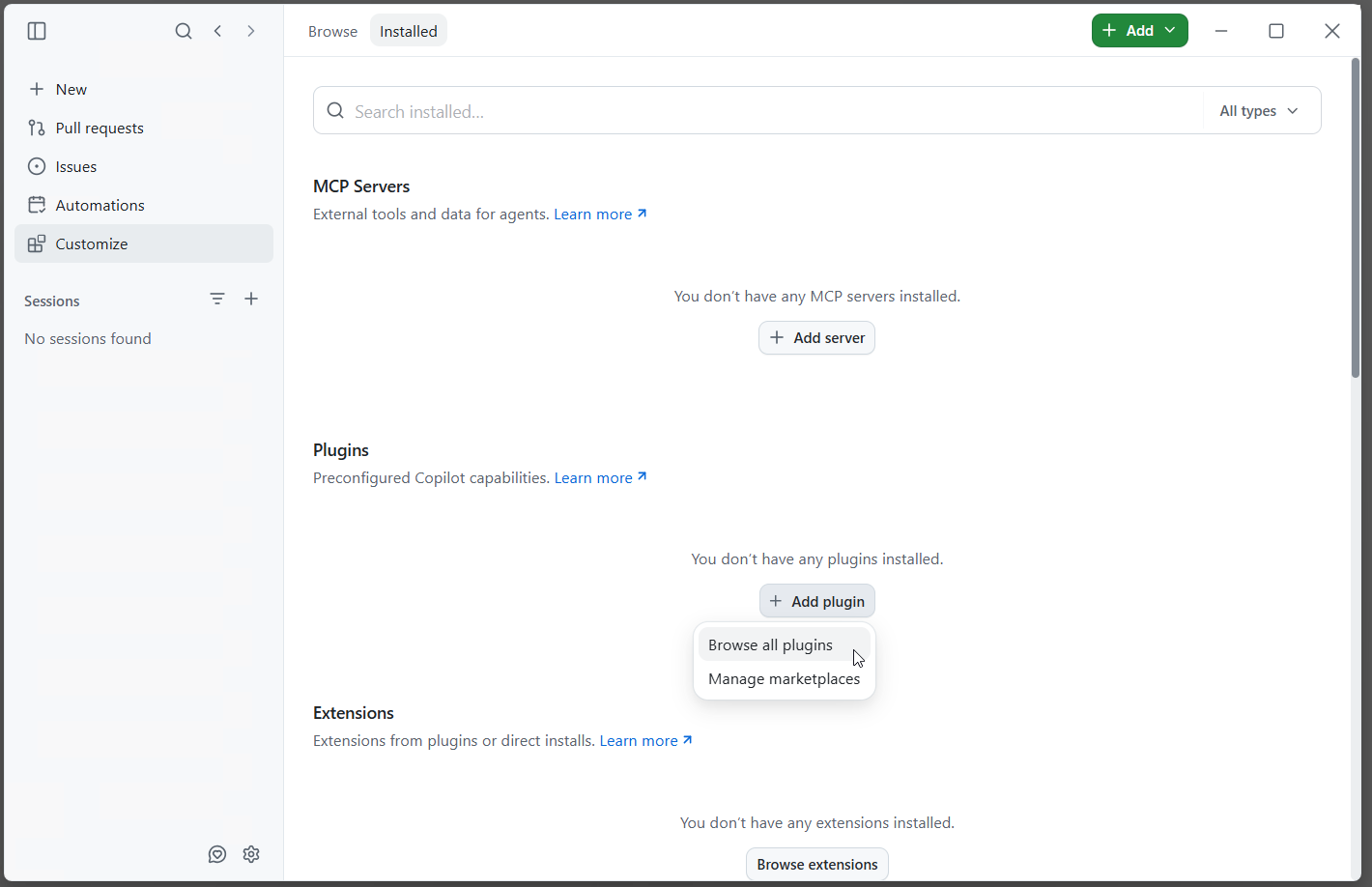
- Under Plugins, select [+ Add plugin] → [Browse all plugins].
- Search for
idnaand click [+ Install] next to idna-companion.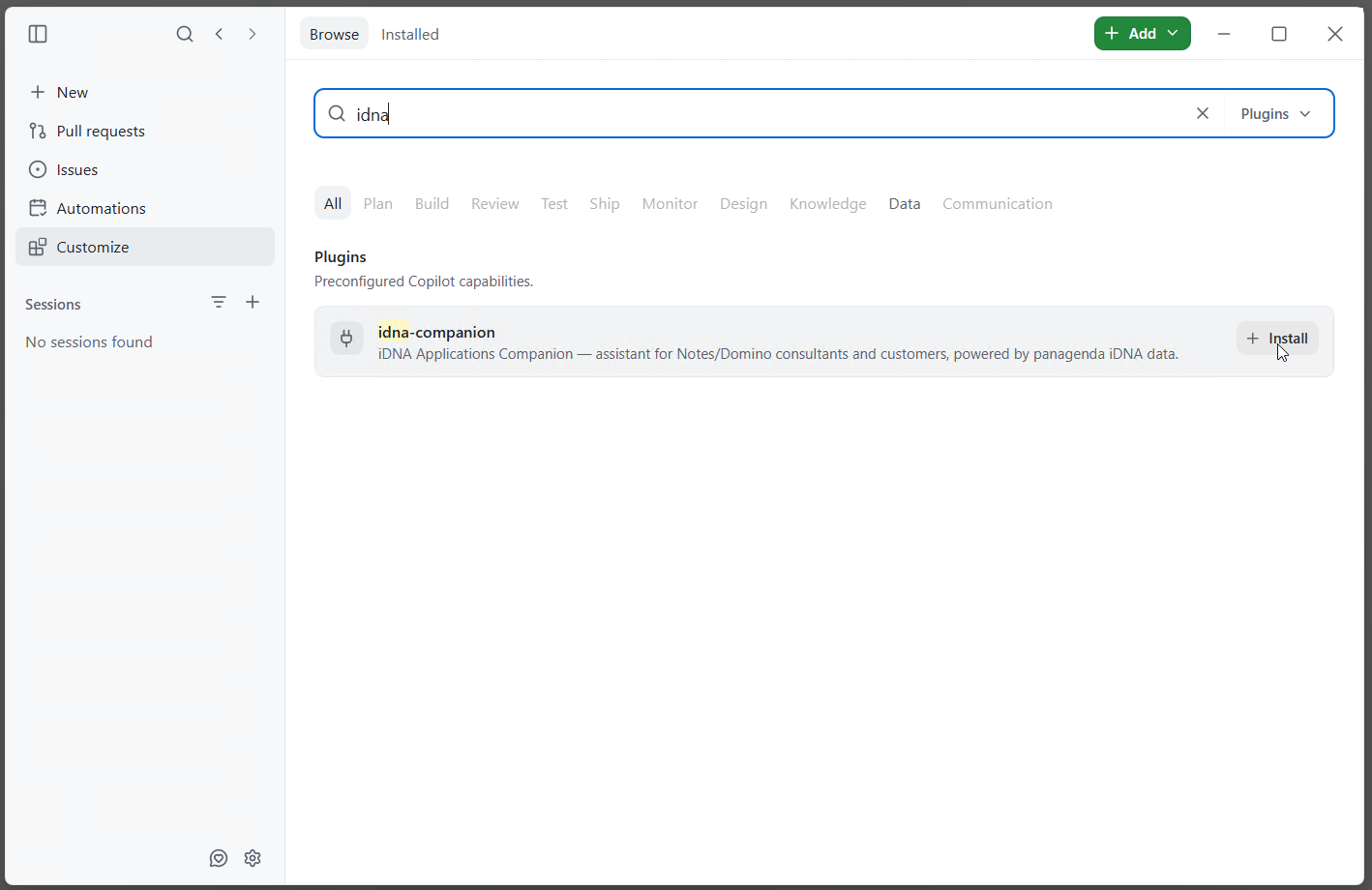
- Under [Installed], the plugin is now listed under Plugins with "Marketplace: panagenda" , switched onand is enabled.
Connect to the MCP Server
...
Under MCP Servers, "iDNA Applications" is listed with a green check mark and switched onis enabled.

Ask an iDNA or Notes question in any chat, for example "What are my most used Notes applications?". The Companion's skill activates on such questions automatically. In a connected session, the "idna-wikilookup" skill loads and a "Get Idna Session" tool call succeeds.
...
The MCPs tab lists "iDNA Applications" under Servers , switched onas enabled. Start a new chat and ask an iDNA or Notes question, for example "What are my most used Notes applications?". In a connected session, the "Idna Wikilookup" skill loads and a "Get Idna Session" tool call succeeds.
...