
Page History
...
In GitHub Copilot and OpenAI ChatGPT/Codex, you choose the AI model per session. How reliably the Companion follows its restricted-mode rules (which analysis paths it offers and explains) depends on the model: the most capable models follow them best, smaller models less reliably. Organizations that operate MCP in restricted mode should standardize on the strongest available model for Companion sessions. Access to the data itself is enforced by your iDNA appliance and does not depend on the model.
Connecting to a Local LLM
The Companion does not depend on a particular model provider. Clients that can use a language model running in your own network let you work with the Companion without a cloud AI provider. The GitHub Copilot App is one such client and is easy to set up, so it is shown here as an example. Its support for other model providers is in public preview.
Prerequisites:
- The plugin and the MCP connection are set up in the GitHub Copilot App (see GitHub Copilot App).
- A model server that your machine can reach, for example Ollama, with a model that supports tool calling: the Companion works with iDNA data through MCP tools. In Ollama's model library, these models are tagged "tools".
- Open the settings (gear icon at the bottom left), select [Model providers] and click [Add provider]. Select [Ollama (local)].
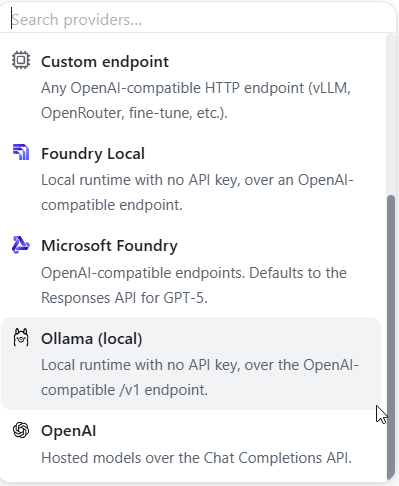
- Enter a display name and the Base URL of the Ollama server:
http://localhost:11434/v1if Ollama runs on the same machine, otherwisehttp://<Ollama host>:11434/v1. Save the provider. The models of the Ollama server are now listed under it.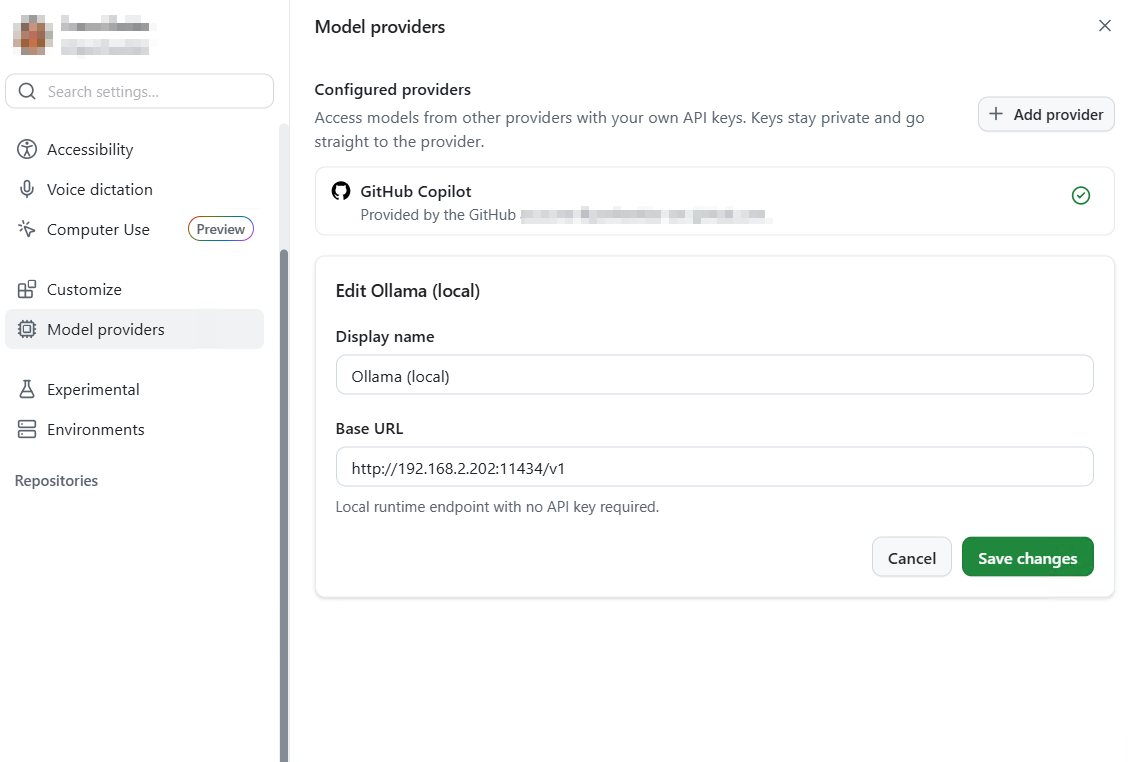
- Start a new session and select the local model in the model picker. If GitHub-hosted models are also available to you, check the selection in every session.
Note: with a local model, the iDNA data that the AI retrieves through MCP is processed by the model in your network, not by a cloud AI provider. The GitHub Copilot App still requires a GitHub sign-in and communicates with GitHub; check GitHub's documentation and your organization's policies on what it transmits. Models that run on a workstation or a small server are less capable than the large cloud models: expect answers of lower quality and less reliable restricted-mode guidance (see Choosing the AI Model). Access to the data is enforced by your iDNA appliance in either case.
Troubleshooting
- The Companion says that live iDNA tools are unavailable and answers in restricted wiki mode. The session has no working MCP connection. Possible causes: the MCP entry is missing on this machine, the token has expired or was revoked, there is no network path to the appliance (VPN), or the client did not load the tools for this session (start a new session).
- The server is listed but fails to connect. Check that the address ends in
/mcpand that the token is still valid in [MCP Tokens]. An expired or revoked token is rejected; create a new one and update the client's configuration. - Claude desktop app: the server does not start. Check that Node.js and mcp-remote are installed (see above), and that Claude was exited completely before the configuration was edited. The logs are in
%APPDATA%\Claude\logs\(filesmcp*.log) on Windows; [Settings] → [Developer] also offers [View logs]. - OpenAI ChatGPT/Codex or Codex CLI: the server fails to connect after the token was set or replaced. The app and the CLI read
IDNA_MCP_TOKENonly when they start: restart the app or open a new terminal. Check that the name of the variable matches exactly. GitHub Copilot App on Windows: uninstalling or updating fails with "access denied". The App installs plugin files read-only and can fail to remove them. Clear the flag in PowerShell, then retry:
Code Block language powershell attrib -R /S /D "$env:USERPROFILE\.copilot\installed-plugins\*"
...