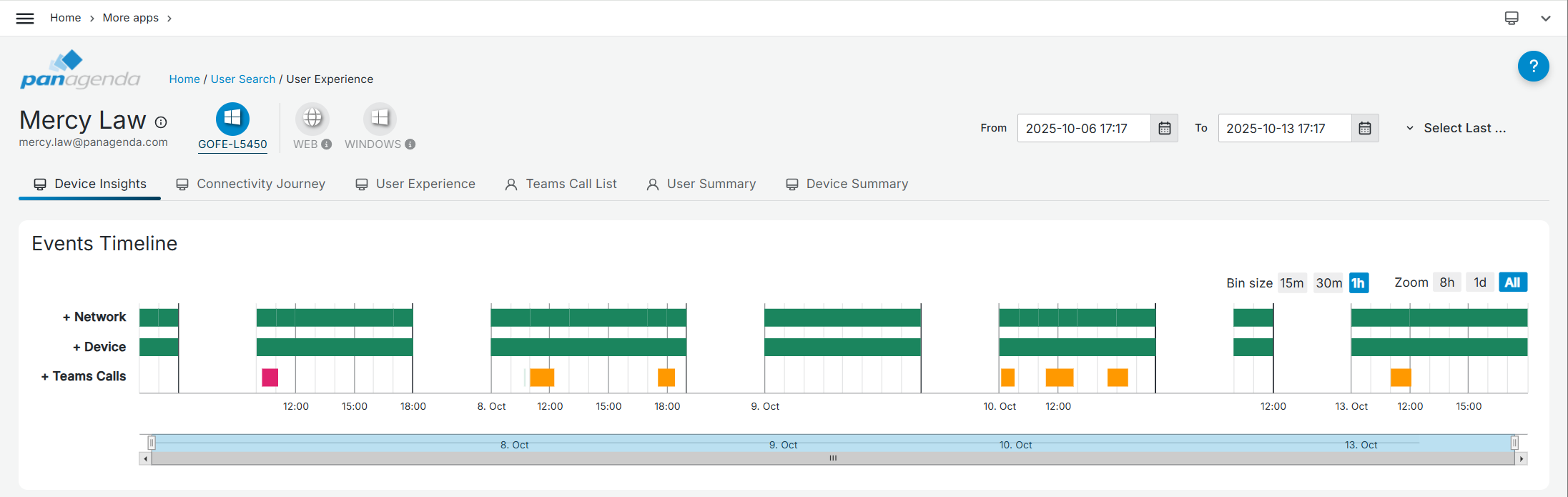
The Device Insights page shows an event line for Networking, Device and Call quality information for the selected device (in the top). It will provide a comprehensive and at-a-glance overview of a user's device activity over the last 7 to 21 days, aiming at showing you: “Everything about this user on this device that I need to see”. You can easily switch devices by using the device selection at the top.
There are 3 (collapsed) main categories that one sees when opening this view
• Network
• Device
• Teams Calls
Each of them represents an aggregation of scores and metrics provided by the underlying child objects (one can expand the section to see all the child objects)
NOTE! The timeline is optimized to display only the periods when data was collected or provided via CQD. This means that it may not show data in case the device is not monitored. It will also optimize the time range shown, which means it may not show the full date/time range specified in the top fields; instead, it focuses on the available data within that period. Similarly, it efficiently uses space by omitting extended periods without data, such as overnight or during the weekend, when devices are offline.
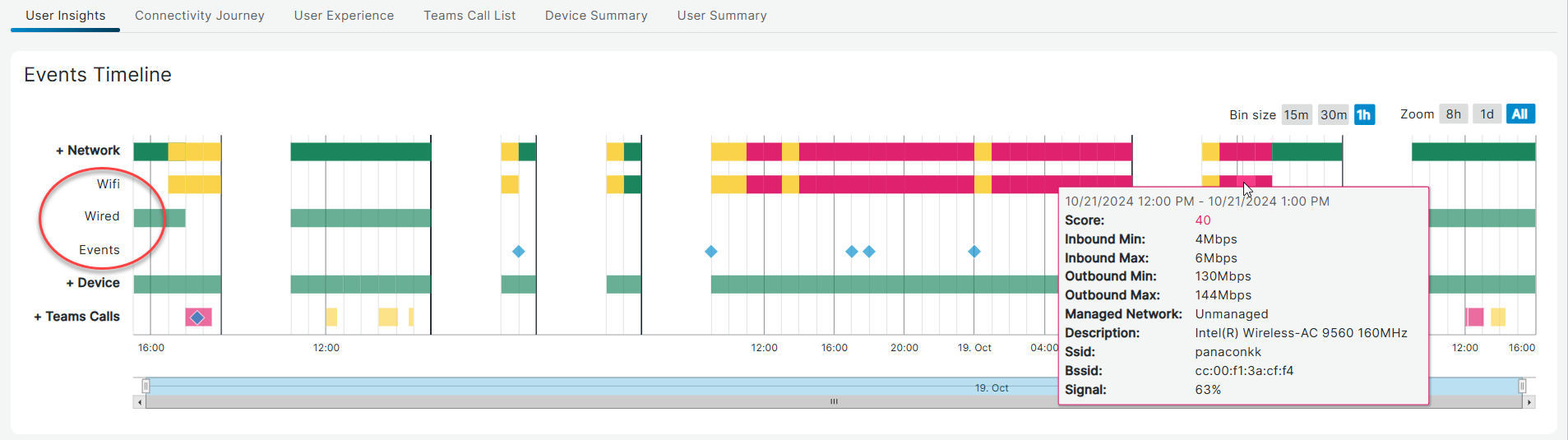
Network is at the top because it is the most critical element throughout the user experience journey. It provides aggregated views for Wifi and Wired Networks. The tooltip information provides all relevant details about the network connection, such as whether the user is using an authenticated network and the network adaptor (Description). Network Events shows Bssid changes, when users change hotspots. This is going to be expanded even further in the near future with more network-related change events.
The Device category shows the perspective from the hardware itself. For instance: "Are my local resources exceeding certain levels (cpu utilization, memory utilization) and therefore do they impact my experience?". Device events are shown for all updated/removed/added events on software applications.
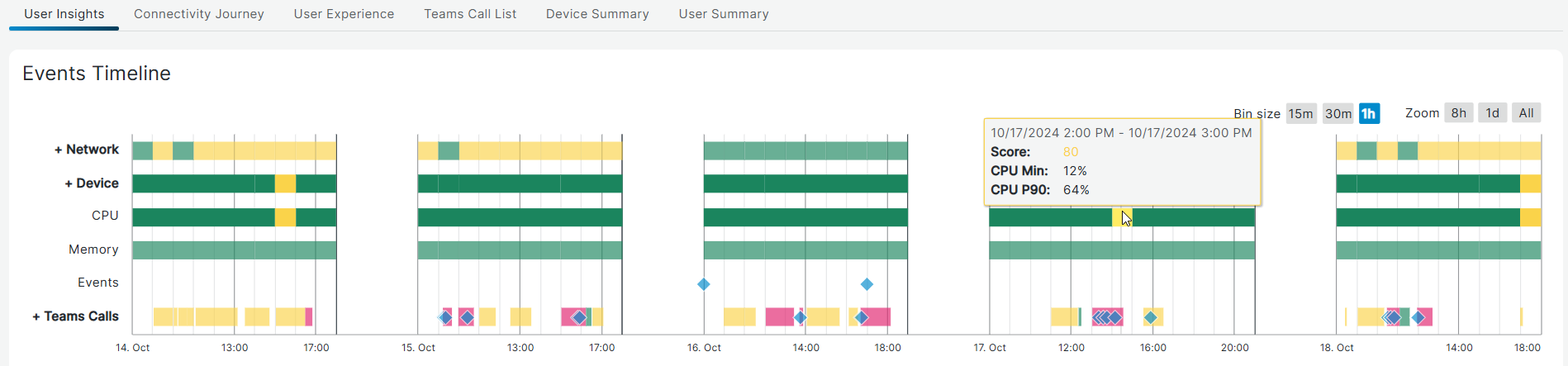
As CPU and Memory can fluctuate greatly throughout the selected time frames, we show the minimal CPU percentage for the time frame as well as the percentage based on the 90th percentile (P90). This ensures extreme outliers don't cause unnecessary alerts.
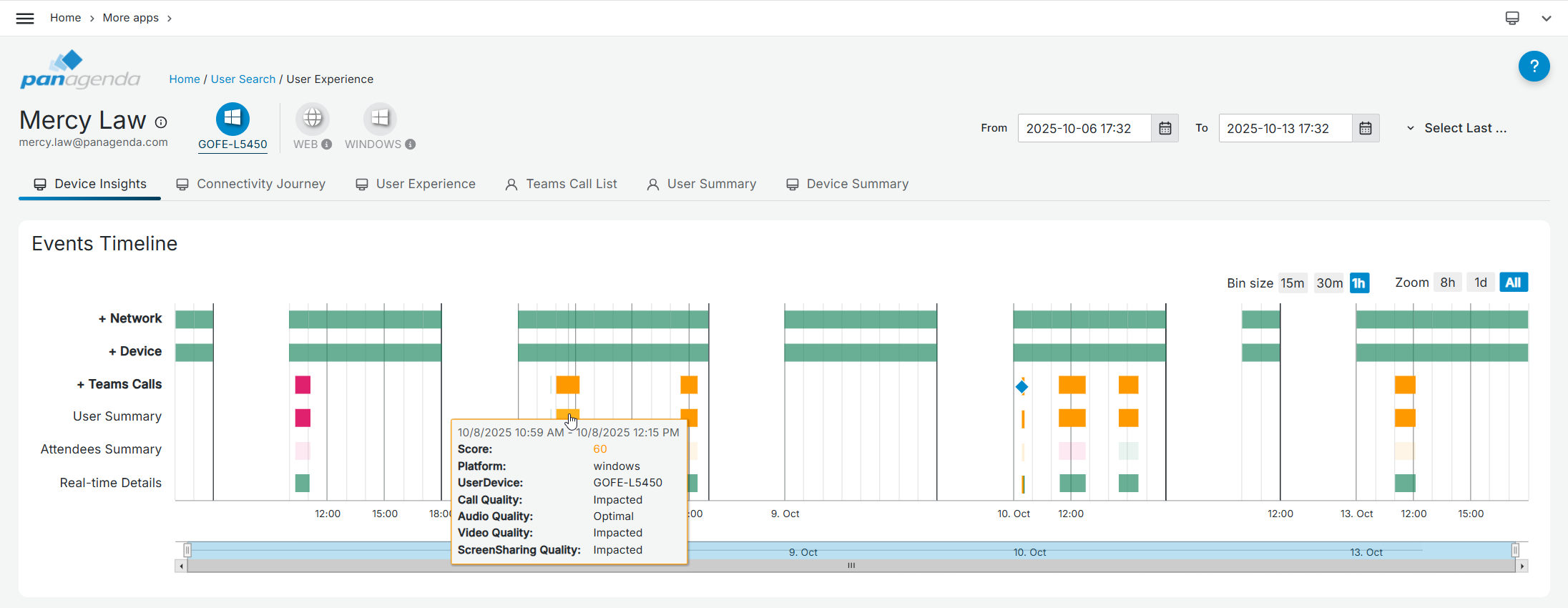
The last category is Teams Calls. It is a timeline view showing you which Teams calls the user participated in, when they joined and left and the call quality score for the user. Note! This line shows all calls the user made, independently of the chosen device (selected at the top). However, the calls made on the selected device are highlighted while the others are colored lighter. This ensures that you always have a full overview of any calls the users made, regardless of the device. Calls where the user switched device mid-call will be marked accordingly. Calls where the user had two devices in the call simultaneously will be highlighted for both devices.
There are 3 child line items when you expand this option.
The roll-up line (parent bar) represents the most impacted measurement for the user (User Summary & Real Time Details combined) and also shows where consecutive audio, video or screen sharing issues occurred.
To see further CQD and or real-time details, click on the call segment.
To specify the period to look at, use the date controls in the upper-right corner (up to 21 days) or focus directly on the timeline itself by highlighting a specific period on the timeline. Use the Bin size and Zoom options to indicate the level of detail (15 minutes to 1 hour) preferred.
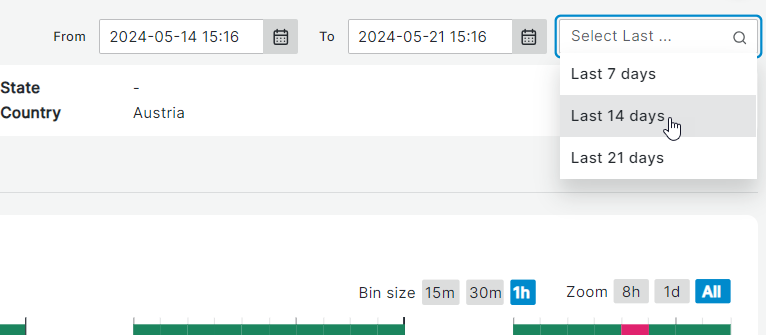
Note! Keep in mind that setting the bin size to a smaller size and/or the covered period to more than the default 7 days can result in a somewhat longer loading time.
We use scores to indicate potential areas of interest. The scoring is done for each of the categories with a score of 0-49 (red) indicating likely issues, 50-84 (yellow) indicating potential impacted quality that might or might not be noticeable by users, and 85-100 (green) indicating no serious or noticeable issues.