Page History
The User Insights page now shows an event line for Networking, device and Call quality information for the selected device (bobbles in the top). It will provide a comprehensive and at-a-glance overview of a user's device activity over the last 7 to 21 days, aiming at showing you: “Everything about this user that I need to see”. you can easily switch device by using the device bubbles in the top.
There are 3 (collapsed) main categories which one sees when opening this view
• Network
• Device
• Teams Calls
Each of them represents an aggregation of scores and metrics provided by the underlying child objects (one can expand the section to see all the child objects)
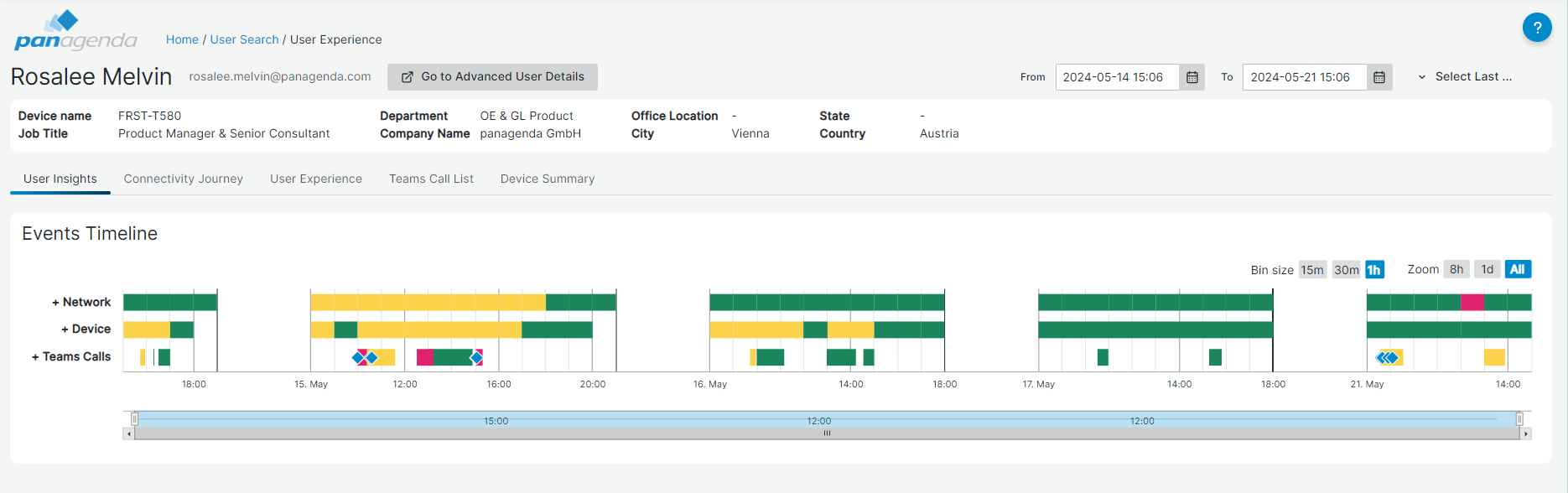
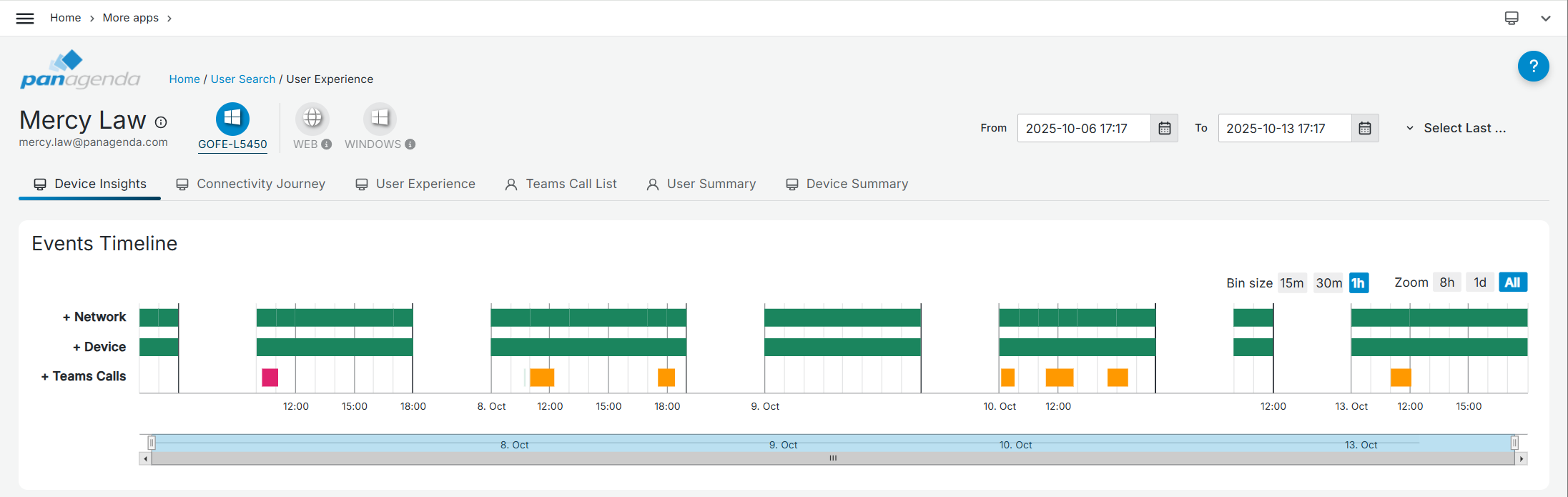
NOTE! The timeline is optimized to display only the periods when data was collected or provided via CQD. This means that it may not show data in case the device is not monitored. It will also optimize the time range shown, which means it may not show the full date/time range specified in the top fields; instead, it focuses on the available data within that period. Similarly, it efficiently uses space by omitting extended periods without data, such as overnight or during the weekend, when devices are offline.
...
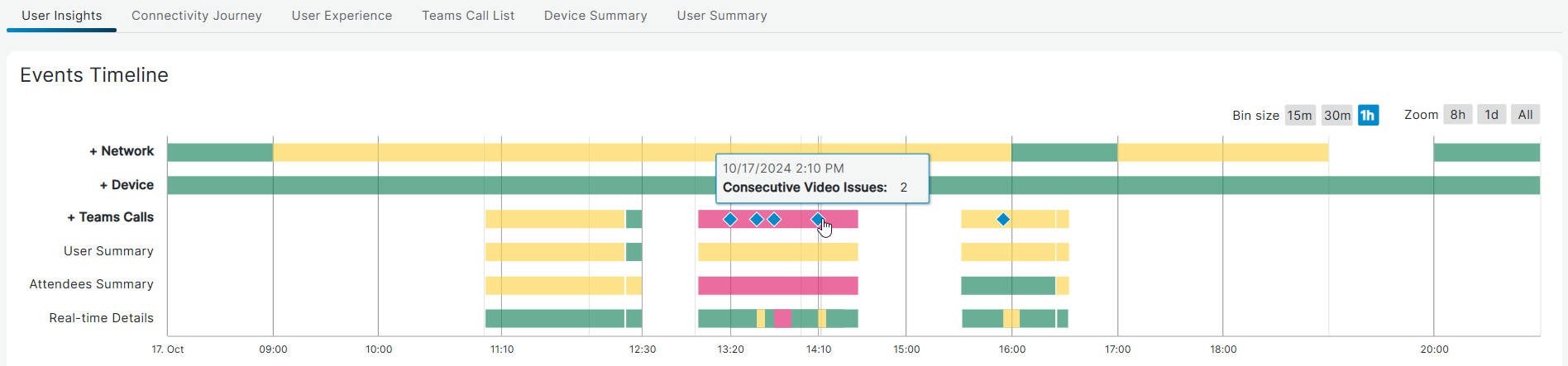
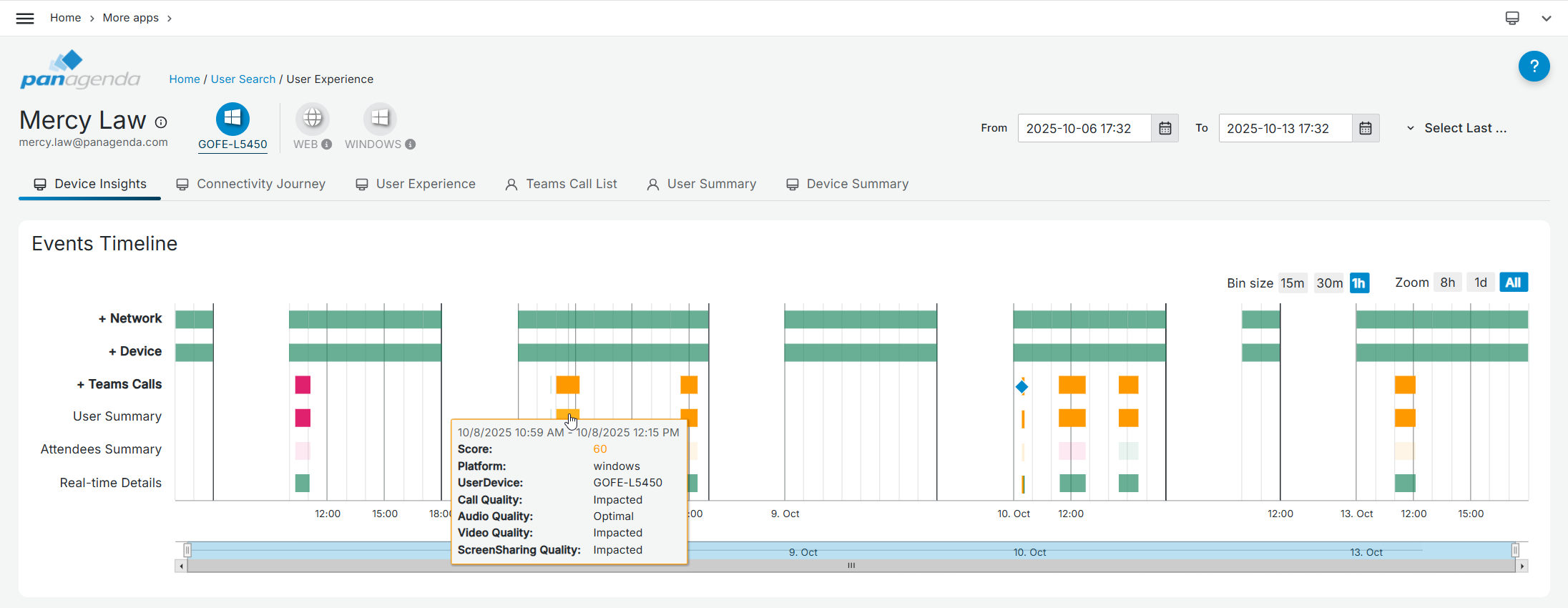
The last category is Teams Calls. It is a timeline view showing you which Teams calls the user participated in, when they joined and left and the call quality score for the user. Note! This line shows all calls the user made, independently of the chosen devise (bubbles in the top). however, the calls made on the selected device are highlighted while the others are colored lighter. This ensures that you always have a full overview of any calls the users made. Calls where the user switched device will be marked accordingly. Calls where the user had two devices in the call simultaneously, will be highlighted for both devices.
There are 3 child line items when you expand this option.
...
To see further CQD and or real time details, click on the call segment.
Usage
To specify the period to look at, use the date controls in the right upper corner (up to 21 days) or focus in directly on the timeline itself by highlighting a specific period on the timeline. Use the Bin size and Zoom options to indicate the level of detail (15 minutes to 1 hour) preferred.
...