
Overview
The iDNA Applications Companion is an AI-assistant plugin for HCL Notes/Domino estate analysis: usage, modernization, source-code remediation and application lifecycle. It adds a curated knowledge wiki and analysis guidance to your AI client and, once connected to the MCP server of your iDNA Applications appliance, answers from your live iDNA data.
The Companion consists of two parts, which every user sets up on each machine:
- The plugin: the knowledge wiki, the "idna-wikilookup" skill and the Companion's operating instructions. The plugin also works on its own: without a connection to iDNA, it answers from the wiki only (restricted wiki mode) and tells you so.
It is installed from panagenda's plugin marketplace on GitHub: - The MCP connection: connects the AI client to your iDNA appliance for live data. It requires that your iDNA administrator has enabled the MCP server (see Setting up the MCP Server in iDNA Applications).
Supported Clients
| Client | Plugin installation | MCP connection |
|---|---|---|
| Claude Cowork (desktop app) | Customize → Plugins | configuration file, through the helper tool mcp-remote (requires Node.js) |
| Claude Code CLI | command line | command line |
| GitHub Copilot App | Customize → Manage marketplaces, Add plugin | Customize → Add → MCP Server |
| GitHub Copilot CLI | command line | configuration file |
| OpenAI ChatGPT/Codex | Customize → Plugins | Settings → Plugins → MCPs, token in an environment variable |
| OpenAI Codex CLI | command line | configuration file, token in an environment variable |
Not supported: claude.ai Chat, and the Chat mode of the Claude desktop app. The Companion's skill depends on other files in its plugin package, which are not available there. In the Claude desktop app, use Cowork or Code.
Limited support: Microsoft Copilot Desktop app. Copilot does not support local MCP connections at the time of releasing iDNA 3.5.0. To keep part of the plugin's capabilities, place the plugin files in the user's OneDrive. Copilot indexes them and can then answer questions about iDNA content and dashboards and help write SQL queries. The plugin files are the folder plugins/idna-companion in the release archive (see Machines Without Access to github.com, step 1).
Prerequisites
- Client: one of the supported clients, installed and signed in.
- Installation source: access to github.com, or an offline copy of the plugin (see Machines Without Access to github.com).
- License: installing or using the plugin is subject to its license, which is part of the plugin and of the repository on GitHub.
- For live data:
- the MCP server is enabled on your iDNA appliance (iDNA Applications 3.5.0 or later),
- your iDNA user has the MCP role (ask your iDNA administrator),
- your machine reaches the appliance over HTTPS (through VPN where applicable),
- a personal MCP token (see the next section).
In all examples below, replace <your iDNA host> with the host name of your iDNA appliance (the one in the address of the iDNA web interface) and <your token> with your MCP token.
Getting Your MCP Token
In the iDNA web interface, click your user name at the top right and select [MCP Tokens]. Enter a label that tells you where the token is used (for example laptop-claude), check the expiry date and click [Create token]. Copy the token right away: it is shown only once. Screenshots and details are in Setting up the MCP Server in iDNA Applications, Step 4.
Note: create one token per machine or client, so that each can be revoked on its own. The clients store the token in plain text, in their configuration or, for OpenAI ChatGPT/Codex, in an environment variable; treat it like a password and do not share it.
Claude Cowork (Desktop App)
Install the Plugin
- In the Claude desktop app, open Cowork and select [Customize].
Note: install the plugin here, not in the Code tab. Plugins installed through Customize are available in Cowork and Code; plugins installed in the Code tab are available in Code only. - Go to [Plugins] and select [+ Add] → [Add marketplace].
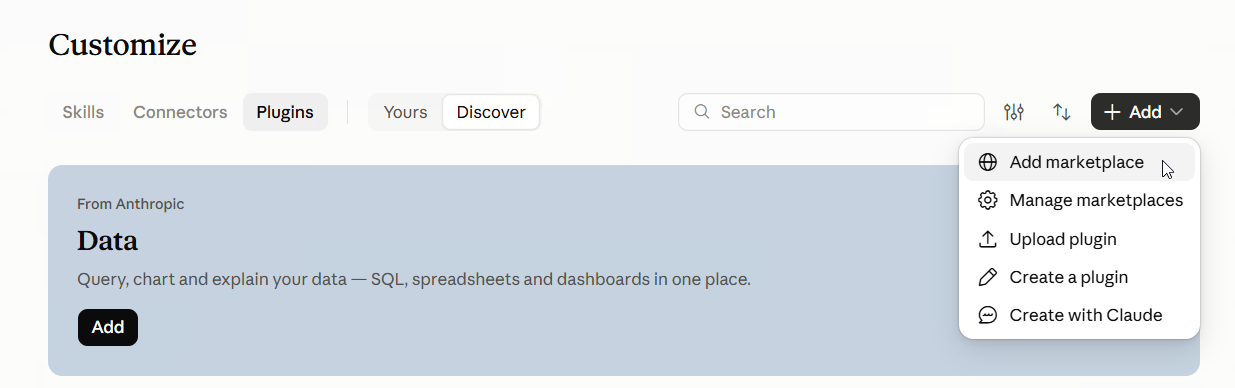
- Enter
https://github.com/panagenda/idna-companion, select it and confirm with [Sync].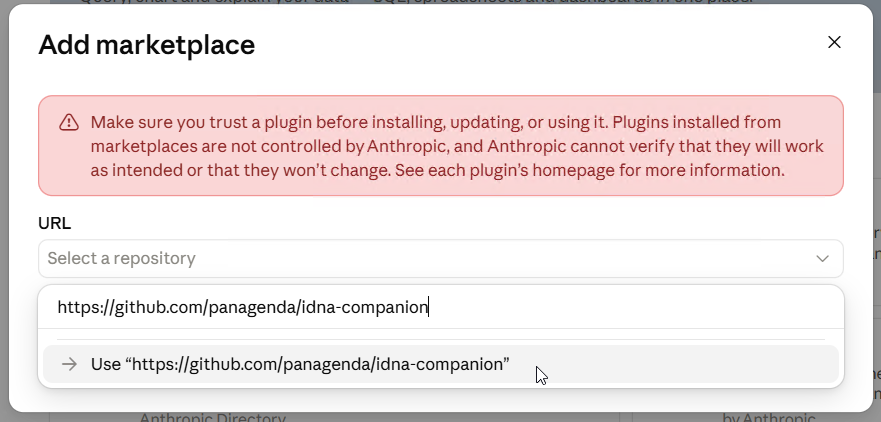
- The marketplace now lists the iDNA Applications Companion. Click [Add] to install it.
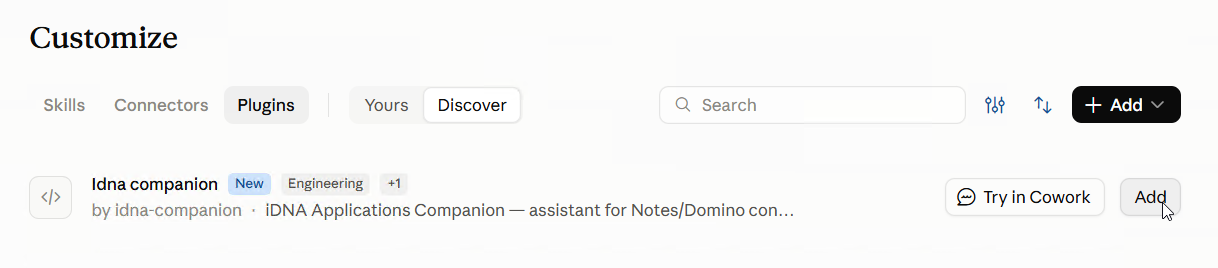
Connect to the MCP Server
The Claude desktop app connects to the MCP server from your machine, through the helper tool mcp-remote. Your iDNA data therefore does not pass through a connection from the Claude cloud to your appliance. The setup is manual, and it requires Node.js.
- Install Node.js from https://nodejs.org/en/download/ if it is not installed yet. To check, run
npm -vin a command prompt. Install mcp-remote:
npm install -g mcp-remote
To check, run
mcp-remote test. The command ends with an error likecode: 'ERR_INVALID_URL', input: 'test', which is expected: it shows that mcp-remote is installed.- Open the configuration: on Windows, the menu (three horizontal bars at the top left) → [File] → [Settings] → [Developer] → [Edit config]; on macOS, [Claude] → [Settings] → [Developer] → [Edit config]. This opens the file
claude_desktop_config.json(or the folder that contains it); open the file in a text editor.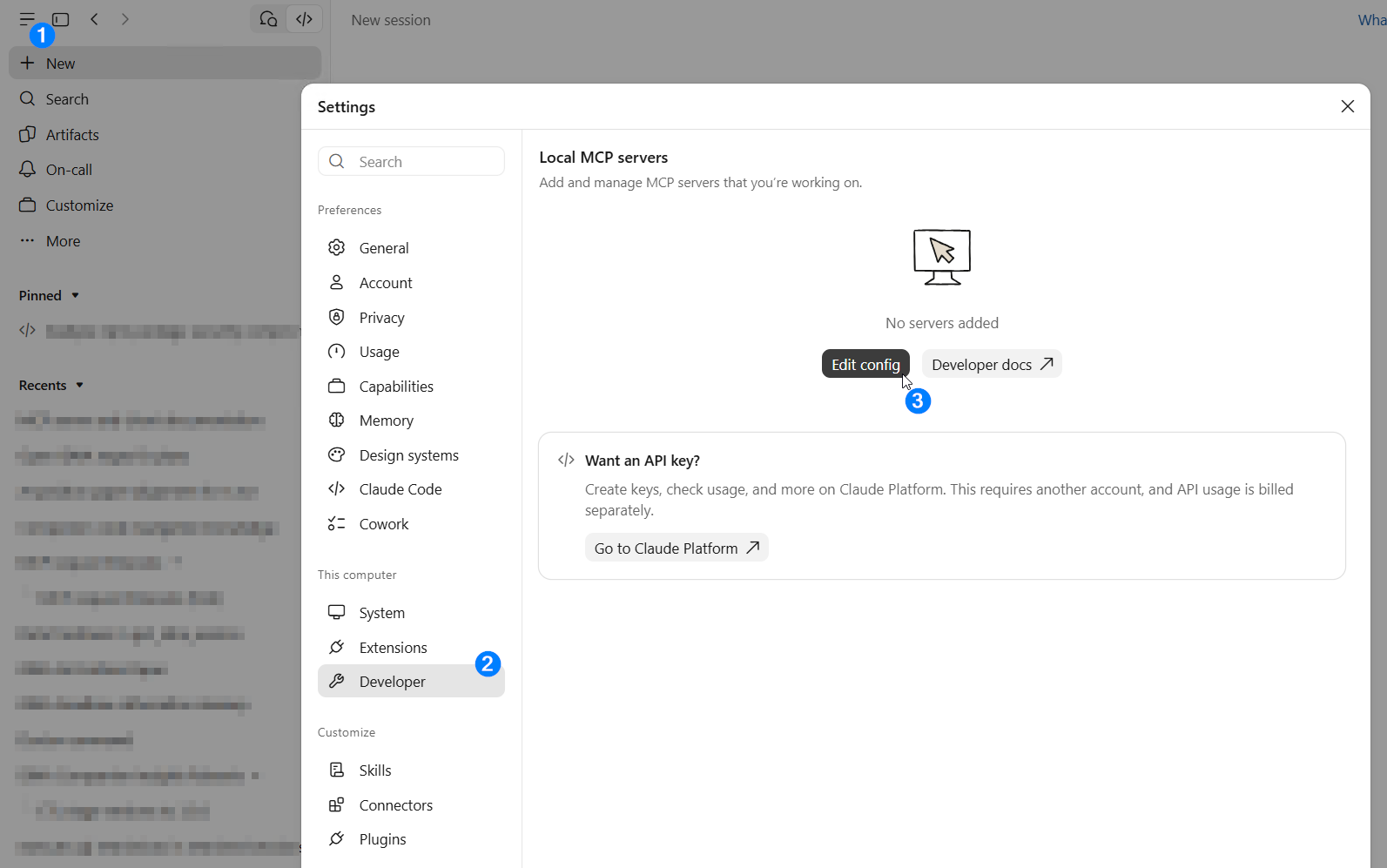
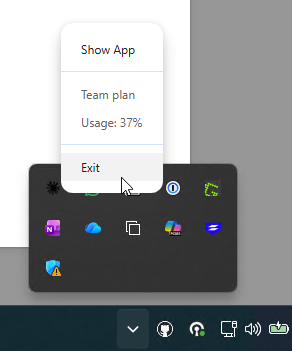
- Exit Claude completely before you edit the file: closing the window is not enough. On Windows, right-click the Claude icon in the notification area of the taskbar and select [Exit]; on macOS, quit Claude.
Add the iDNA Applications entry under
"mcpServers". If the file already contains other settings, keep them and add only the "iDNA Applications" block; if there is no"mcpServers"section yet, add it. Make sure the file remains valid JSON (commas, braces).{ "mcpServers": { "iDNA Applications": { "command": "mcp-remote", "args": [ "https://<your iDNA host>/mcp", "--header", "Authorization: Bearer <your token>" ] } } }- Save the file and start Claude again. In [Settings] → [Developer], the "iDNA Applications" server is now listed as running.
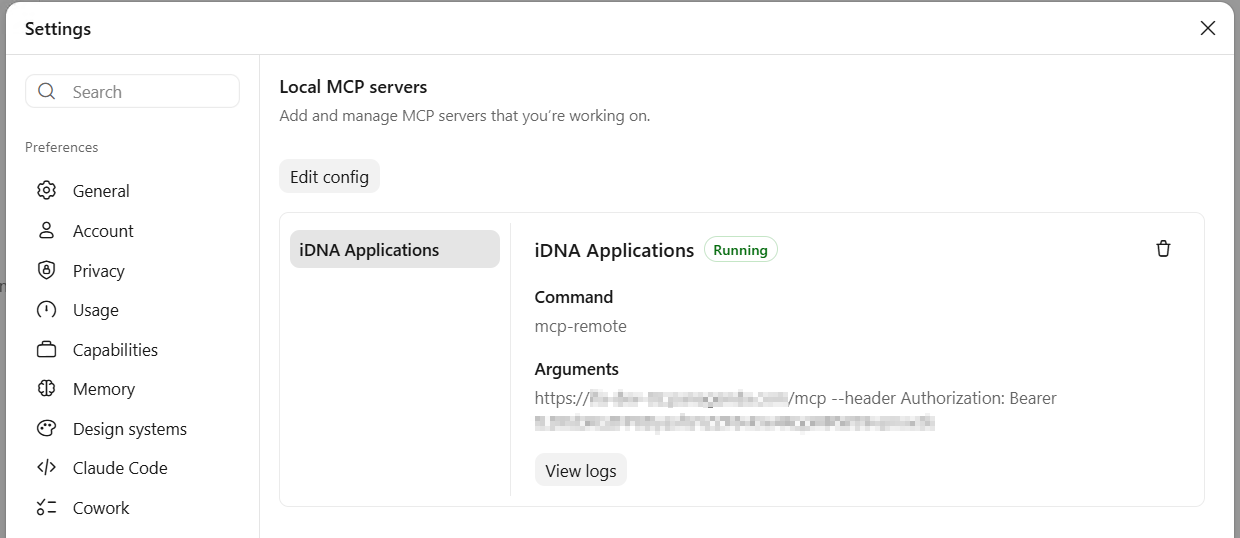
Cowork and the Code tab of the Claude desktop app both use this connection.
Check the Connection
Ask a question in Cowork, for example "What are my most used Notes applications?". In the Context panel on the right, the answer lists "iDNA Applications" under Connectors and "idna-wikilookup" under Skills.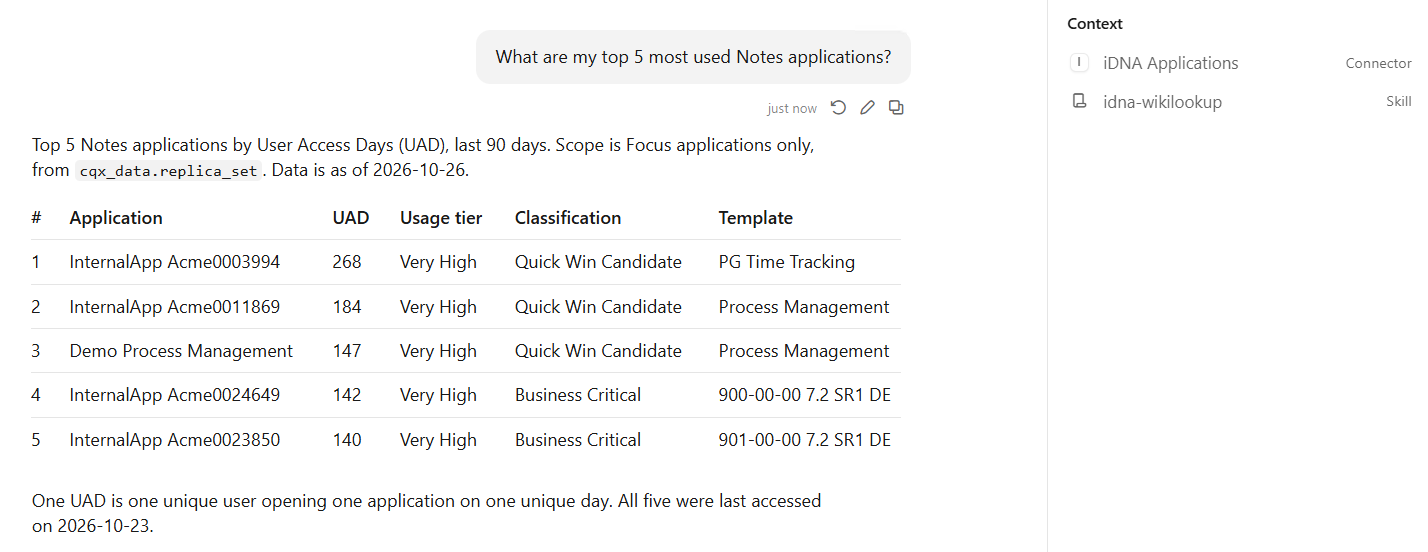
Claude Code CLI
Install the Plugin
claude plugin marketplace add panagenda/idna-companion
claude plugin install idna-companion@panagenda
Inside a Claude Code session, /plugin marketplace add panagenda/idna-companion and /plugin install idna-companion@panagenda do the same.
Connect to the MCP Server
claude mcp add --transport http --scope user "iDNA Applications" https://<your iDNA host>/mcp --header "Authorization: Bearer <your token>"
--scope user makes the server available in all your projects; without it, the server is only available in the current project.
Check the Connection
Run claude mcp list: "iDNA Applications" shows as connected. Inside a session, /mcp shows the same. Start a new session after installing the plugin or adding the server.
GitHub Copilot App
Install the Plugin
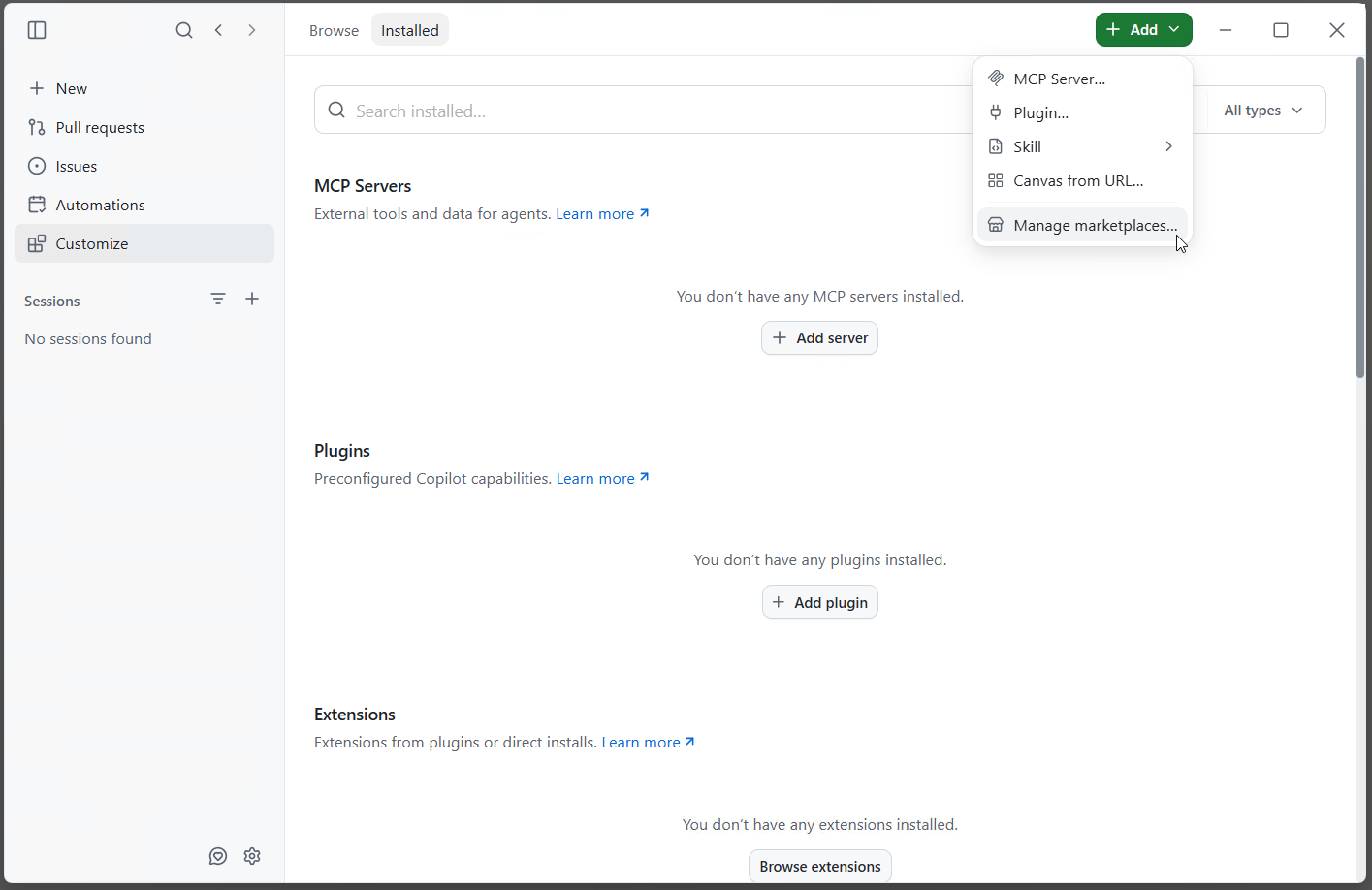
- Open [Customize] in the left bar and select [+ Add ▾] → [Manage marketplaces...].
- Under Source, enter
https://github.com/panagenda/idna-companionand click [Add].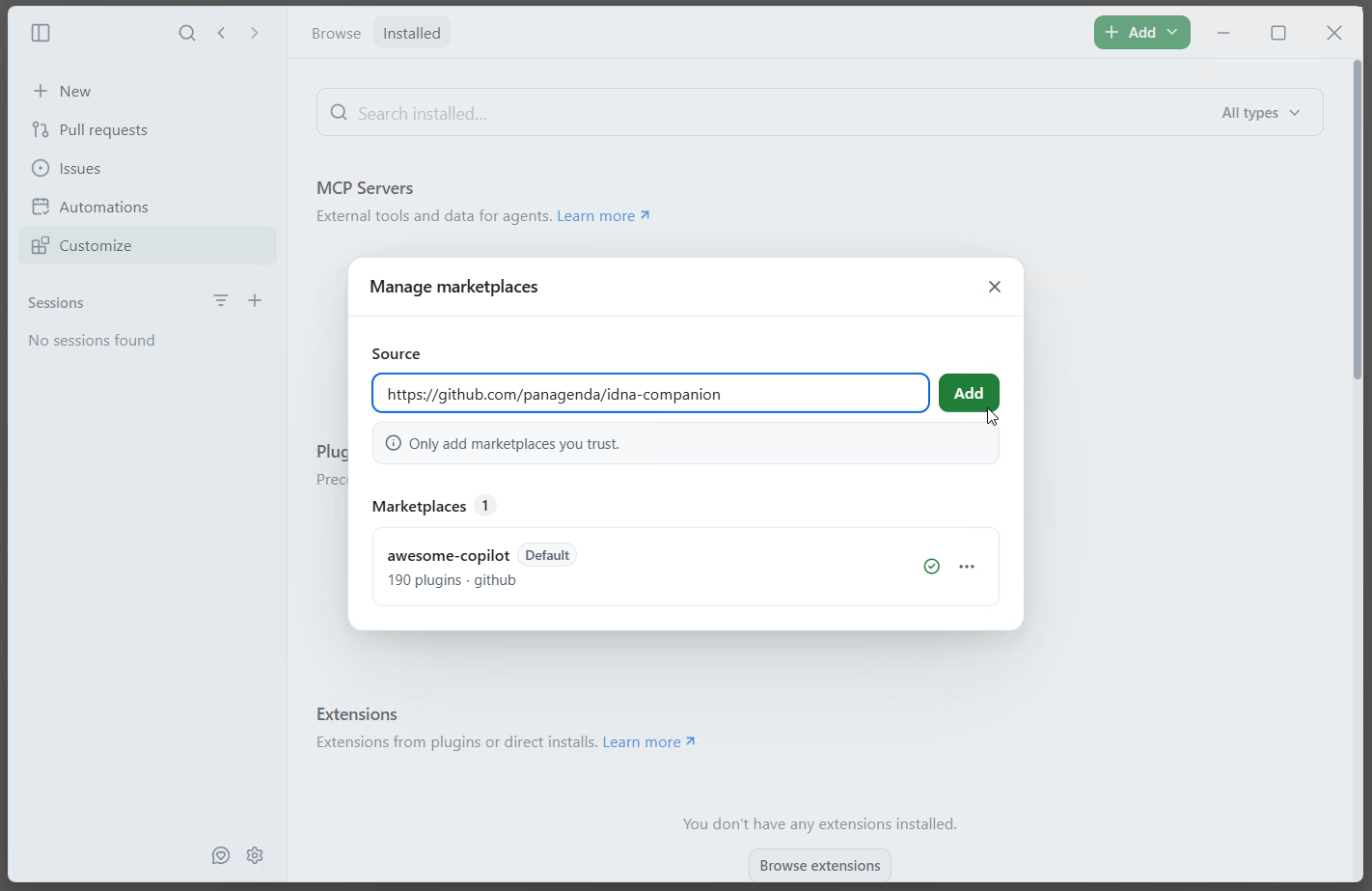
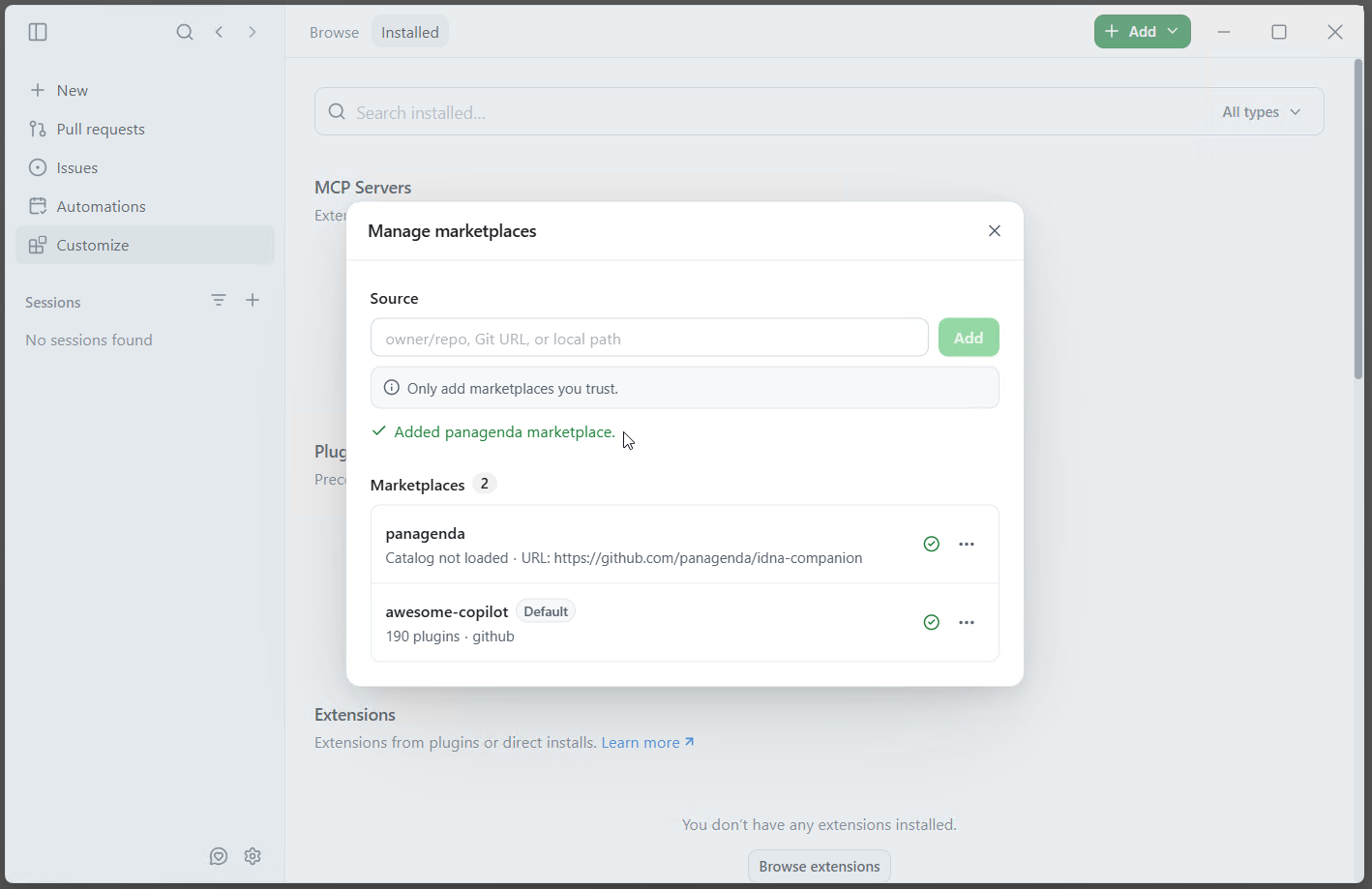
- The dialog confirms "Added panagenda marketplace" and lists the panagenda marketplace. Close the dialog.
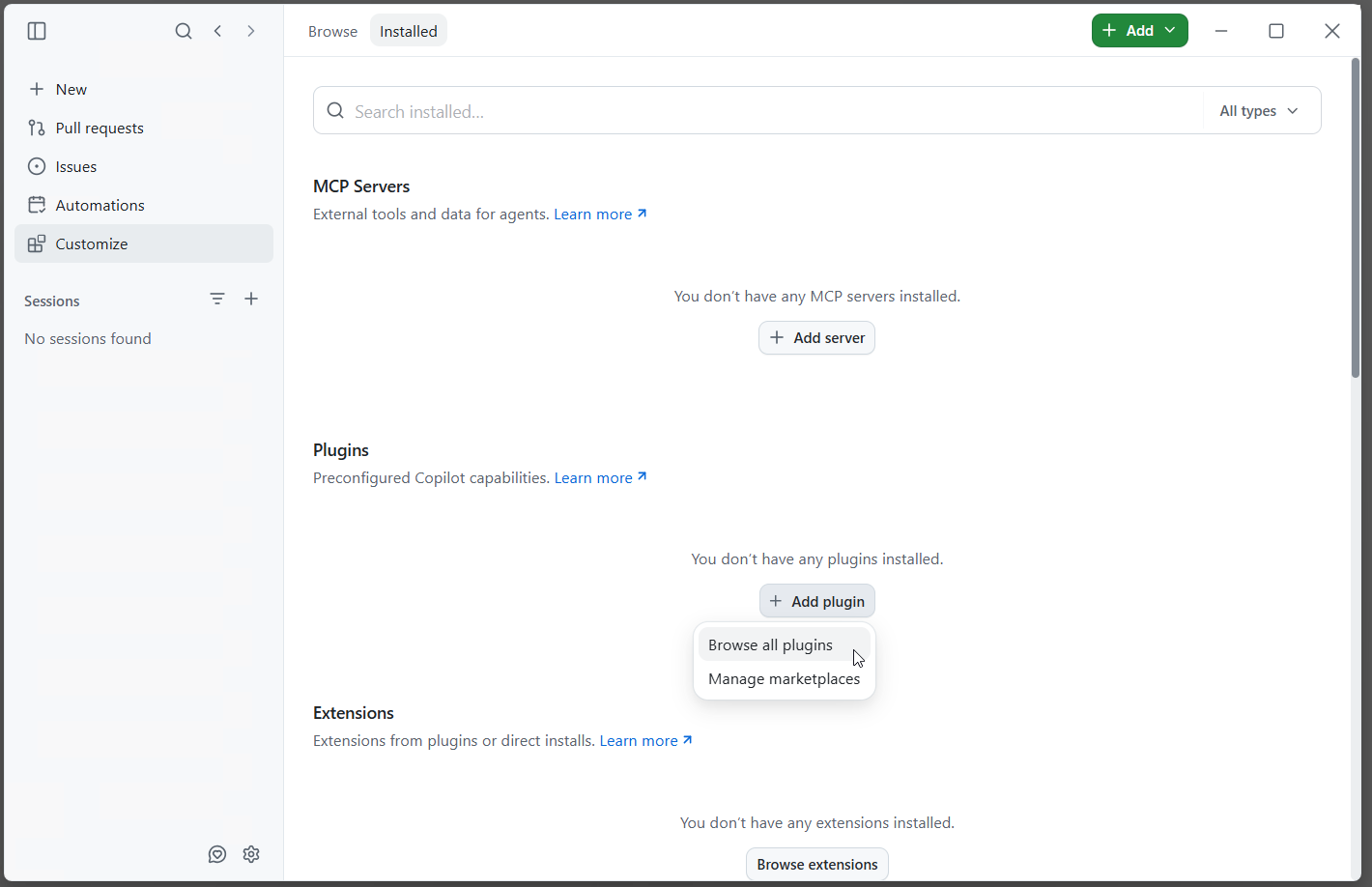
- Under Plugins, select [+ Add plugin] → [Browse all plugins].
- Search for
idnaand click [+ Install] next to idna-companion.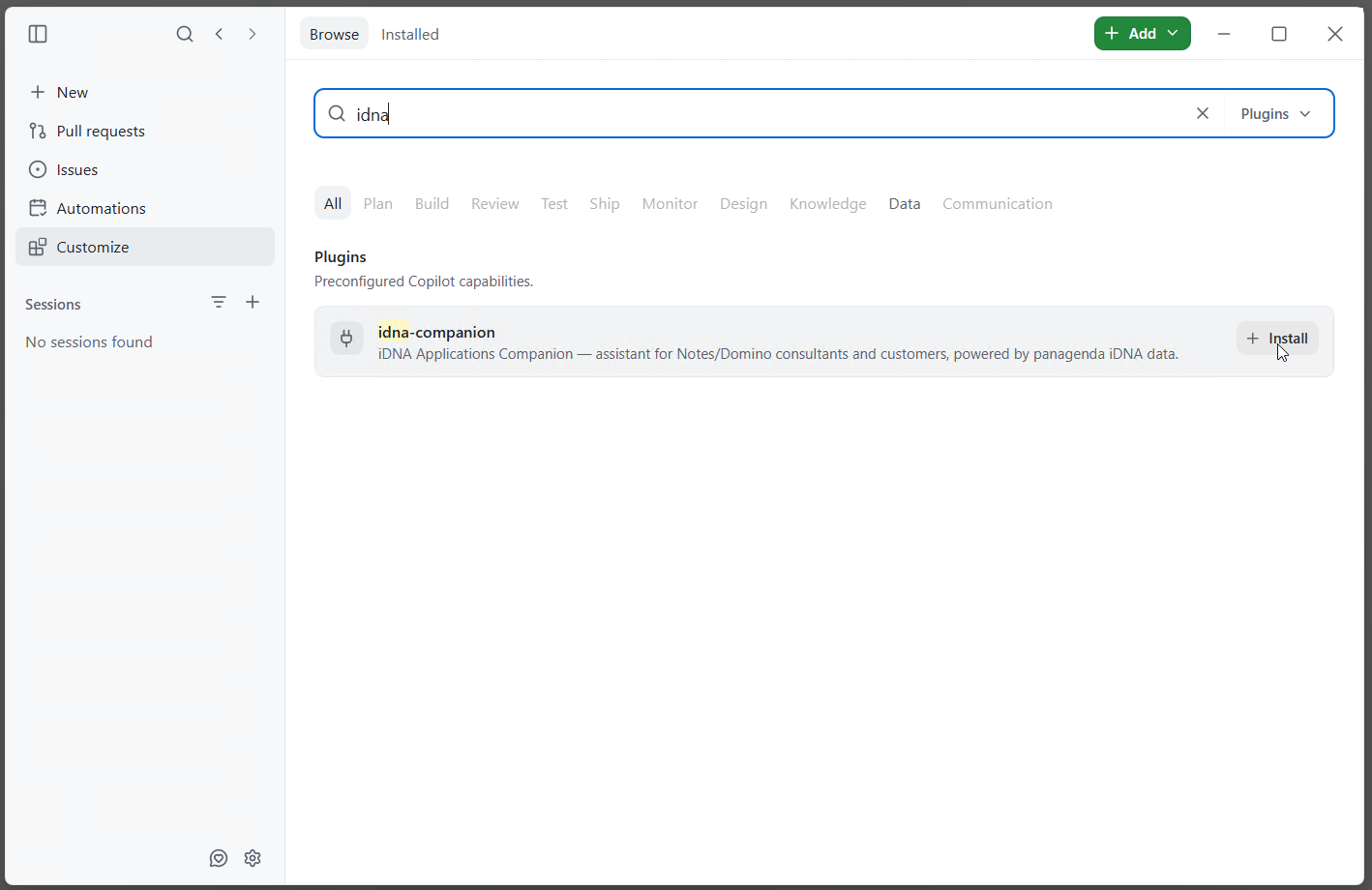
- Under [Installed], the plugin is now listed under Plugins with "Marketplace: panagenda" and is enabled.
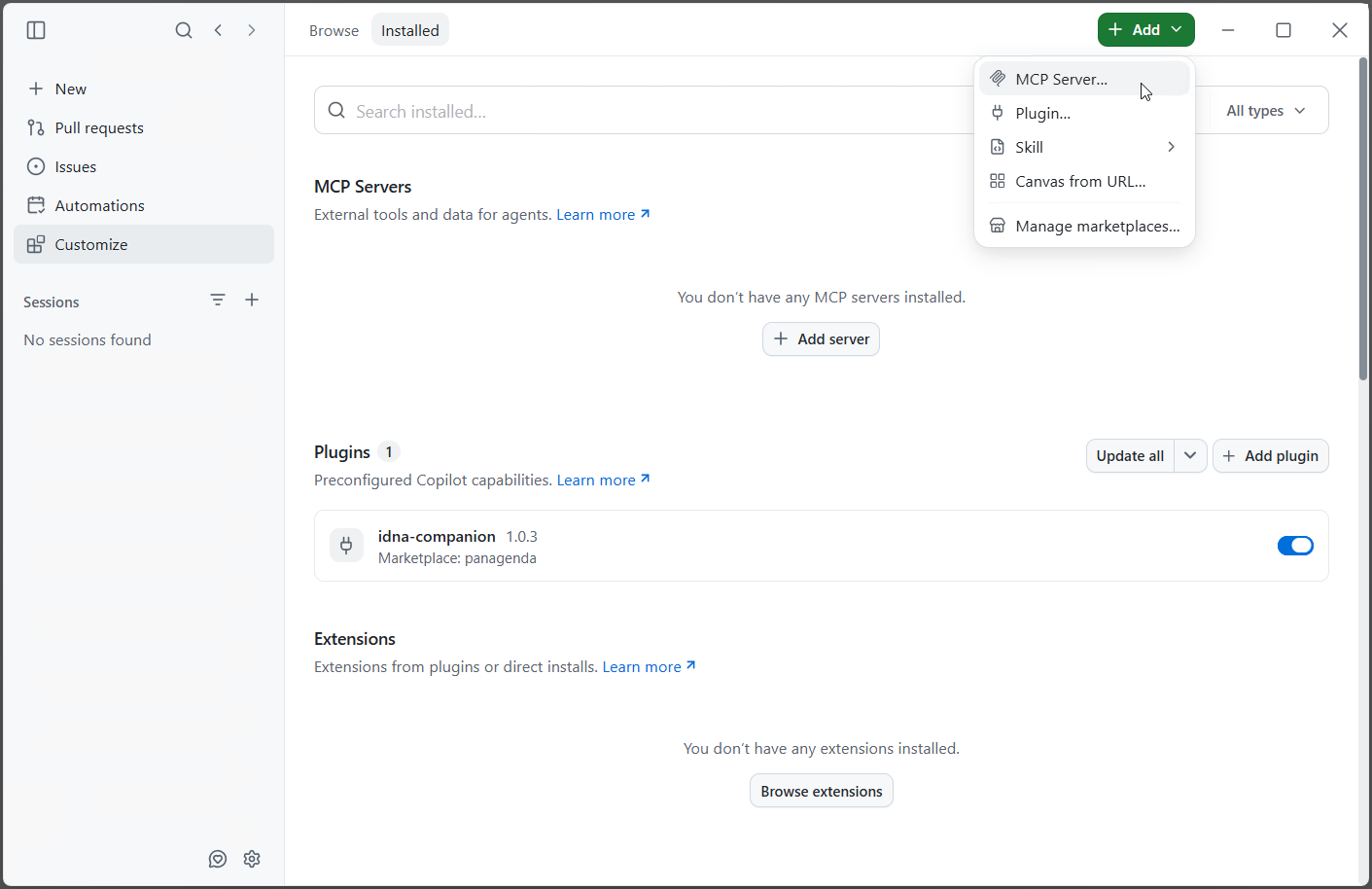
Connect to the MCP Server
- In [Customize], select [+ Add ▾] → [MCP Server...] (see the previous screenshot), or click [+ Add server] under MCP Servers.
- Enter:
- Server name:
iDNA Applications - Server type: HTTP
- URL:
https://<your iDNA host>/mcp - Headers: Name
Authorization, ValueBearer <your token>
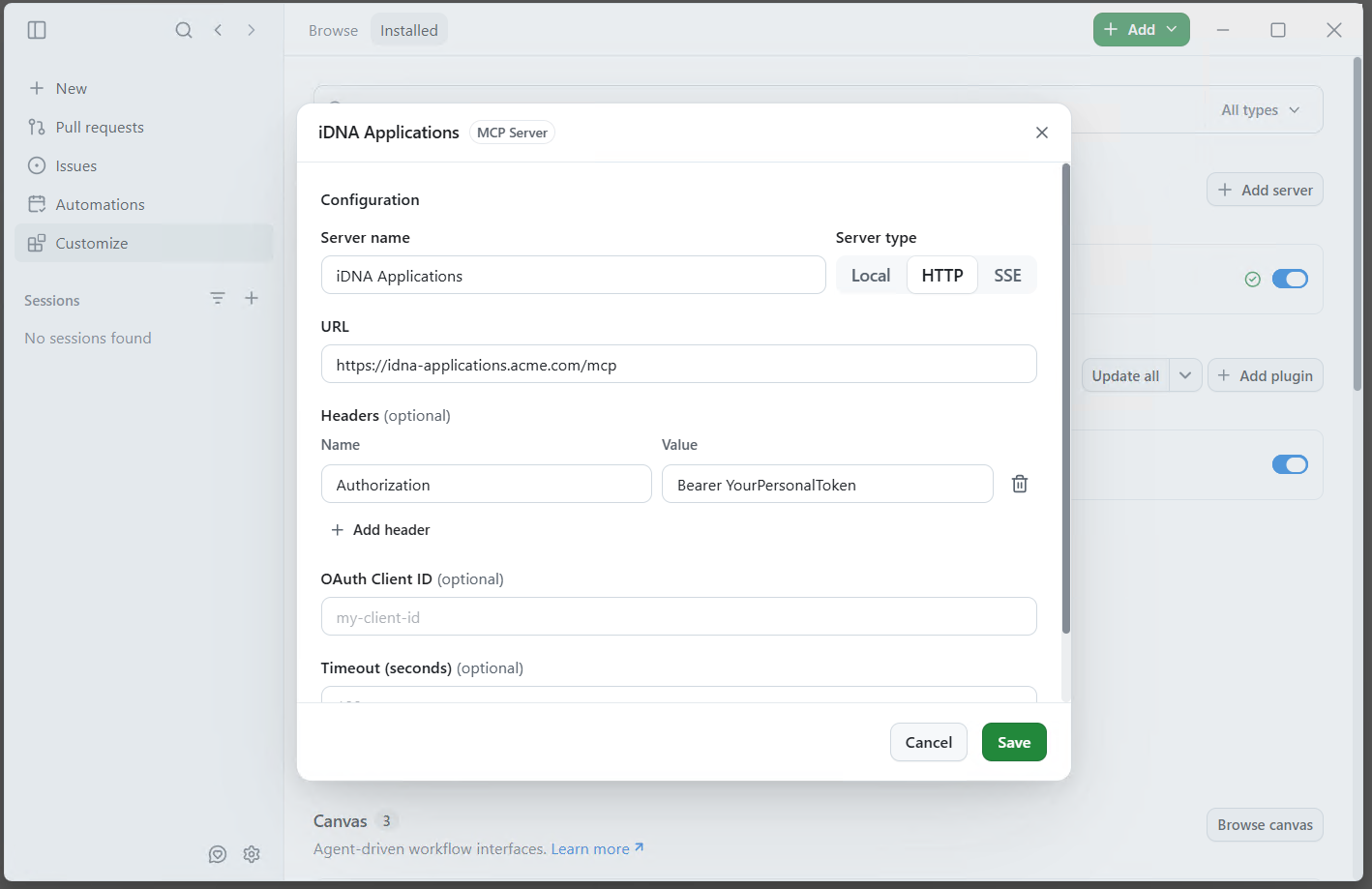
- Server name:
Check the Connection
Under MCP Servers, "iDNA Applications" is listed with a green check mark and is enabled.

Ask an iDNA or Notes question in any chat, for example "What are my most used Notes applications?". The Companion's skill activates on such questions automatically. In a connected session, the "idna-wikilookup" skill loads and a "Get Idna Session" tool call succeeds.
GitHub Copilot CLI
Install the Plugin
copilot plugin marketplace add panagenda/idna-companion
copilot plugin install idna-companion@panagenda
Connect to the MCP Server
Add the server to ~/.copilot/mcp-config.json (keep any other entries in the file):
{
  "mcpServers": {
    "iDNA Applications": {
      "type": "http",
      "url": "https://<your iDNA host>/mcp",
      "headers": {
        "Authorization": "Bearer <your token>"
      }
    }
  }
}
Note: the Copilot App on Windows and a Copilot CLI inside WSL do not share their configuration. Each needs its own plugin installation and MCP entry.
Check the Connection
Ask an iDNA or Notes question in a new session. In a connected session, the "idna-wikilookup" skill loads and a "Get Idna Session" tool call succeeds.
OpenAI ChatGPT/Codex
This section describes the OpenAI desktop app. For the Codex command line, see OpenAI Codex CLI.
Install the Plugin
- Open [Customize] in the left bar, go to [Plugins] and select [Add ▾] → [Add a marketplace].
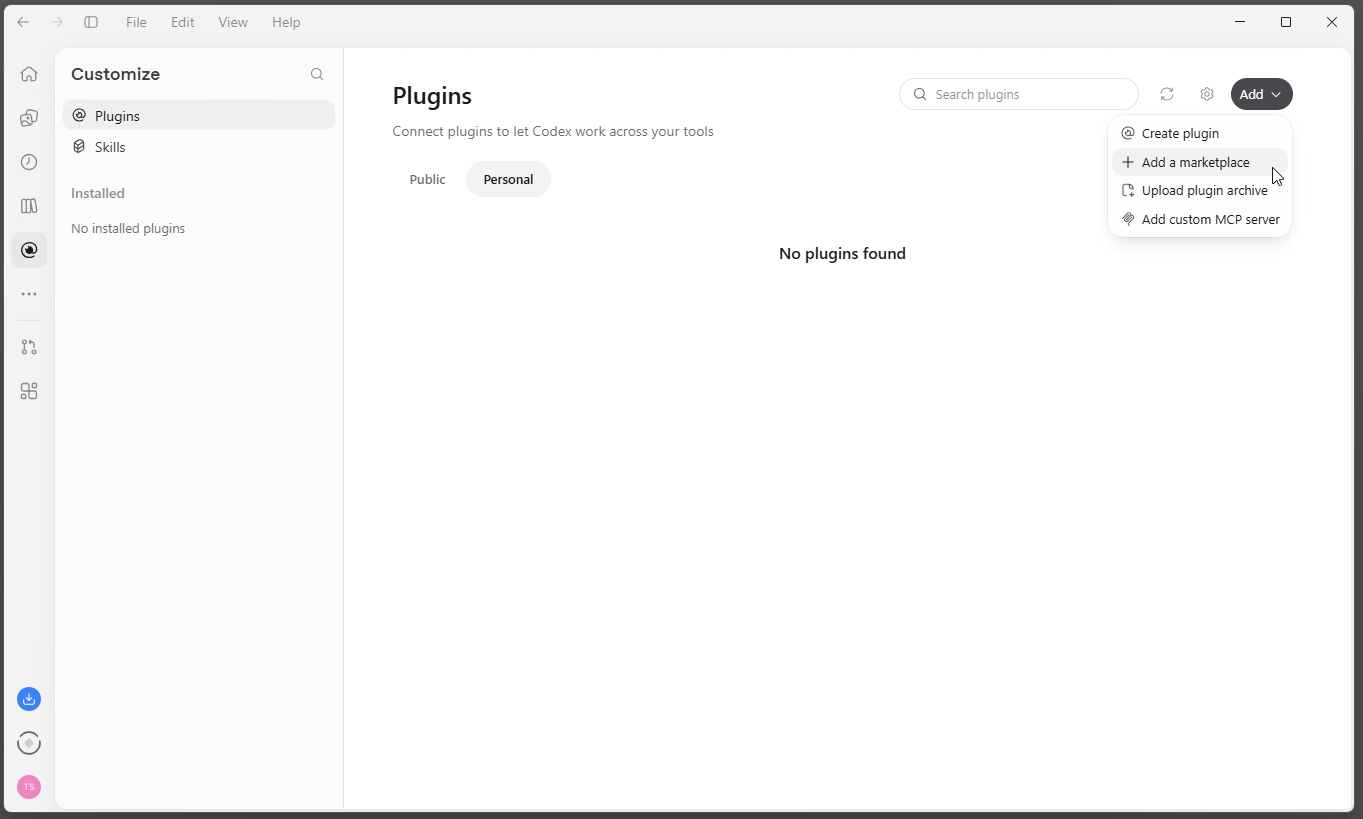
- Under Source, enter
https://github.com/panagenda/idna-companion. Leave Git ref and Sparse paths empty and click [Add marketplace].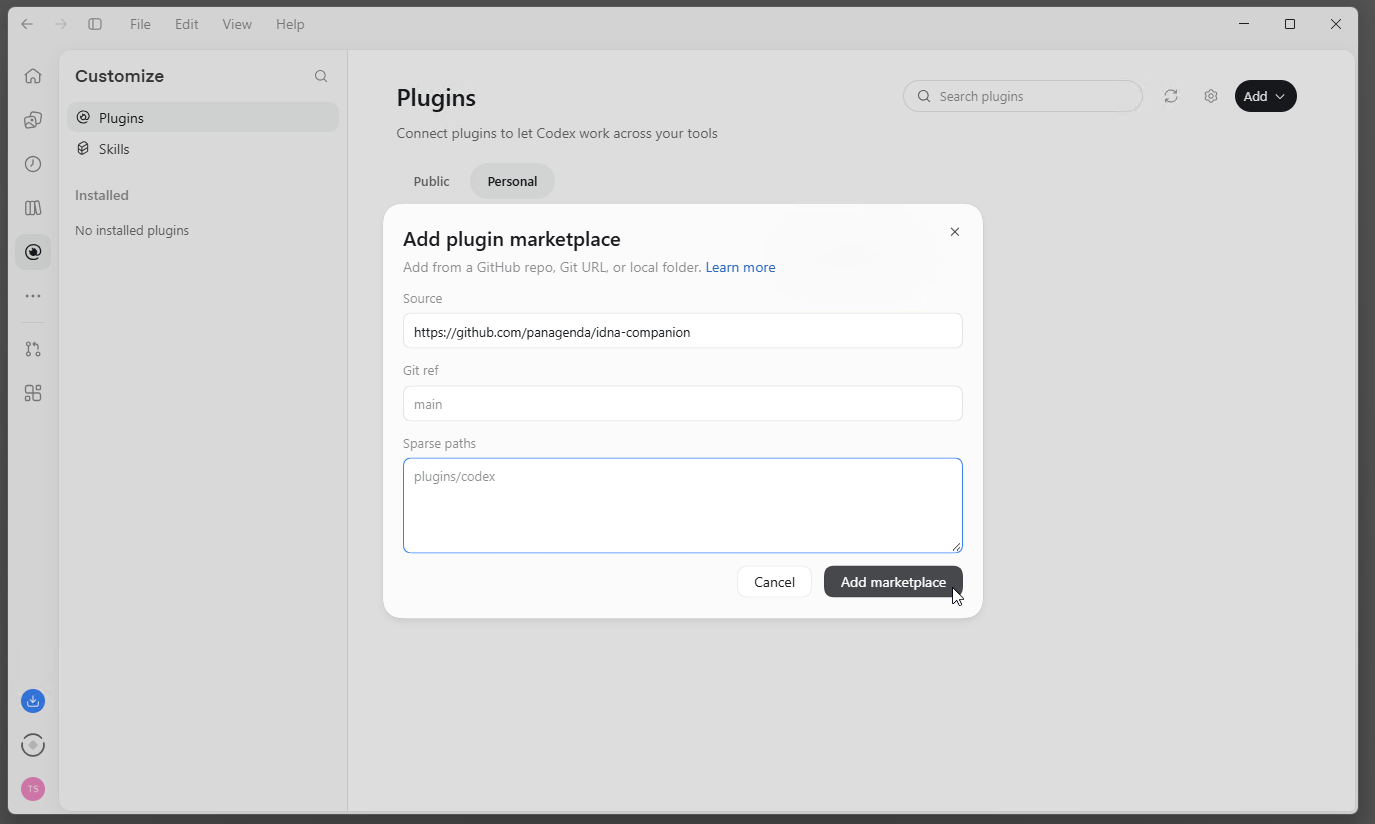
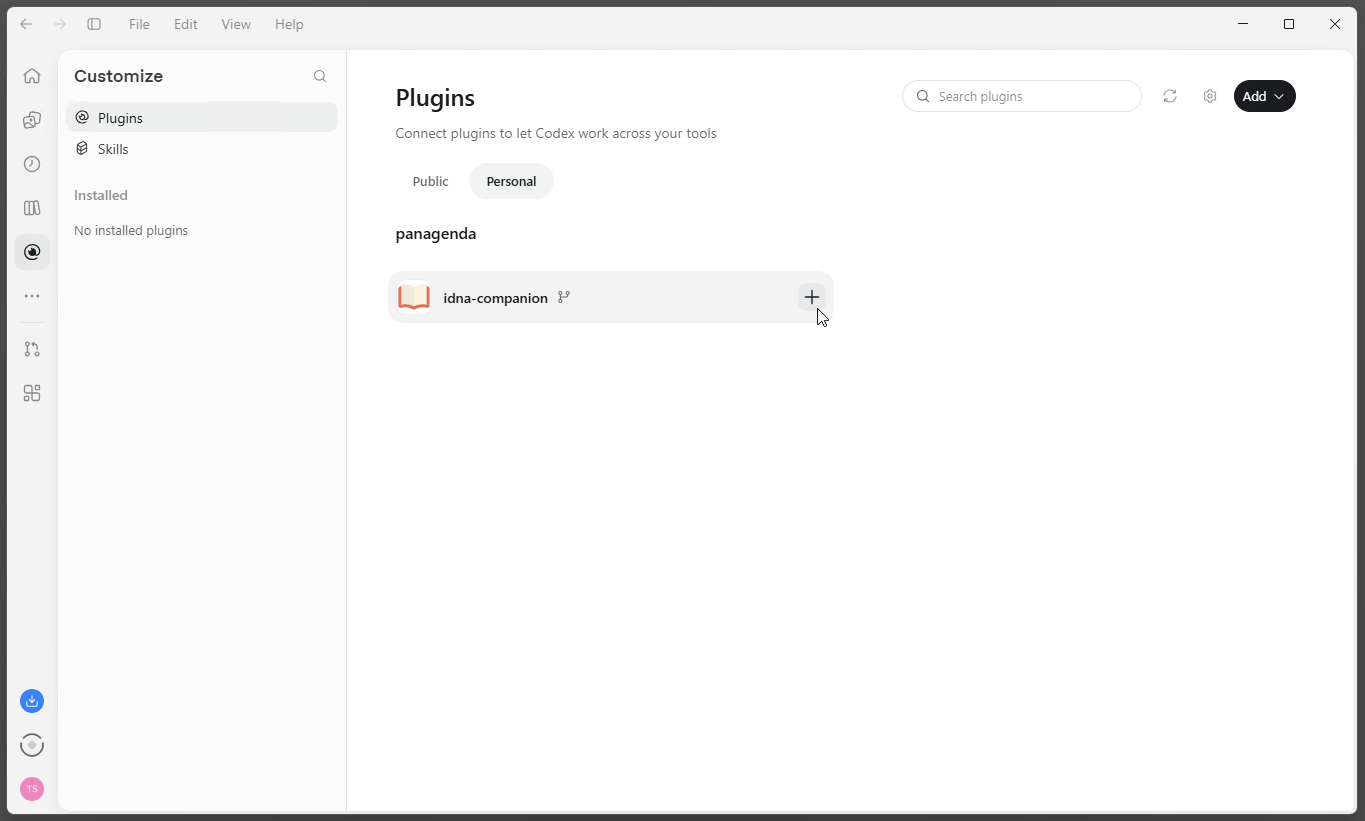
- In the [Personal] tab, the panagenda marketplace now lists idna-companion. Click [+] to install it.
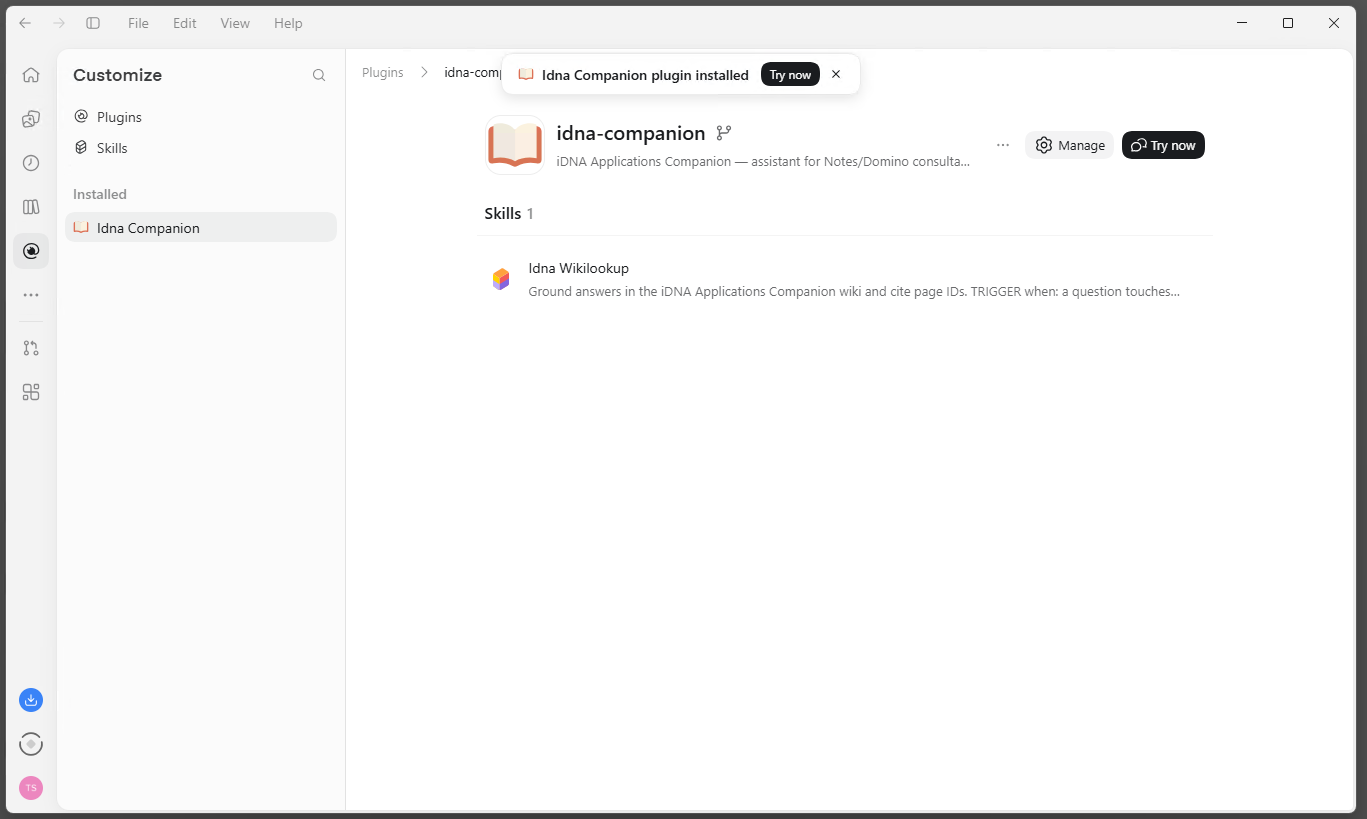
- The app confirms the installation, and the plugin's page lists the skill "Idna Wikilookup".
Connect to the MCP Server
The app reads your token from an environment variable, so the token is not stored in the app's configuration.
- Store your token in a user environment variable named
IDNA_MCP_TOKEN. On Windows: search the Start menu for "environment variables", open "Edit environment variables for your account", click [New...] under User variables, enterIDNA_MCP_TOKENas the name and your token as the value, and confirm with [OK]. - Quit the app and start it again. It reads environment variables only at startup.
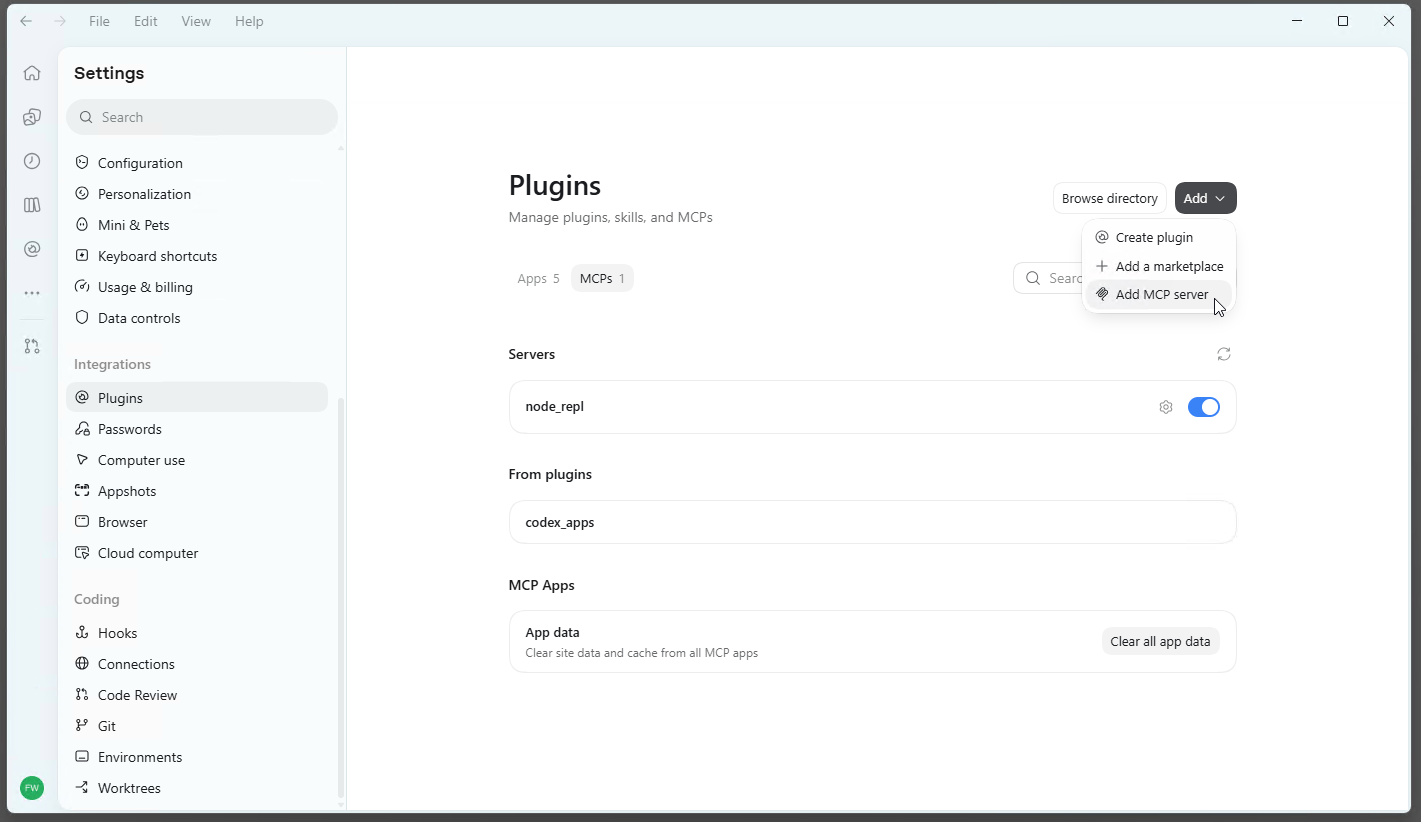
- Open the settings, select [Plugins] under Integrations and the [MCPs] tab, then select [Add ▾] → [Add MCP server].
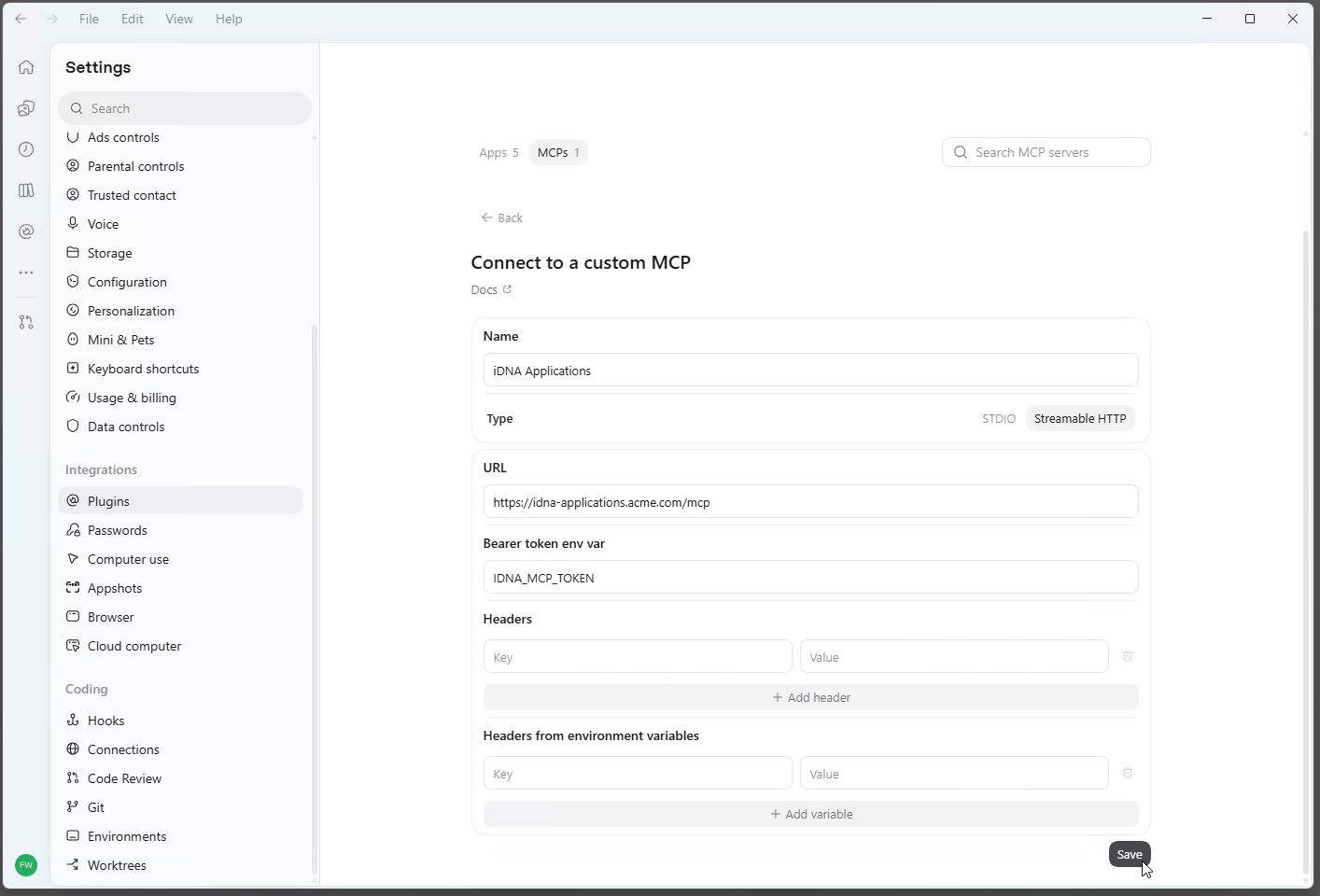
- Enter:
- Name:
iDNA Applications - Type: Streamable HTTP
- URL:
https://<your iDNA host>/mcp - Bearer token env var:
IDNA_MCP_TOKEN(the name of the variable, not the token)
- Name:
When you replace your token, update the variable and restart the app; the MCP server entry stays as it is.
Check the Connection
The MCPs tab lists "iDNA Applications" under Servers as enabled. Start a new chat and ask an iDNA or Notes question, for example "What are my most used Notes applications?". In a connected session, the "Idna Wikilookup" skill loads and a "Get Idna Session" tool call succeeds.
OpenAI Codex CLI
Install the Plugin
codex plugin marketplace add panagenda/idna-companion
Then install "idna-companion" from the marketplace: type /plugins in the Codex terminal interface.
Connect to the MCP Server
Store your token in the user environment variable IDNA_MCP_TOKEN as described under OpenAI ChatGPT/Codex, then add the server to ~/.codex/config.toml:
[mcp_servers.idna_applications]
url = "https://<your iDNA host>/mcp"
bearer_token_env_var = "IDNA_MCP_TOKEN"
Open a new terminal afterwards, so that Codex sees the variable.
Check the Connection
Run codex mcp list, or type /mcp in the Codex terminal interface: "idna_applications" is listed.
Machines Without Access to github.com
Supported for the GitHub Copilot App, the GitHub Copilot CLI and Claude Code.
- On a machine that can reach GitHub, download the archive of a release:
https://github.com/panagenda/idna-companion/archive/refs/tags/v<version>.zip. - On the target machine, unzip it. This creates a folder
idna-companion-<version>. Copy that folder's contents into a fixed folder that stays in place, for exampleC:\panagenda\idna-companion-marketplace. The client may load the plugin from there, so do not delete or move it. - Register the fixed folder as a marketplace and install the plugin:
- GitHub Copilot App: [Manage marketplaces...] → the folder path as Source, then [Add plugin] → [Browse all plugins] → [Install] next to idna-companion.
- GitHub Copilot CLI:
copilot plugin marketplace add <folder>, thencopilot plugin install idna-companion@panagenda. - Claude Code:
claude plugin marketplace add <absolute folder path>, thenclaude plugin install idna-companion@panagenda.
To update, replace the fixed folder's contents with those of the new release, then refresh the marketplace and update the plugin as described under Updating. In the GitHub Copilot App, reinstall the plugin from the refreshed marketplace.
Updating
Marketplace installations receive new releases from the GitHub repository:
- Cowork: the marketplace's [Update] action.
- Claude Code:
claude plugin marketplace update panagenda, thenclaude plugin update idna-companion@panagenda; restart the session to apply. - GitHub Copilot CLI:
copilot plugin marketplace update panagenda, thencopilot plugin update idna-companion@panagenda. - GitHub Copilot App: [Update all] next to Plugins in [Customize].
- Other clients: reinstall the plugin from the refreshed marketplace.
Each release is tagged v<version>; its commit message on GitHub says what changed.
Switching from an Earlier Installation
GitHub Copilot and Claude Code register a marketplace by its name, and panagenda's marketplace is named panagenda. If a marketplace named panagenda from another source is already registered (for example an earlier test installation or a zip folder), remove it and its plugin first:
- GitHub Copilot CLI:
copilot plugin marketplace remove panagenda --force(this also uninstalls its plugins). - Claude Code:
claude plugin marketplace remove panagenda(this also removes its plugins). - Cowork and GitHub Copilot App: uninstall the Companion and remove the
panagendamarketplace in the plugin settings.
Then install as described above, start a new session and check the plugin's version.
Choosing the AI Model
In GitHub Copilot and OpenAI ChatGPT/Codex, you choose the AI model per session. How reliably the Companion follows its restricted-mode rules (which analysis paths it offers and explains) depends on the model: the most capable models follow them best, smaller models less reliably. Organizations that operate MCP in restricted mode should standardize on the strongest available model for Companion sessions. Access to the data itself is enforced by your iDNA appliance and does not depend on the model.
Connecting to a Local LLM
The Companion does not depend on a particular model provider. Clients that can use a language model running in your own network let you work with the Companion without a cloud AI provider. The GitHub Copilot App is one such client and is easy to set up, so it is shown here as an example. Its support for other model providers is in public preview.
Prerequisites:
- The plugin and the MCP connection are set up in the GitHub Copilot App (see GitHub Copilot App).
- A model server that your machine can reach, for example Ollama, with a model that supports tool calling: the Companion works with iDNA data through MCP tools. In Ollama's model library, these models are tagged "tools".
- Open the settings (gear icon at the bottom left), select [Model providers] and click [Add provider]. Select [Ollama (local)].
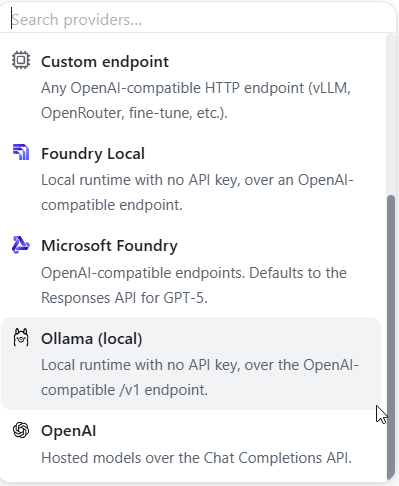
- Enter a display name and the Base URL of the Ollama server:
http://localhost:11434/v1if Ollama runs on the same machine, otherwisehttp://<Ollama host>:11434/v1. Save the provider. The models of the Ollama server are now listed under it.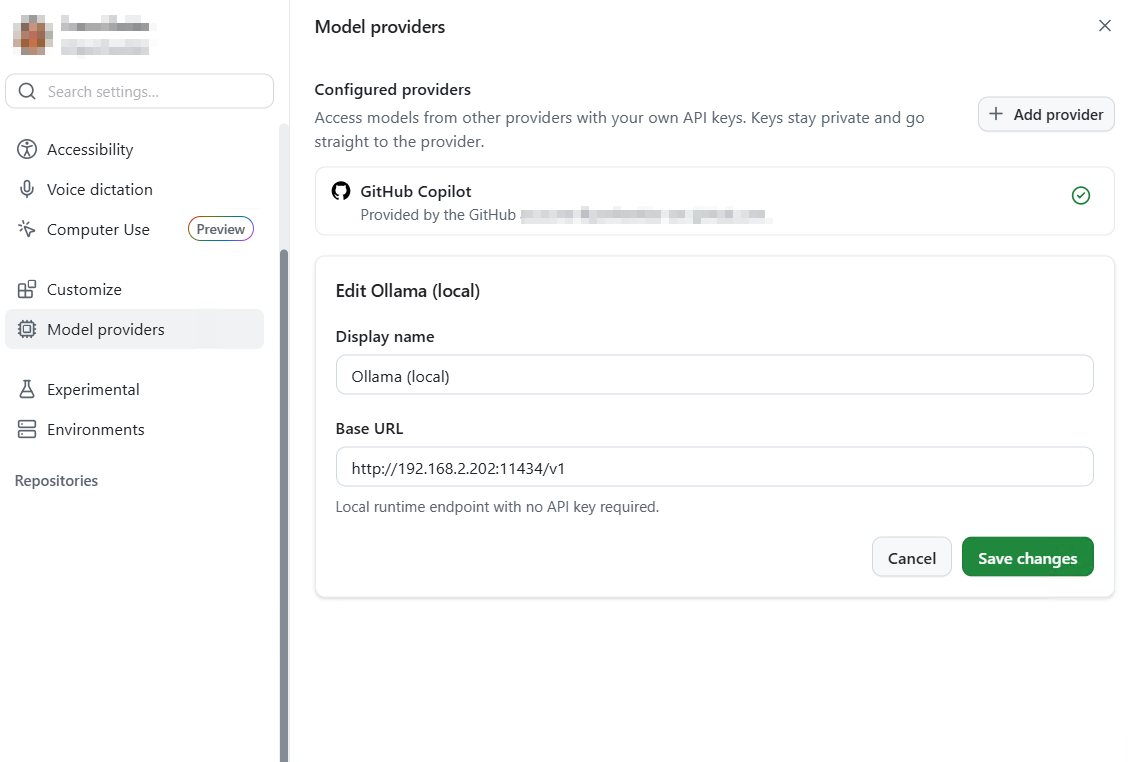
- Start a new session and select the local model in the model picker. If GitHub-hosted models are also available to you, check the selection in every session.
Note: with a local model, the iDNA data that the AI retrieves through MCP is processed by the model in your network, not by a cloud AI provider. The GitHub Copilot App still requires a GitHub sign-in and communicates with GitHub; check GitHub's documentation and your organization's policies on what it transmits. Models that run on a workstation or a small server are less capable than the large cloud models: expect answers of lower quality and less reliable restricted-mode guidance (see Choosing the AI Model). Access to the data is enforced by your iDNA appliance in either case.
Troubleshooting
- The Companion says that live iDNA tools are unavailable and answers in restricted wiki mode. The session has no working MCP connection. Possible causes: the MCP entry is missing on this machine, the token has expired or was revoked, there is no network path to the appliance (VPN), or the client did not load the tools for this session (start a new session).
- The server is listed but fails to connect. Check that the address ends in
/mcpand that the token is still valid in [MCP Tokens]. An expired or revoked token is rejected; create a new one and update the client's configuration. - Claude desktop app: the server does not start. Check that Node.js and mcp-remote are installed (see above), and that Claude was exited completely before the configuration was edited. The logs are in
%APPDATA%\Claude\logs\(filesmcp*.log) on Windows; [Settings] → [Developer] also offers [View logs]. - OpenAI ChatGPT/Codex or Codex CLI: the server fails to connect after the token was set or replaced. The app and the CLI read
IDNA_MCP_TOKENonly when they start: restart the app or open a new terminal. Check that the name of the variable matches exactly. GitHub Copilot App on Windows: uninstalling or updating fails with "access denied". The App installs plugin files read-only and can fail to remove them. Clear the flag in PowerShell, then retry:
attrib -R /S /D "$env:USERPROFILE\.copilot\installed-plugins\*"
Ending access: delete the token in [MCP Tokens] in the iDNA web interface and remove the "iDNA Applications" entry from the client's configuration (for OpenAI ChatGPT/Codex and Codex CLI, also the IDNA_MCP_TOKEN variable).