For every application you keep (lifecycle vector Keep, see Lifecycle Vector: Keep or Sunset), iDNA answers two questions per modernization topic: is the application ready for the target platform, and if not, what is the most efficient way to make it ready? The answer is the modernization vector.
iDNA decides it in two steps:
The relationships matter because of how Notes applications work: most applications inherit their design from a master template. Fix the code once in the master, refresh the design, and every application that inherits from it is fixed too. Many estates also grew by copying: someone copied a standard template, changed a few things, and the copy became "our own" template. The modernization vector finds these multipliers, so that one piece of work fixes as many applications as possible.
Two things to keep in mind:
iDNA checks the routes in this order and assigns the first that applies. The dashboards use two sets of labels: the Modernization Overview shows the route as track: action, Modernization Readiness and Modernization Planning use shorter names.
| Modernization Overview | Readiness and Planning | What it means |
|---|---|---|
| Ready: No Critical Issues Identified | Ready (No Fix Needed) | Nothing to fix. Either the analysis found nothing for the target (Target Compatible As Is), or every finding sits in code of the current HCL template version (Attention Notes Available): HCL's code, not yours, so the findings stay visible as notes. |
| Template: Remediate Master | Fix Master Template | The application inherits from a master template in your environment. Fix the findings once in the master; a design refresh carries the fix to every application that inherits from it. |
| Template: Upgrade Standard | Upgrade Standard Template | The master is an unmodified HCL standard template. Don't edit it: upgrade it to the current HCL version, which already contains the fixes. |
| Template: Rebase Ancestor | Rebase Master Template | The master carries its own name but was copied from an HCL standard template, and the link was lost. Rather than fixing the old copied code, replace the master's design with the current version of that standard template and re-apply your customizations. See Template Lineage. |
| Template: Investigate Inheritance | Similar to Estate Master, Similar to Standard Template | The application inherits from no template, but its design is nearly identical (95 % similar by default) to a master in your environment or to an HCL standard template. Restoring the inheritance may fix it without touching its code. |
| Template: Unify Similar | Unify Similar Apps | The application belongs to a family of similar applications without a shared master. Unify them under one new template, so the findings are fixed once instead of per application. |
| Direct: Remediate Code | Individual Code Fixes | A genuine one-off: no template route applies, and the findings are fixed in the application itself. |
With [Show Details] on, the template routes show a detail that tells you how far the master's fix goes for this application:
Design families of the Unify route are numbered (Design Family #7, ...); the applications with the same number belong together.
In the iDNA Portal: [App Lifecycle] → [Modernization Overview].
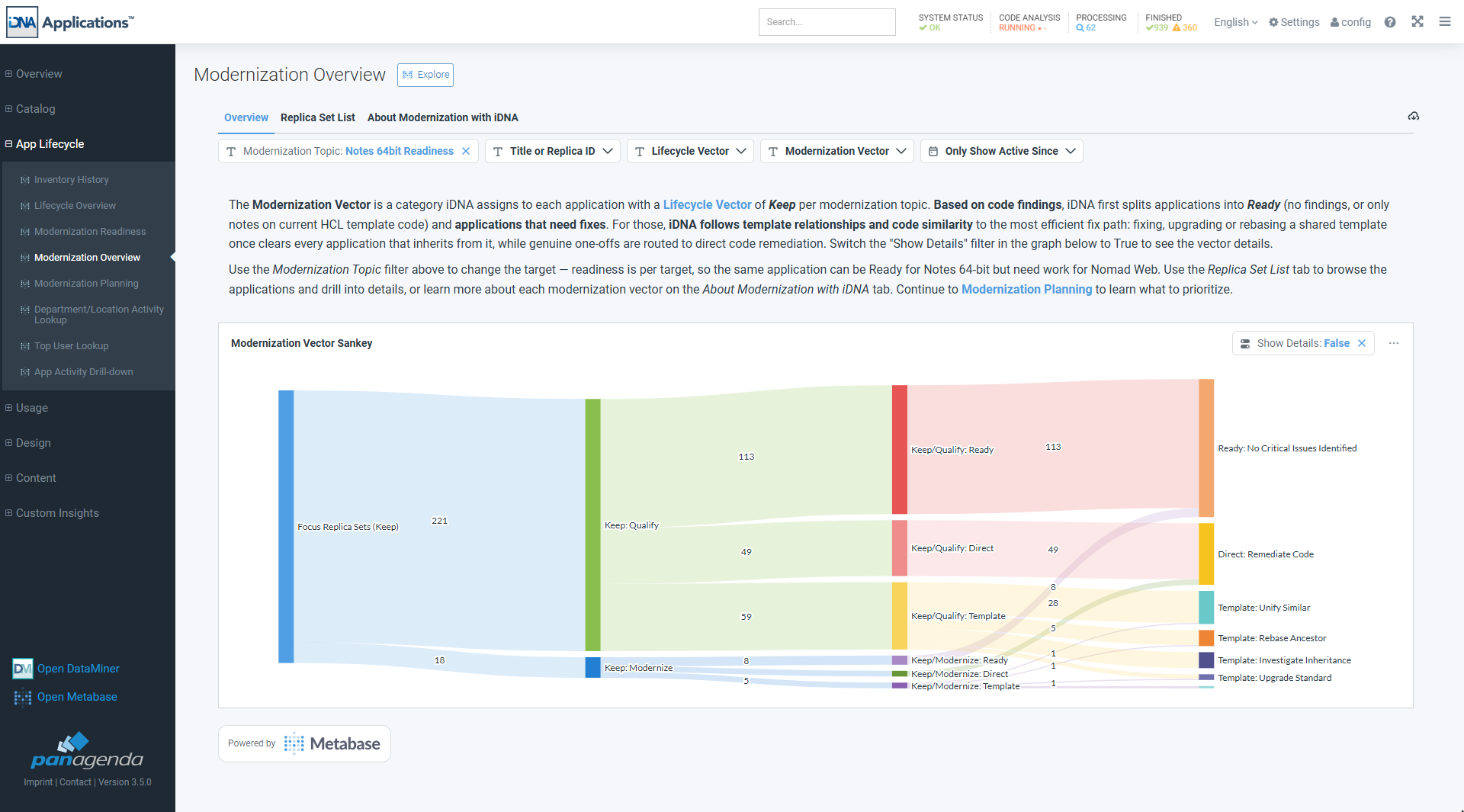
First choose the target in the [Modernization Topic] filter; the dashboard opens with Notes 64-bit (Notes 64bit Readiness). The examples on these pages use Notes 64-bit; Nomad works the same way.
The Sankey chart reads from left to right: all kept applications, split by lifecycle vector (Keep: Modernize, Keep: Qualify), then into the three tracks Ready, Template and Direct, and finally into the routes. The numbers are applications. Set [Show Details] on the chart to True to see the details of each route:
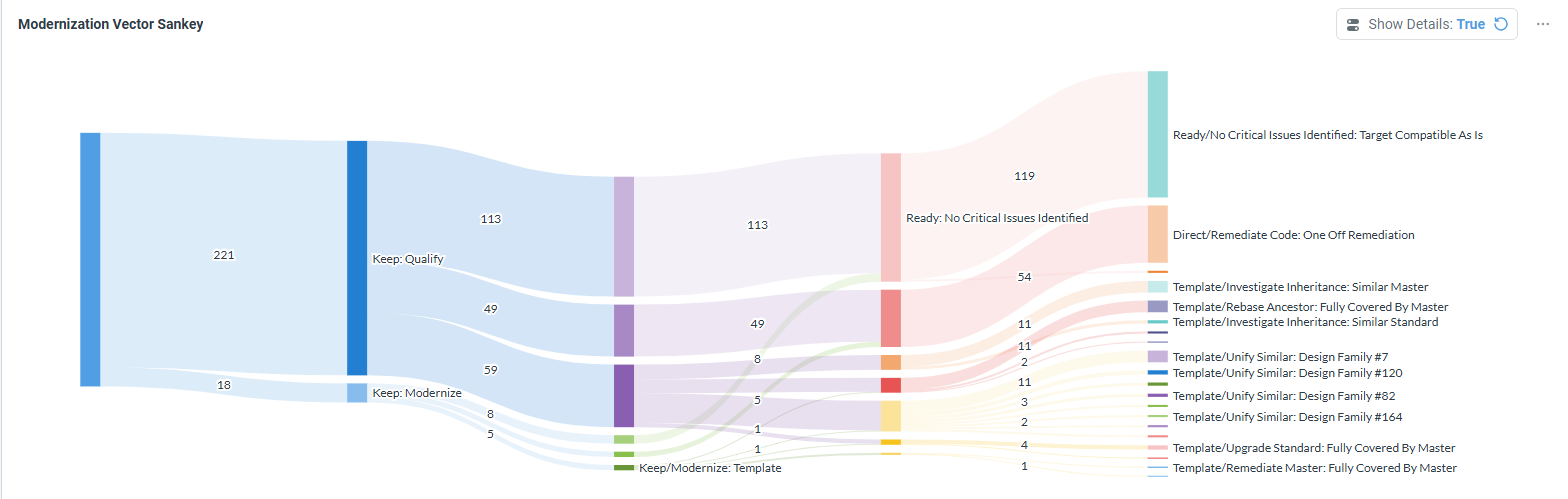
Click a node to narrow the dashboard to it.
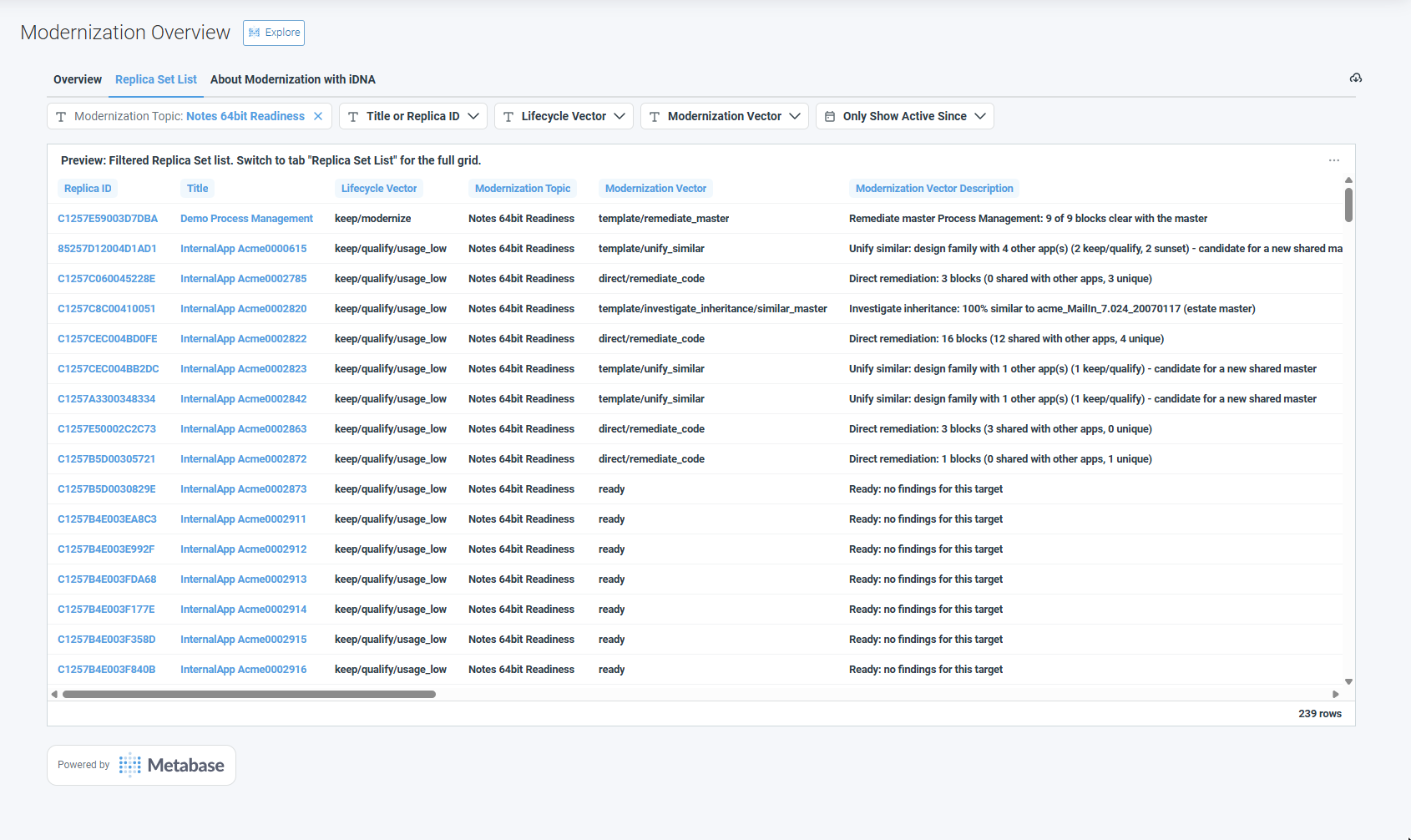
One row per kept application with its lifecycle vector, modernization vector and a sentence that says in plain words what the route means for this application, for example Remediate master Process Management: 9 of 9 blocks clear with the master. The item counts show how many code blocks need fixing and how many of them the application shares with other applications. Click a title or replica ID to open the application in Application Insights.
The product's own explanation: what the vector is, how it is calculated, what every label on the dashboard means and where the vector is used in iDNA.
The iDNA Applications Companion explains the route of any application. Ask, for example, "Why is this application on Fix Master Template for Notes 64-bit, and which other applications does fixing that master make ready?" or "Which of our most used applications still need fixes for Nomad?" The Companion reads the same vectors as this dashboard and adds what is behind them. See Setting up the iDNA Applications Companion. |