
Overview
New versions of iDNA Applications are installed with the same installer as new installations. This page applies both to installations on your own Linux host (see Running iDNA on your own Linux) and to the iDNA appliances for VMware and Hyper-V.
When a new version is available, iDNA shows a notification with links to the release notes and the download.
- The installer upgrades within the same major version, for example from 3.4 to 3.5. For the step from 2.4 to 3.0, see Migrating iDNA Applications from version 2.4 to version 3.0.
- If the installed version is the same or newer, the installer changes nothing.
- iDNA is unavailable while the upgrade runs.
Before You Upgrade
Back Up the Database
Back up the iDNA database before every upgrade. If an upgrade fails, the installer can restore its own files and the configuration, but not the database content.
docker exec -u postgres panagenda_postgres pg_dumpall > /backup/idna-$(date +%Y%m%d-%H%M).sql
Replace /backup with a directory on a filesystem with enough free space, preferably not the root filesystem. For a complete restore at file level, also back up /opt/panagenda/appdata/volumes/ and /opt/panagenda/pgdata/.
Check the Free Disk Space
- The new Docker images need about 10 GB where Docker stores its data, in addition to the current images: the installer removes the old images only after the new version has started. On your own Linux host, this is usually
/var/lib/dockeron the root filesystem; on the iDNA appliances,/opt/panagenda/appdata/docker. - The offline installer also needs about 8 GB in
/tmpwhile it runs, plus the space for the package itself (2 to 2.5 GB, and the same again once unpacked).
This command shows the free space in /tmp and where Docker stores its data:
df -h /tmp "$(docker info --format '{{.DockerRootDir}}')"
If the space is short, see Not Enough Disk Space.
Metabase Settings (Upgrade to 3.5.0)
From version 3.5.0 on, two Metabase settings come from the iDNA configuration file /opt/panagenda/appdata/ifa/config and can no longer be changed in Metabase itself:
- Site URL (Metabase: Admin › General): by default
https://<server address>/metabase. The upgrade replaces a Site URL that was set by hand in Metabase. If the installer asks for the server address during the upgrade (see Step 3), it lists the name Metabase uses today among the choices, if that is a usable name, and, if that Site URL has another port or path, offers to keep it as it is (option K). Otherwise it points out a different Site URL in a line starting with "NOTE: Metabase currently uses". You can also setPANAGENDA_METABASE_SITE_URLin the configuration file before the upgrade; the installer then does not ask. - AI features (Metabase: Admin › AI): switched off by default. To use them, set
PANAGENDA_METABASE_AI_FEATURES_ENABLED=truein the configuration file.
Upgrade
Step 1: Download the Installer
Download one of the two packages. Both install the same version; the offline package also contains the Docker images.
- Online installer (about 1 MB): downloads the Docker images from docker.panagenda.com during the upgrade. Requires that the host reaches docker.panagenda.com over HTTPS.
- Offline installer (2 to 2.5 GB): for hosts without internet access. If the host can reach docker.panagenda.com, the online installer transfers less data.
Step 2: Copy and Unpack the Package
Copy the package to the host with the tool of your choice (for example scp or WinSCP), for example to /root. Log in via SSH, open a root shell, unpack the package and delete the zip file:
sudo -i
cd /root
unzip idnaapplications-upgrade-online.zip
rm idnaapplications-upgrade-online.zip
The online package contains the file ifa-upgrade.sh, the offline package the file ifa-upgrade-offline.sh. Use the file names of the offline package if you downloaded that one.
Step 3: Run the Installer
sh ./ifa-upgrade.sh
The installer shows where it writes its log file and checks the host. If needed, it asks for the server address (see below). It then announces the upgrade:
Upgrading iDNA Applications version from 3.4.0 to 3.5.0 in 10 seconds ...
The installer waits 10 seconds before it starts. To cancel, press Ctrl+C during this time. The installer then stops the iDNA containers, keeps a copy of its files and the configuration for a rollback, installs the new Docker images, starts the new version, updates the Metabase content and finally removes the old images. At the end, it shows the server address and the addresses of iDNA and Metabase, as after an installation (see Check the Result).
The questions about the Docker storage location and the security notice appear only during a new installation, not during an upgrade.
Server address: the installer checks the server address in the configuration file, the name users open in their browser. If it is a DNS name that points to this host, or an address confirmed before, the installer only names it ("Server address: … (points to this server)" or "(confirmed earlier)") and does not ask. A confirmed name that no longer resolves in DNS gets a warning but is kept. Otherwise, for example when the configuration holds an IP address or a short name, it shows the screen described in Server Address. An installation or appliance whose configuration holds an IP address, a short host name or no server address therefore sees it at its first upgrade to 3.5.0. During an upgrade, the screen also shows the current server address, if there is one, and marks the names [current] and [used by Metabase today]. Your choice counts as confirmed, so later upgrades do not ask again, also when it is the name of a load balancer or proxy. Without a terminal, the installer takes option 1 by itself and reports it; such a choice does not count as confirmed unless it is a DNS name that points to this host, so the next upgrade asks again. If PANAGENDA_METABASE_SITE_URL is set, the installer does not ask.
If the time zone of the host differs from the value in the configuration file, the installer asks which one to keep. This question comes during the upgrade, after the new Docker images are installed and while iDNA is stopped, so stay at the terminal until the upgrade has finished:
Detected PANAGENDA_TIMEZONE on this host: 'Europe/Vienna'
Current value in /opt/panagenda/appdata/ifa/config: 'UTC'

The value in your config does not match what the host reports.
Usually this means either the value was intentionally overridden
(keep current) or the host's timezone has changed since
the last install (adopt detected).

Update PANAGENDA_TIMEZONE to 'Europe/Vienna'? [Y/N]
Answer Y to adopt the time zone of the host, or N to keep the value in the configuration file, for example if it was set on purpose.
Step 4: Check the Result
If the upgrade fails, the installer ends with a message starting with "ERROR"; see If the Upgrade Fails. Otherwise, check that the iDNA containers are running:
docker ps --filter name=panagenda_
All containers listed show the status "Up". Delete the unpacked installer file afterwards.
First Login After the Upgrade
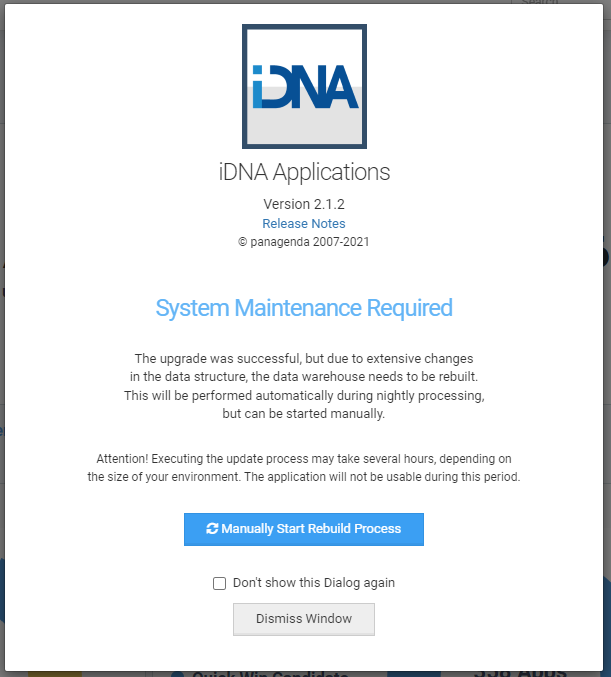
If the upgrade changed the structure of the data warehouse, parts of iDNA may not be available until the data warehouse is rebuilt. The rebuild runs automatically at night. On the first login after the upgrade, iDNA explains this and offers to start the rebuild right away. You can also ignore the message; it disappears once the rebuild has run.
If Metabase dashboards show an error after the first login, log out of iDNA (closing the browser is not enough) and log in again.
If the Upgrade Fails
If the upgrade fails after the installer has saved its files and the configuration for a rollback, it ends with instructions to return to the previous version:
ERROR: installation failed (exit code 1).

A rollback snapshot is available at:
  /opt/panagenda/appdata/ifa.previous
  /opt/panagenda/appdata/VERSION.previous
  /opt/panagenda/appdata/ifa/config.previous

To revert to the previous version, run as root:
  rm -rf /opt/panagenda/appdata/ifa
  cp -aT /opt/panagenda/appdata/ifa.previous /opt/panagenda/appdata/ifa
  mv -f /opt/panagenda/appdata/VERSION.previous /opt/panagenda/appdata/VERSION
  /opt/panagenda/appdata/ifa/ifa start
...
First look at the cause in the messages above it and in the installer log. Often it is enough to remove the cause, for example missing disk space, and to run the installer again.
The rollback restores the installer's files and the configuration, not the database content. If the database was already converted for the new version, it has to be restored from the backup before the previous version starts; contact support@panagenda.com in that case.
Note: if the upgrade stops during the Metabase content update, the installer shows no rollback instructions. The new version is then already running on a converted Metabase database: do not roll back. If the installer ended with exit code 3, contact support; otherwise remove the cause named in /opt/panagenda/logs/metabase-upgrade_<date>_<time>.log and run the installer again.
If the installer stops before it saves that copy, for example at a check, at a question answered with N, or while it shuts down the previous version, it shows no rollback instructions: the installed version is unchanged. Do not use a copy in /opt/panagenda/appdata/ifa.previous left by an earlier upgrade. Follow the error message, start iDNA again with ifa start if it was already stopped, and run the installer again.
If you cancel the installer with Ctrl+C, it shows no instructions either. If the output already shows the line "Snapshotting current state for rollback", use the commands above; otherwise proceed as for a stop before the copy.
Not Enough Disk Space
If there is not enough free space, the installation stops, and one of these messages appears among the last lines:
tar: images.tar: Wrote only … of … bytesunexpected EOFError response from daemon: failed to create task for container
The online installer needs no space for the package and its unpacked images; use it if the host reaches docker.panagenda.com. Otherwise, let the offline installer unpack on a filesystem with enough space instead of /tmp, for example on the database filesystem:
mkdir -p /opt/panagenda/pgdata/tmp
mv /root/ifa-upgrade-offline.sh /opt/panagenda/pgdata/tmp/
cd /opt/panagenda/pgdata/tmp
export TMPDIR=/opt/panagenda/pgdata/tmp
sh ./ifa-upgrade-offline.sh
After a successful upgrade, delete the directory:
cd /root
rm -rf /opt/panagenda/pgdata/tmp
If Docker's own storage is full, free space there or extend the filesystem; the installer cannot move it.
Other Messages
- "Dead Docker containers found. Please reboot the appliance and execute the upgrade package again.": restart the host and run the installer again.
- "Incompatible version upgrade attempted": the package belongs to another major version than the installed one.
Where to find the log files: Logs.