
MCShutdown is included in both MarvelClient Upgrade and MarvelClient Roaming licenses.
NOTE that it is NOT NEEDED for MarvelClient Upgrade to ensure that the client is closed before performing an upgrade, since shutdown functionality is already built into and taken care of by MCUpgrade(.exe).
You can find MCShutdown here: https://update.panagenda.com/mclic/MCSupportHelper/MCShutdown.zip
The two most prominent use cases for MCShutdown are
- Proper Notes client shutdown during automatic session logoff in Citrix/Windows Terminal Server and similar environments
- Automatic shutdown of the Notes client in case users shutdown Windows, without closing Notes
The primary goal is to ensure that Notes clients have properly written their configuration to disk, no file handles remain open, and that MarvelClient Roaming writes the most recent Notes client backup.
For instructions on how to deploy MCShutdown with panagenda MarvelClient, see below.
IMPORTANT
When used to ensure that clients are properly shutdown down when logging off from/shutting down Windows, you must give the Notes client enough time to flush all open files and also take the time into consideration that a MarvelClient Backup may require to save the users data!
The corresponding registry settings are stored in HKEY_CURRENT_USER (current user only) or HKEY_USERS\.DEFAULT (all users on a machine), where HKEY_CURRENT_USER overrides HKEY_USERS\.DEFAULT, if both are set.
\Control Panel\Desktop\WaitToKillAppTimeout
\Control Panel\Desktop\HungAppTimeout
\Control Panel\Desktop\AutoEndTasks
WaitToKillAppTimeout and HungAppTimeout take String(!) values in milliseconds, so 60000 equals 60 seconds. A backup to a network resource may well take 60 seconds for users with a slow connection, so we recommend e.g., 60000 or 90000.
AutoEndTasks is a String value, which should be either not set (=0=disabled), 0, or 1.
The command line options for MCShutdown are
| Command line option | Description |
|---|---|
/shutdownsilent | Automatically closes any open Notes / Designer / Admin client windows and answers all message boxes so that any open documents are not saved and any dialog boxes are automatically responded to, so that the client can close without any end user interaction. E.g. "Do you want to exit Notes > Yes", "Do you want to replicate > No", "Do you want to save > No", and similar. All messageboxes are responded to independent of language. |
| /shutdown /ui | Automatically sends a close message (similar to ALT+F4) to the topmost Notes / Designer / Admin window and waits for the end user to answer all message boxes that prevent the client from closing. |
| /shutdownauto /auto | Waits until a Windows shutdown is detected and if so, automatically initiates /shutdownsilent. This option can optionally be combined with /noautoterm |
| GUI="Your Title" | Defaults to "Notes Shutdown Guard" When applications block Windows Shutdown, Windows displays a list of all such applications. The following screenshot shows an example, where "Untitled - Notepad" is the GUI equivalent for "Notes Shutdown Guard"
|
| Reason="Your Text" | Defaults to "WARNING: *DO NOT* SHUTDOWN, REBOOT or LOGOFF from your computer! You may loose data." The above screenshot shows an example, where "This app is preventing shutdown" is the Reason equivalent for "WARNING: *DO NOT* SHUTDOWN, REBOOT or LOGOFF from your computer! You may loose data." |
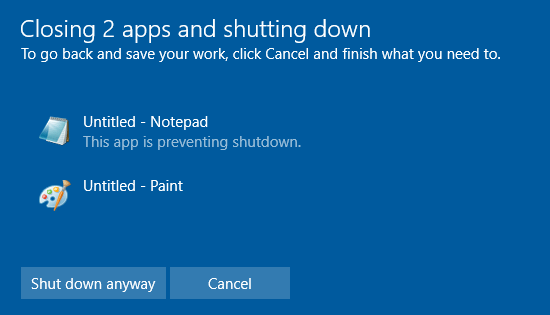
Example command lines
absolutefilepath\MCShutdown.exe /shutdownsilent
absolutefilepath\MCShutdown.exe /shutdown
absolutefilepath\MCShutdown.exe /auto
absolutefilepath\MCShutdown.exe /auto /noautoterm
Deploying MCShutdown using a MarvelClient File Deployment Action
- Download MCShutdown.zip from the link at the top of this document
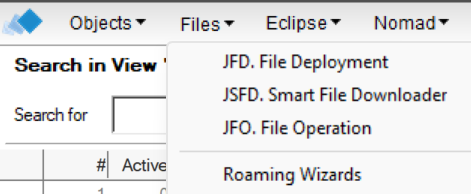
- Create a Files\JFD. File Deployment Action:
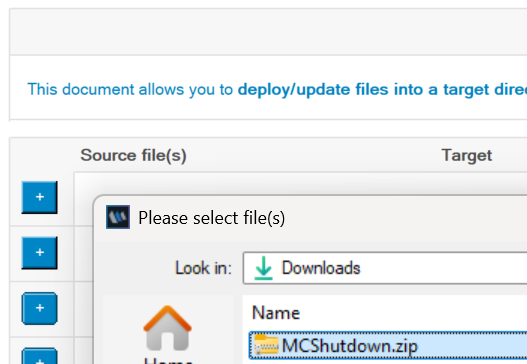
- Click on the first + button and select the downloaded zip file from step 1
- Either leave the default target directory unchanged (<notes:data_directory>), or adjust to the following:
<notes:shareddata_directory={notes#data_directory}>
The above folder will deploy to notes:shareddata_directory for multiuser clients, with fallback to notes:data_directory.
Make sure that the Download? option is set to "Missing only" and that "Unzip" is CHECKED:
- If necessary, limit the Action on the Who and/or When tab.
- Save and close the File Deployment Action.