
Page History
...
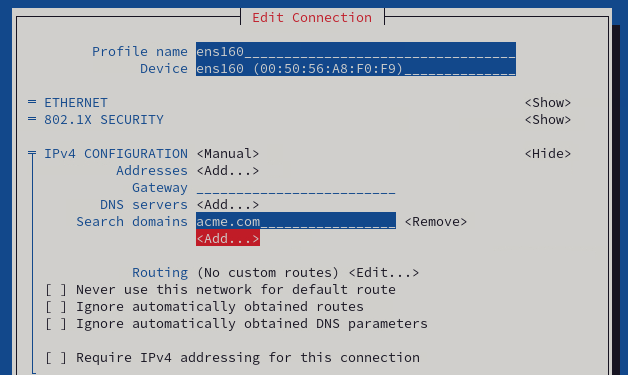
- Execute the command to launch the Network Manager Text User Interface: nmtui
(Navigate with cursor keys and the tab key and use Enter to confirm selections) - Select "Edit a Connection"
- Select "ens160"
- You may have to select "Show" next to "IPv4 CONFIGURATION" in case its configuration options are hidden
- Under "Search domains" select "<Add...>" and add as many search domains as are useful in your environment
- Navigate down to "<OK>" to save and close the settings dialog
- A restart of the NetworkManager service or a reboot will be required to activate these changes
Host Name Configuration:
The host name of the appliance must be changed to reflect the DNS settings in the customer's environment. To do so, the files /etc/hostname and /etc/hosts must be edited. iDNA must be able to reach itself under the name it is accessed by users.
...
Edit this file using the commands nano or vim in a text-only terminal or gedit to open a graphical text editor (e.g. nano /etc/hostname).
| Note |
|---|
Please note that the iDNA Applications notification feature uses this host name in emails to identify from which server the email has been sent. For further details refer to Setup Notifications (Mailprofile). |
Editing "/etc/hosts"
In this file, both the common name AND the fully qualified host name are entered as additional alias for 127.0.0.1 (separated by space, see screen shot below). The existing aliases "localhost" and "localhost.localdomain" must remain as aliases.
Edit this file using the commands nano or vim in a text-only terminal or gedit to open a graphical text editor (e.g. nano /etc/hostname).

| Note |
|---|
Please note that the iDNA Applications notification feature uses this host name in emails to identify from which server the email has been sent. For further details refer to Setup Notifications (Mailprofile)Changes in any area of networks settings requires a restart of the NetworkManager service or a reboot. We recommend rebooting the appliance after applying these three changes. |
Time Zone Settings:
Open the settings menu (Right-click on the desktop or Applications/Activity menu) and go to the "Date and Time" section.
...