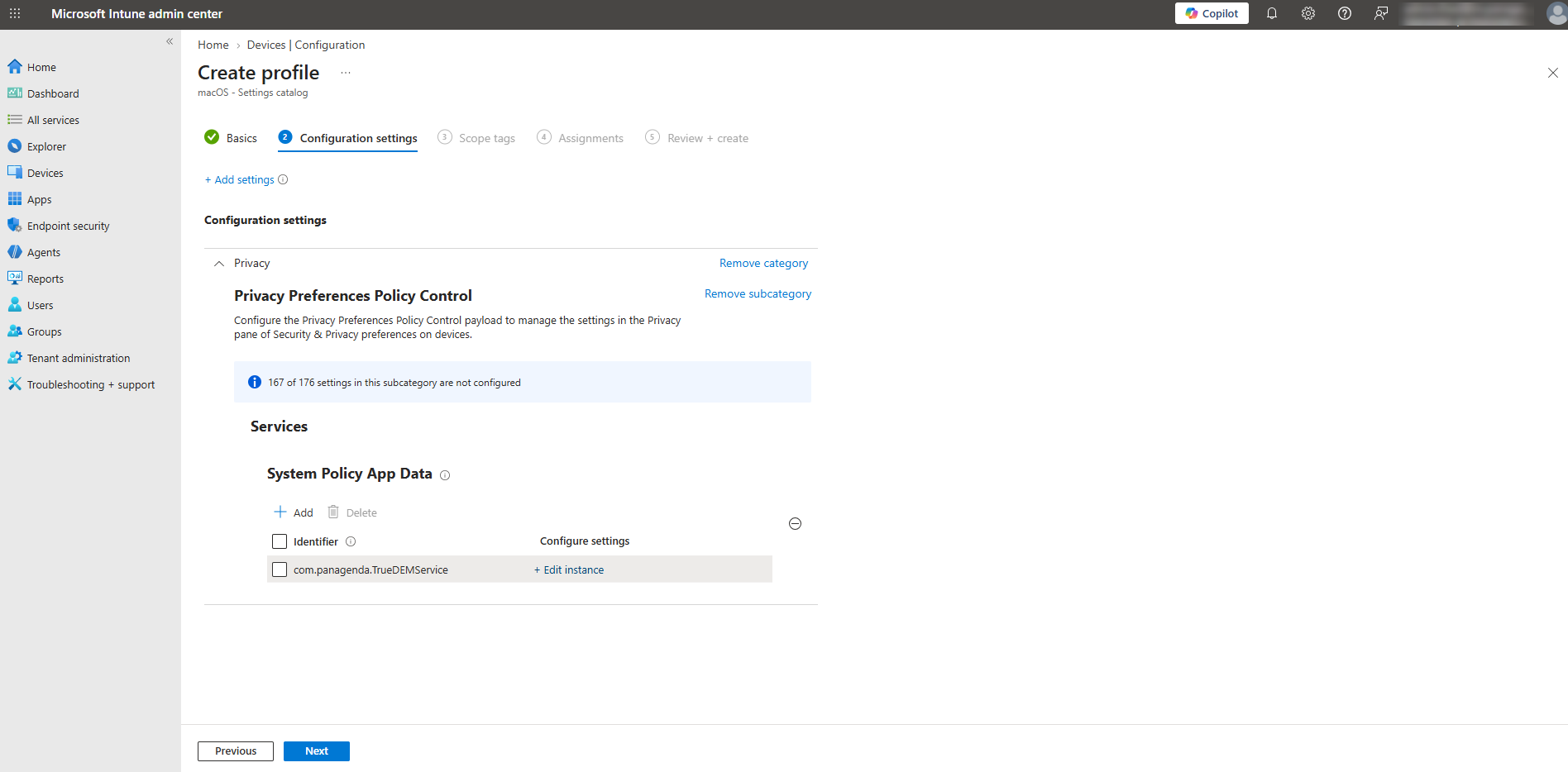
On macOS, TrueDEM (>= v1.3*) collects Microsoft Teams call-quality telemetry through a small extension.
Because macOS treats another application's data folder as private, the operating system asks the user for permission the first time TrueDEM accesses the Microsoft Teams folder. The enduser will see the following dialog:
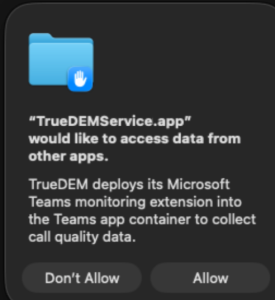
Known limitation: when the permission is granted (by the enduser) from the dialog, macOS 15 and later store it for the current session only. As a result, the prompt can reappear (typically after a restart of the machine/after logging out and back in/if the TrueDEM background service is restarted). This is macOS behaviour and is not specific to TrueDEM.
On some macOS versions there is no dialog at all. Access is refused straight away and macOS instead shows a notification saying that TrueDEM tried to access data from another app.
Clicking that notification opens System Settings → Privacy & Security → Files and Folders.
In order to avoid the dialog (and also the known limitation mentioned in the box above), we recommend in adding a Privacy Preferences Policy Control (PPPC) Policy to your macOS Device Management solution.
The following article describes the policy configuration for Microsoft Endpoint Manager (Intune)
Microsoft Endpoint Manager (Intune) Config
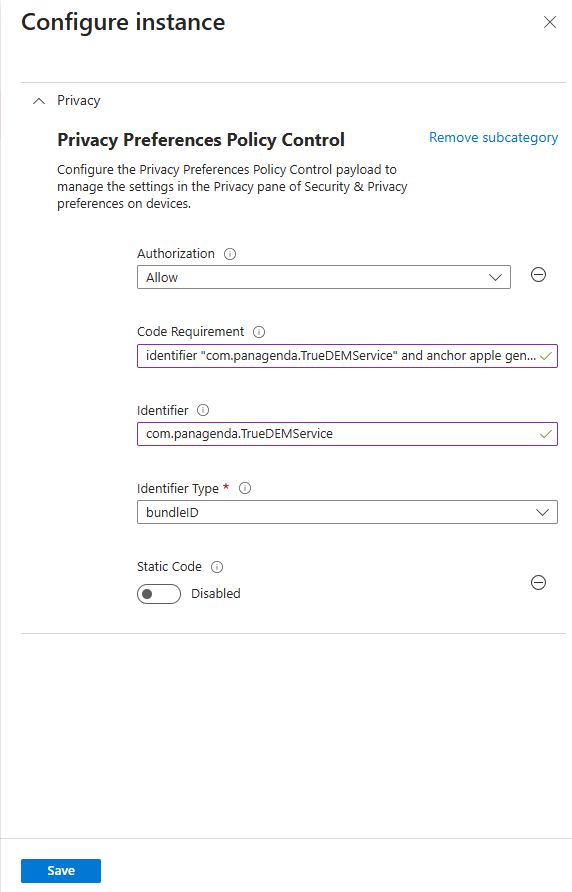
Create a Privacy Preference Policy inside of Intune with the following settings:
The configuration uses App Data and is the least-privilege option.
| Authorization | Allow |
| Code requirement | identifier "com.panagenda.TrueDEMService" and anchor apple generic and certificate 1[field.1.2.840.113635.100.6.2.6] /* exists / and certificate leaf[field.1.2.840.113635.100.6.1.13] / exists */ and certificate leaf[subject.OU] = "9598MXNN88" |
| Identifier: | com.panagenda.TrueDEMService |
| Identifier type | Bundle ID |
Configuration:
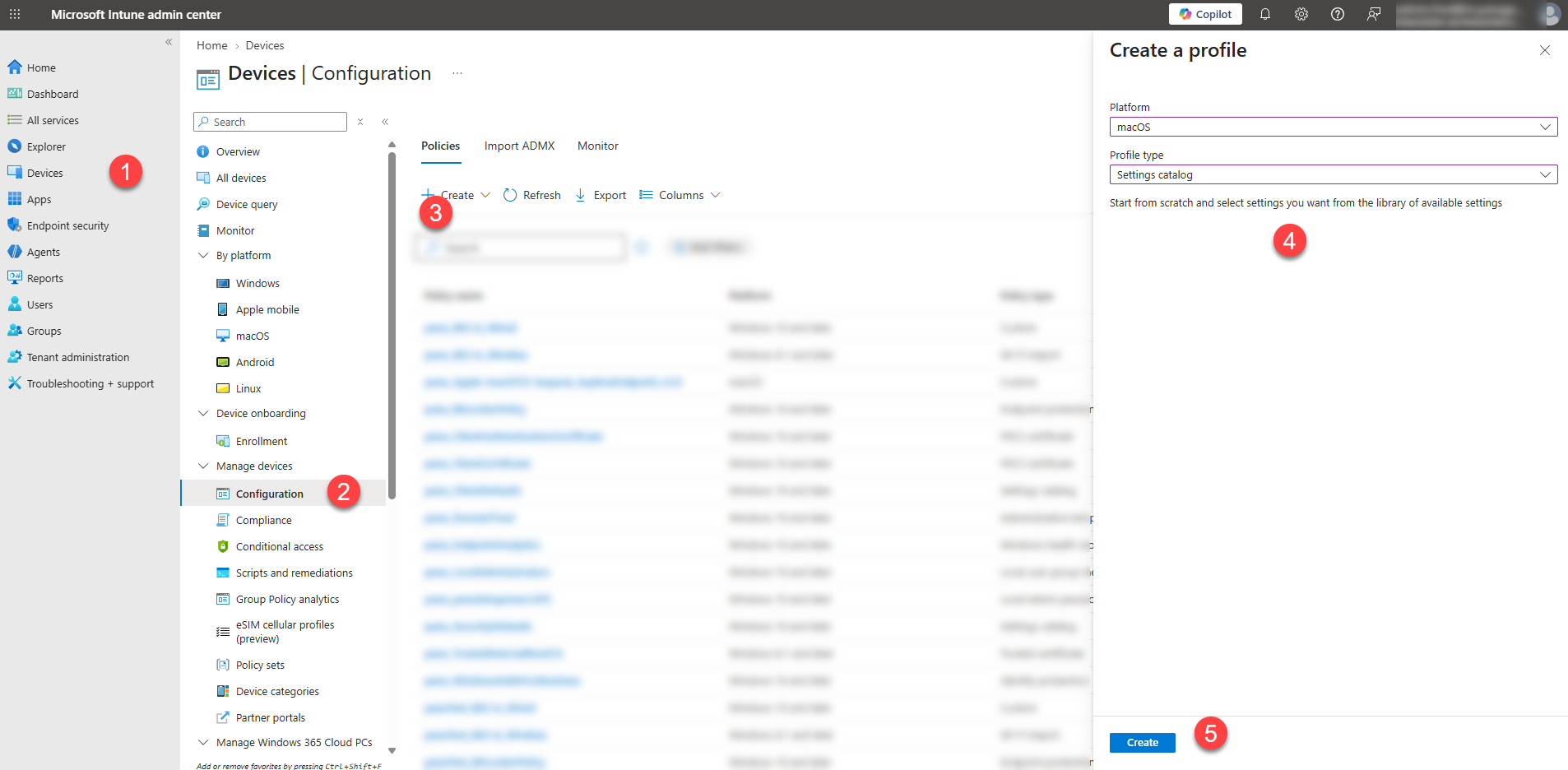
- Open Endpoint Manager - Devces / Configuration / Create new Policy
- Select macOS and Settings catalog
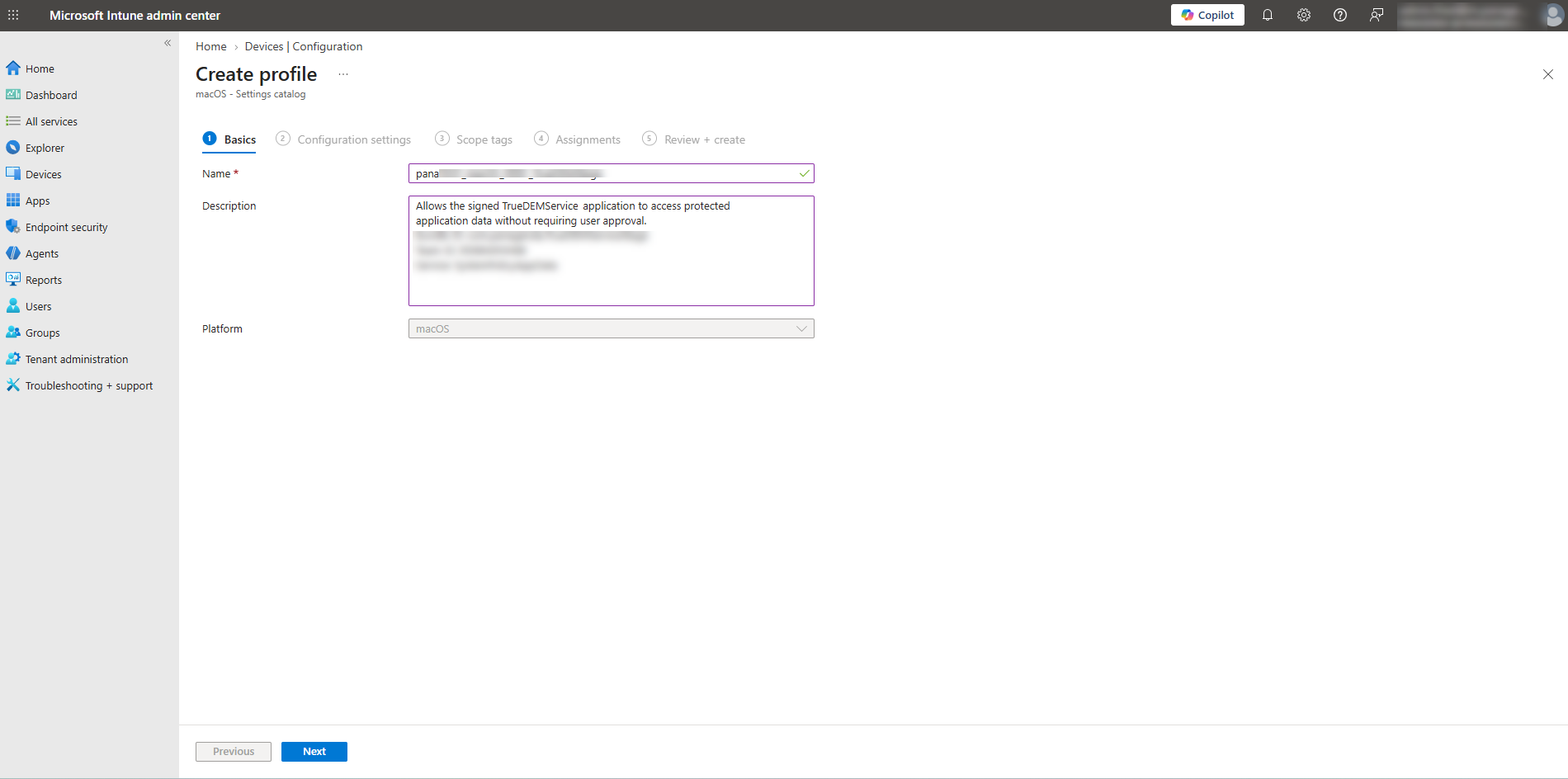
- Enter a name of the Policy and a Description
Description text example:
Allows the signed TrueDEMService application to access protected application data without requiring user approval.
Bundle ID: com.panagenda.TrueDEMService
Team ID: 9598MXNN88
Service: SystemPolicyAppData
- Search for "Privacy Preferences Policy Control" and pick "System Policy App Data"
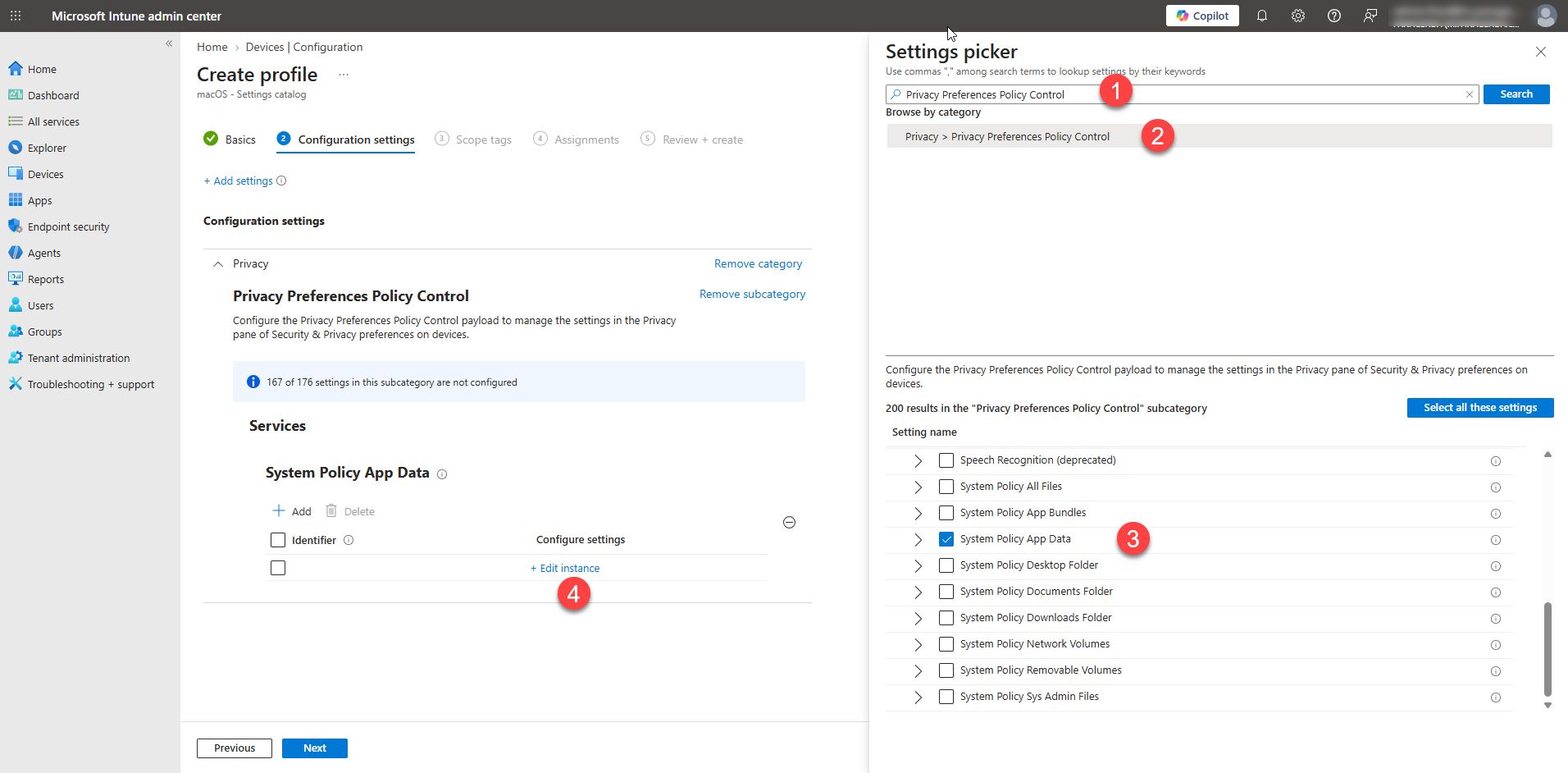
- Use the settings from above and hit Save
- Click Next and Assign it to your Users