
Overview
Starting with version 3.5.0, iDNA Applications includes an MCP server. MCP (Model Context Protocol) is the open standard through which AI assistants access external data. With the MCP server enabled, AI clients such as Claude, GitHub Copilot or OpenAI Codex can answer questions about your Notes/Domino estate from your live iDNA data: application usage, design and code analysis, modernization and lifecycle planning. The recommended way to use it is the iDNA Applications Companion, an AI-assistant plugin for these clients (see the knowledge base article Setting up the iDNA Applications Companion).
- Read-only: the MCP server reads iDNA's analysis data. It cannot change iDNA, your Domino environment or any configuration.
- Runs on your appliance: the MCP server is an optional service of the iDNA appliance and is disabled by default. Once enabled, it is reachable at
https://<your iDNA host>/mcpthrough the existing HTTPS port; no additional firewall port is needed. AI clients connect from the user's machine, so the appliance does not have to be reachable from the internet. - Personal tokens: every user authenticates with their own token. Administrators see all tokens and can revoke any of them.
- Two modes, set by your license:
- Restricted: the AI works with an allowlist of iDNA's data; the detailed user-activity tables are excluded.
- Permissive: the AI can access all of iDNA's analysis data, including detailed user activity.
- Audit log: the MCP server logs every request together with the token it came from.
Note: data the AI retrieves through MCP becomes part of the AI conversation and is processed by the AI model of the client in use (for example by Anthropic, GitHub/Microsoft or OpenAI). Whether that is acceptable for your organization is decided before MCP is enabled, which is why MCP requires a double opt-in (see Step 1).
Configuration
Setup at a glance:
- Your organization requests an MCP license from panagenda (organizational opt-in).
- The iDNA administrator uploads the license and enables the MCP service on the appliance (technical opt-in).
- The administrator grants the MCP role to the users who should work with AI clients.
- Each of these users creates a personal token in iDNA.
- Users connect their AI clients with the token.
Prerequisites
- Version: iDNA Applications 3.5.0 or later.
- License: MCP must be enabled in your license. MCP is free of charge; see Step 1 and the section Licensing.
- Network: users' machines reach the iDNA appliance over HTTPS (port 443), the same way they reach the iDNA web interface (through VPN where applicable).
- Access: an iDNA administrator account and SSH access to the appliance (for example via PuTTY).
Step 1: Request an MCP License (Organizational Opt-in)
Allowing AI systems to access data about your users is a decision for your organization, not for the iDNA administrator alone. That is why MCP is enabled in two separate steps: first your organization requests it from panagenda, then the iDNA administrator switches it on. Neither step works without the other, so an administrator cannot open iDNA data to AI systems on their own.
Contact support@panagenda.com and let us know:
- that you would like to use MCP,
- which mode you want: restricted or permissive,
- that you have cleared the use of MCP in this mode with your compliance process or works council, where applicable.
panagenda then issues a new license free of charge. Upload it in [Settings] → [System configuration ...] → [License]: accept the General Terms and Conditions, choose the license file and click [Upload].

Step 2: Enable the MCP Service (Technical Opt-in)
The MCP service is installed on every appliance from version 3.5.0 on, but it does not run until you enable it.
- Connect to the appliance via SSH.
- Open the configuration file
/opt/panagenda/appdata/ifa/configand set:PANAGENDA_ENABLE_MCP=true
- Apply the change:
ifa recreate
Note: "ifa recreate" recreates the iDNA containers, so iDNA is unavailable for a few minutes. "ifa restart" does not apply configuration changes.
On this first start, the appliance generates an admin token for the MCP service and saves it as PANAGENDA_MCP_ADMIN_TOKEN in the same configuration file. iDNA uses it to manage the users' tokens; no further action is needed (see Security Notes).
From now on, the MCP server is available at https://<your iDNA host>/mcp. Users need this address to connect their AI clients.
Step 3: Grant Users the MCP Role
By default, no user can create MCP tokens. Grant the MCP role only to users who should work with iDNA data in AI clients. There are two ways to do this.
Individual users
In the admin client, open [Settings] → [System configuration ...] → [Advanced Settings] → [Users & Groups]. In the user's row, click "toggle" in the MCP column. The Authorities column then shows ROLE_MCP. Clicking "toggle" again removes the role.
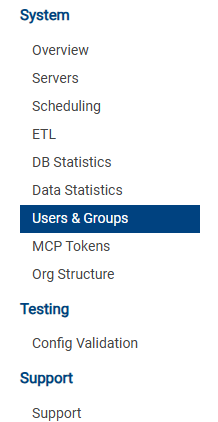

Note: users who log in through LDAP appear in this list after their first login to iDNA.
LDAP groups
If your users log in through LDAP, you can grant the role to LDAP groups instead: in [Settings] → [LDAP settings], enter the groups in the MCP field of the Role Mapping (comma-separated list).

Step 4: Users Create Their Tokens
Each user with the MCP role creates their own token in the iDNA web interface:
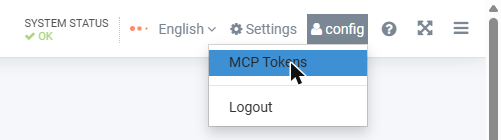
- Click your user name at the top right and select [MCP Tokens].
- Enter a label that tells you where the token is used, for example
laptop-claude(letters, digits, dot, underscore and hyphen). The label identifies the token in the token lists and in the MCP server's audit log. - Check the expiry date (the default is 90 days from today) and click [Create token].
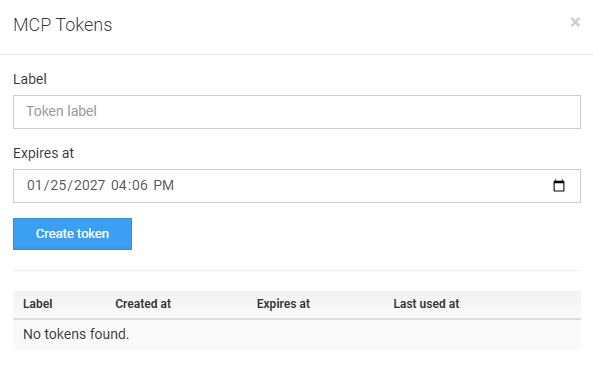
- Copy the token right away and keep it in a safe place. It is shown only once: iDNA stores only a fingerprint (hash) of the token and cannot display it again.
Screenshot needed
The MCP Tokens dialog right after [Create token]: the one-time token value with its copy hint, the value itself blurred or replaced.
In the same dialog, users see their tokens with creation, expiry and last-use dates, and can delete them.
Recommendations for users:
- Create one token per device or AI client, so that each one can be revoked on its own.
- Never share a token. Whoever has it can query iDNA data with your access.
- Tokens cannot be extended. Before a token expires, create a new one, update your AI client and delete the old token.
How to connect the AI clients with the token is described in the knowledge base article Setting up the iDNA Applications Companion.
Managing Tokens Centrally
Administrators see the tokens of all users in the admin client: [Settings] → [System configuration ...] → [Advanced Settings] → [MCP Tokens].
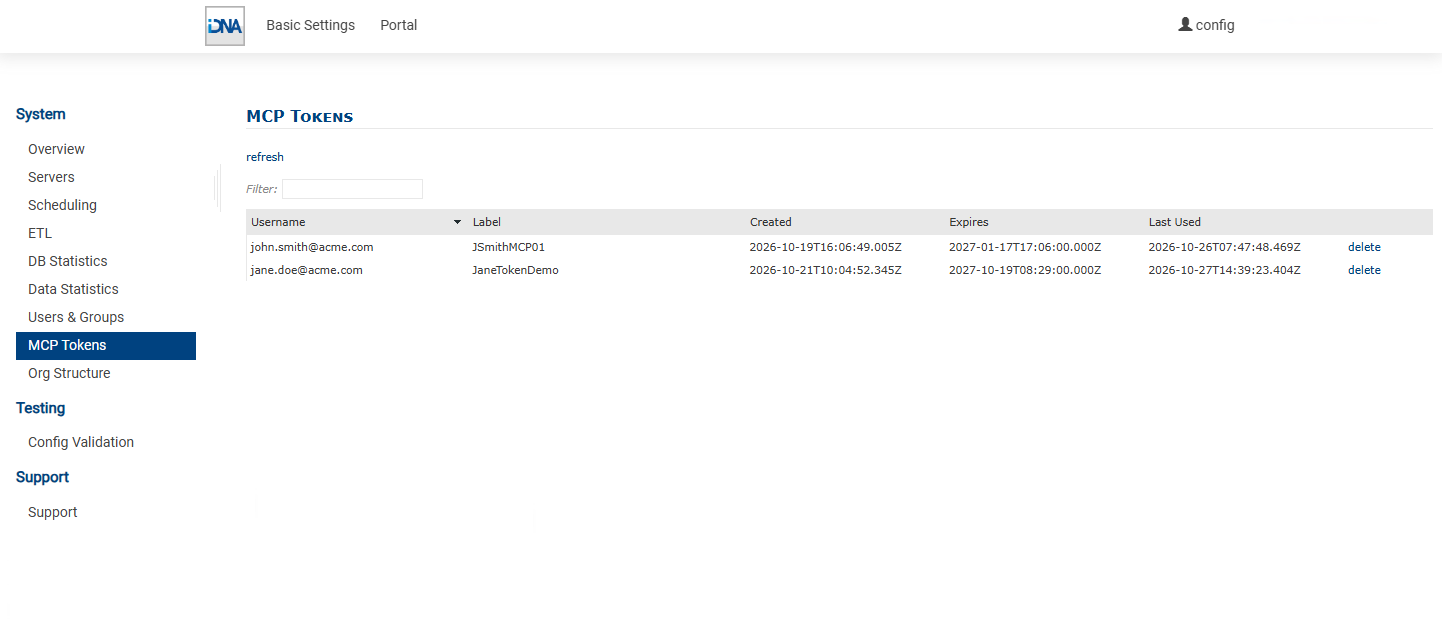
- Username and Label: who owns the token and what it is for.
- Created and Expires: the token's lifetime. Expired tokens stay listed until they are deleted.
- Last Used: when the token was last used; empty means never.
- delete: revokes the token immediately. The AI client using it can no longer connect.
Token values are never shown in this list. Administrators cannot create tokens for other users; every user creates their own.
Removing a user's access: remove the user's MCP role (Step 3) and delete their tokens in this list. Deleting a user in [Users & Groups] also invalidates their tokens.
Security Notes
- Token values are shown once, at creation. iDNA stores only their hash.
- The MCP admin token (
PANAGENDA_MCP_ADMIN_TOKENin/opt/panagenda/appdata/ifa/config) allows managing all users' tokens. Keep the following in mind:- The support bundle from [Settings] → [Download logs ...] includes the configuration file and therefore this token. Rotate the token after sending a bundle if that matters in your environment.
- A virtual machine image built with MCP enabled gives every clone the same token. Delete the token line before cloning, or in each clone, and run "ifa recreate".
- To rotate the token, delete the line (a new token is generated) or set your own value (at least 32 characters, in single quotes if it contains $, backticks or spaces), then run "ifa recreate".
- Disabling MCP: set
PANAGENDA_ENABLE_MCP=falseand run "ifa recreate". The MCP service then no longer runs.
Licensing
MCP is included in iDNA Applications 3.5.0 and later at no additional cost. It is enabled through a new license that panagenda issues on request, after your organization has confirmed the mode and the internal clearance (see Step 1). Contact support@panagenda.com.