iDNA Applications 3.5.0 comes with a rebuilt admin interface. This article describes its pages and the new Config Manager, a wizard that sets up the data collection for a Domino domain in four steps.
The admin interface is where you tell iDNA what to collect and from where: the license, the Notes ID that iDNA uses to access your Domino servers, the list of Domino servers, and the content packages that define which data iDNA collects from which servers.
https://<your iDNA host>/idna/config. https://<your iDNA host>/idna/ opens it as well, and the previous address /idna/cfgc redirects to it.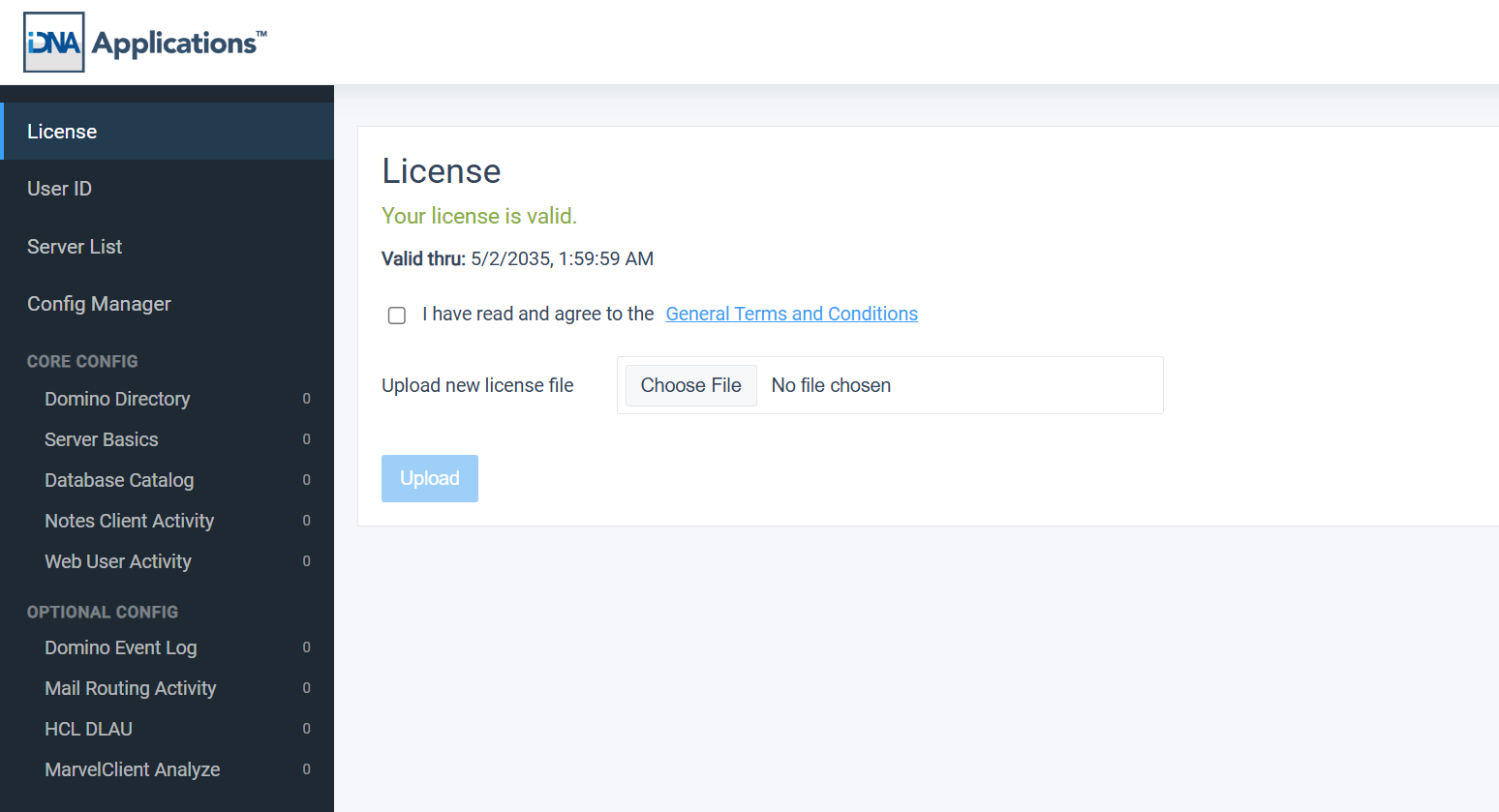
The sidebar shows only the pages that make sense at the current stage of the setup, and the interface opens on the next page to work on:
| Stage | Sidebar shows | Opens with |
|---|---|---|
| No license uploaded | [License] | [License] |
| License uploaded, no User ID | [License], [User ID] | [License] |
| User ID uploaded, no servers yet | also [Server List] and [Config Manager] | [Config Manager] |
| Servers in the server list | also the content packages under [Core Config] and [Optional Config] | [Server List] |
The page shows whether your license is valid and until when ([Valid thru]). If servers in your server list are not covered by the license, they are listed as [Unlicensed servers].
To upload a new license file:
After a successful upload, [Continue to User ID] takes you to the next page.
iDNA reads the Domino Directory, the server databases and the usage data with a Notes ID that you provide. The ID needs access to all servers in scope; see System Requirements, Access and Permissions.
The page shows the ID in use ([Current ID]) and when it was uploaded ([Uploaded]). To upload an ID:
After a successful upload, [Continue to Server Discovery] takes you to the Config Manager.
The Config Manager sets up the data collection for one or more Domino domains: it finds the servers of a domain, lets you choose the server whose Domino Directory iDNA reads and the servers iDNA analyzes, and writes these selections to the content packages under [Core Config]:
| Wizard step | Content packages it sets |
|---|---|
| 2: Address Book Servers | Domino Directory |
| 3: Application/Mail Servers | Server Basics, Database Catalog, Notes Client Activity, Web User Activity (Web User Activity only for servers whose domlog iDNA can access) |
The content packages under [Optional Config] are not changed.
Move between steps with [Next] and [Back], or click a step name at the top of the Config Manager. Nothing is saved until you click [Apply Settings] in step 4. Your selections are kept while you move between steps, but they are discarded if you leave the Config Manager without applying them.
Discovery finds the servers of a Domino domain and adds them to the server list.
iDNA connects to the entry server with the User ID, reads the server documents in its Domino Directory, checks its access to each server it found and adds them to the server list. The progress is shown in the log below the field; until discovery has finished, you cannot leave the step. When the message "Discovery finished." appears, continue with [Next].
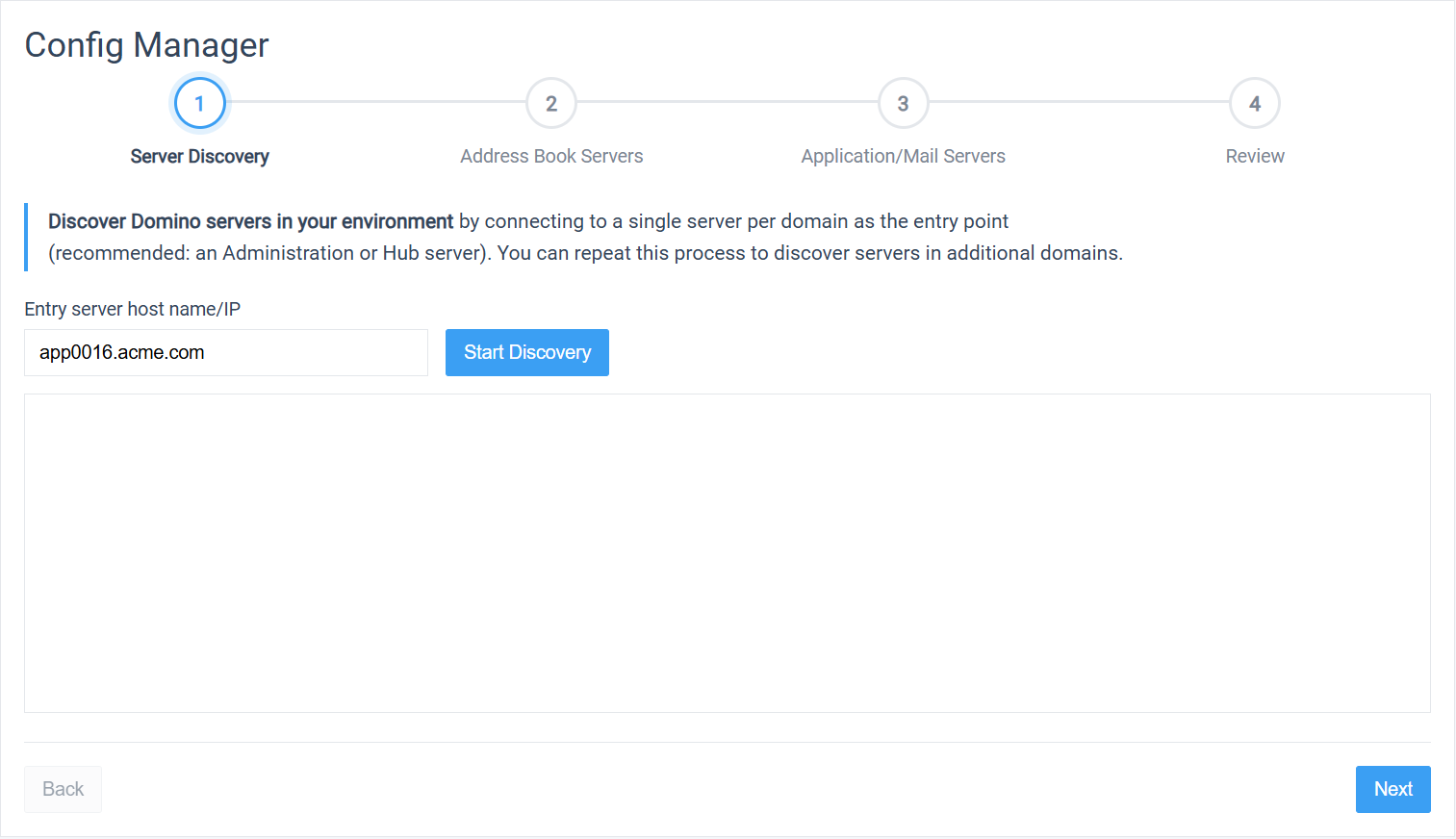
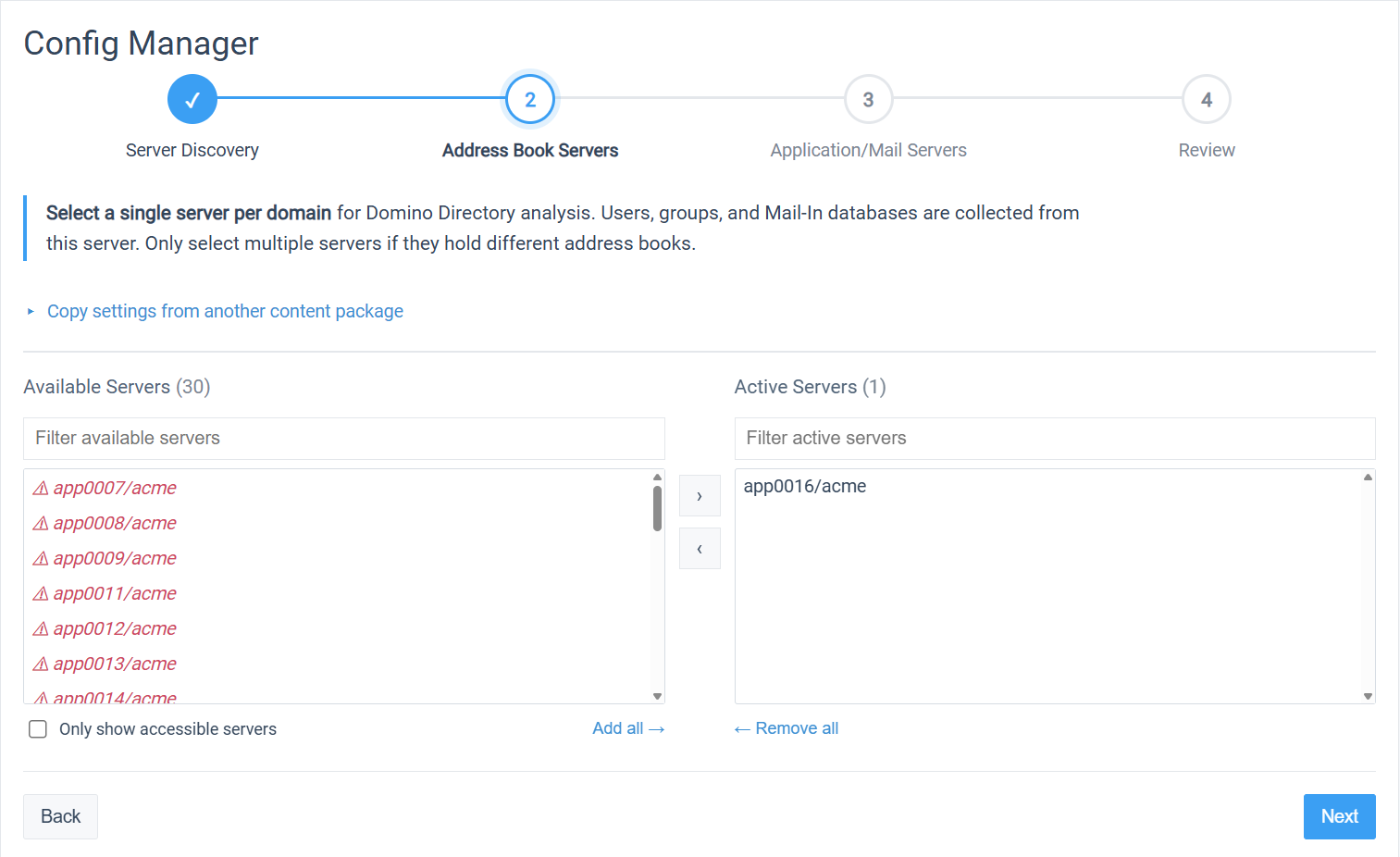
Select one server per domain whose Domino Directory iDNA analyzes; users, groups and mail-in databases are collected from this server. Select several servers of a domain only if they hold different address books.
Both this step and the next use two lists:
When you open the step, [Active Servers] already holds the servers currently configured for Domino Directory.
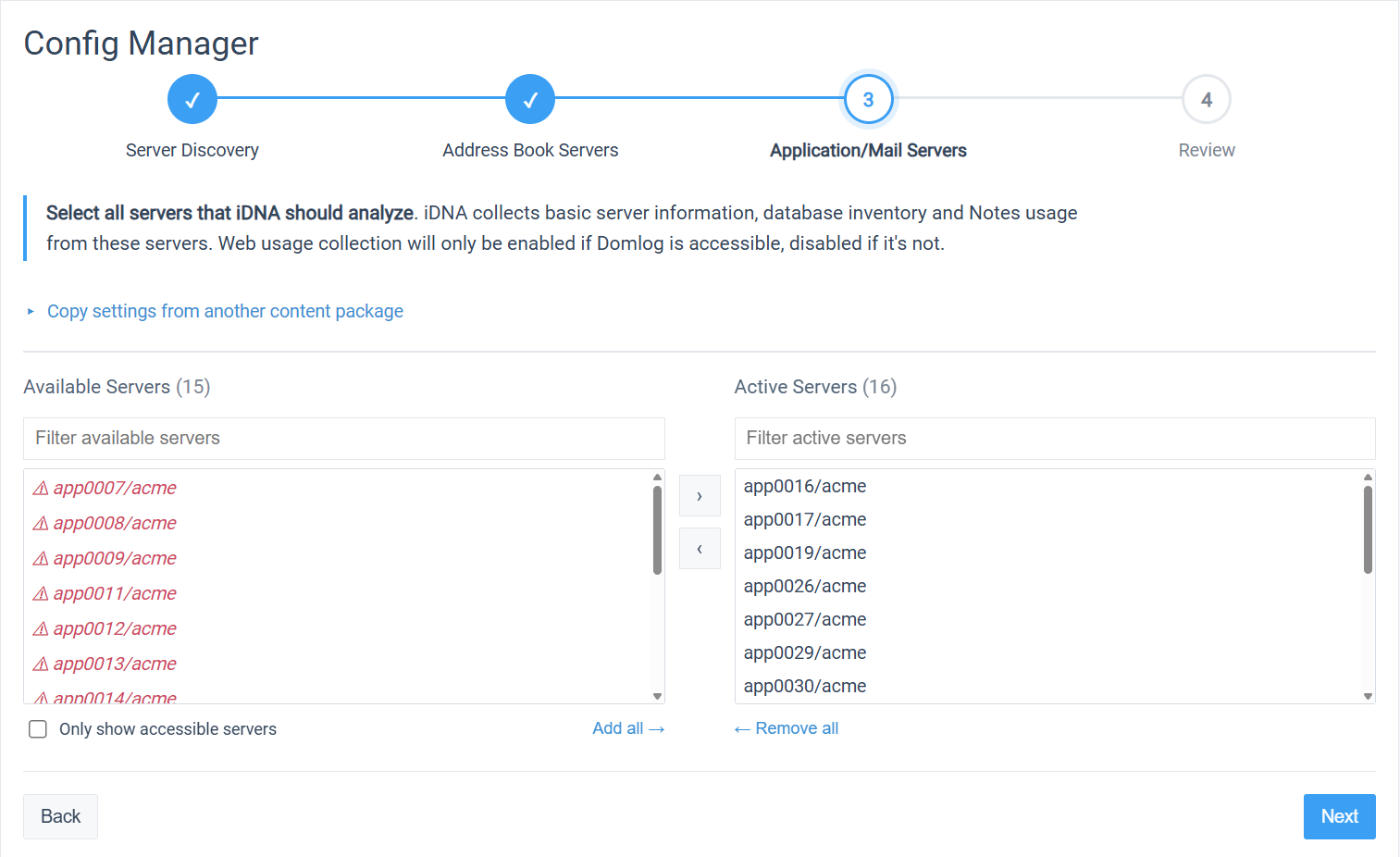
Select all servers iDNA should analyze. From these servers, iDNA collects basic server information, the database inventory and the Notes usage. Web usage is collected only from servers whose domlog iDNA can access; for the others, Web User Activity is not set.
When you open the step, [Active Servers] already holds the servers currently configured for these content packages.
The last step summarizes what will be applied:
Click [Apply Settings] to save. The button then reads "Settings applied successfully".
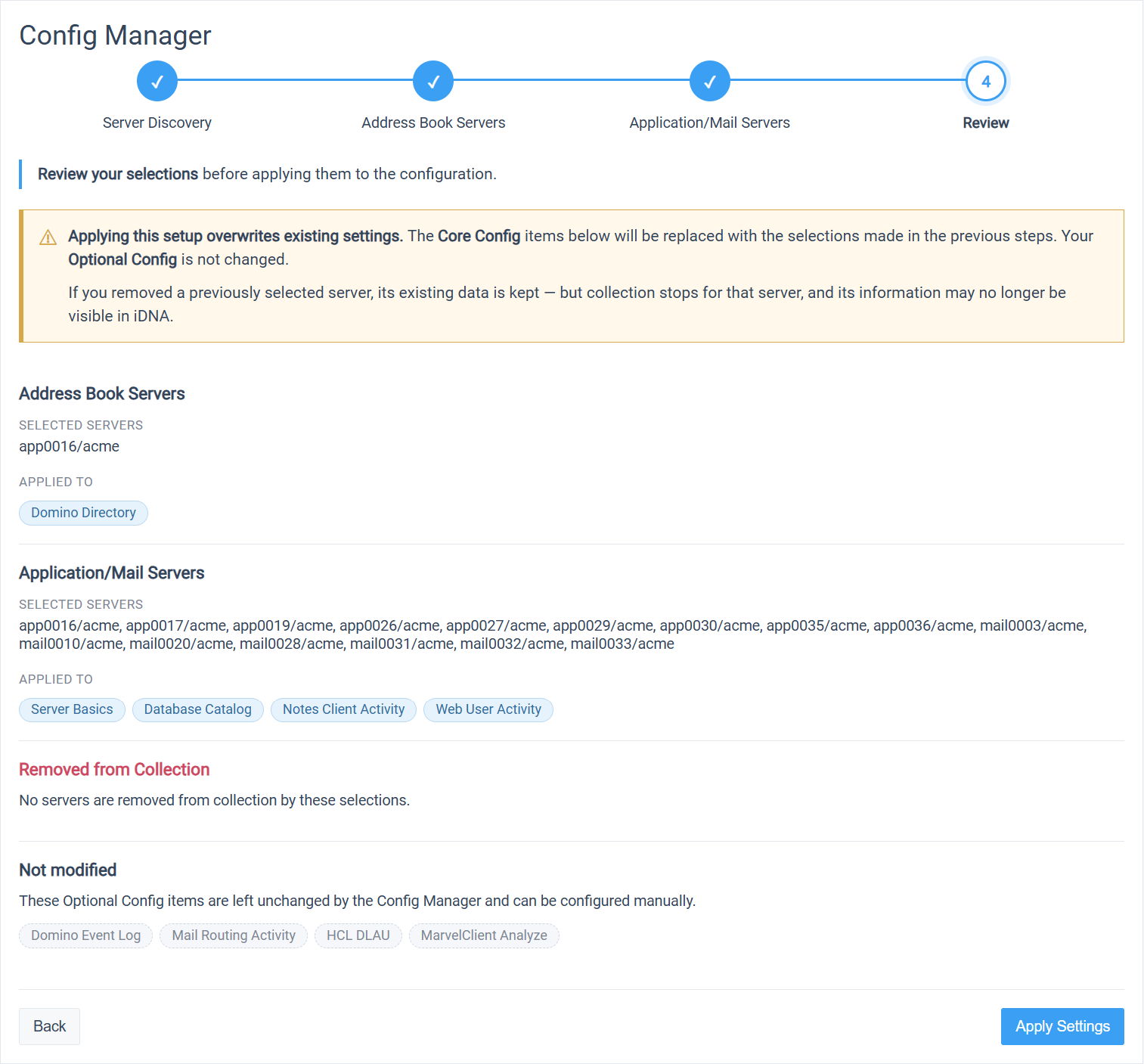
What applying does:
Step 3 applies the same servers to Server Basics, Database Catalog, Notes Client Activity and Web User Activity. If you configured these content packages for different servers by hand, applying the Config Manager aligns them. Check [Removed from Collection] before you click [Apply Settings], and adjust individual content packages afterwards under [Core Config] if needed. |
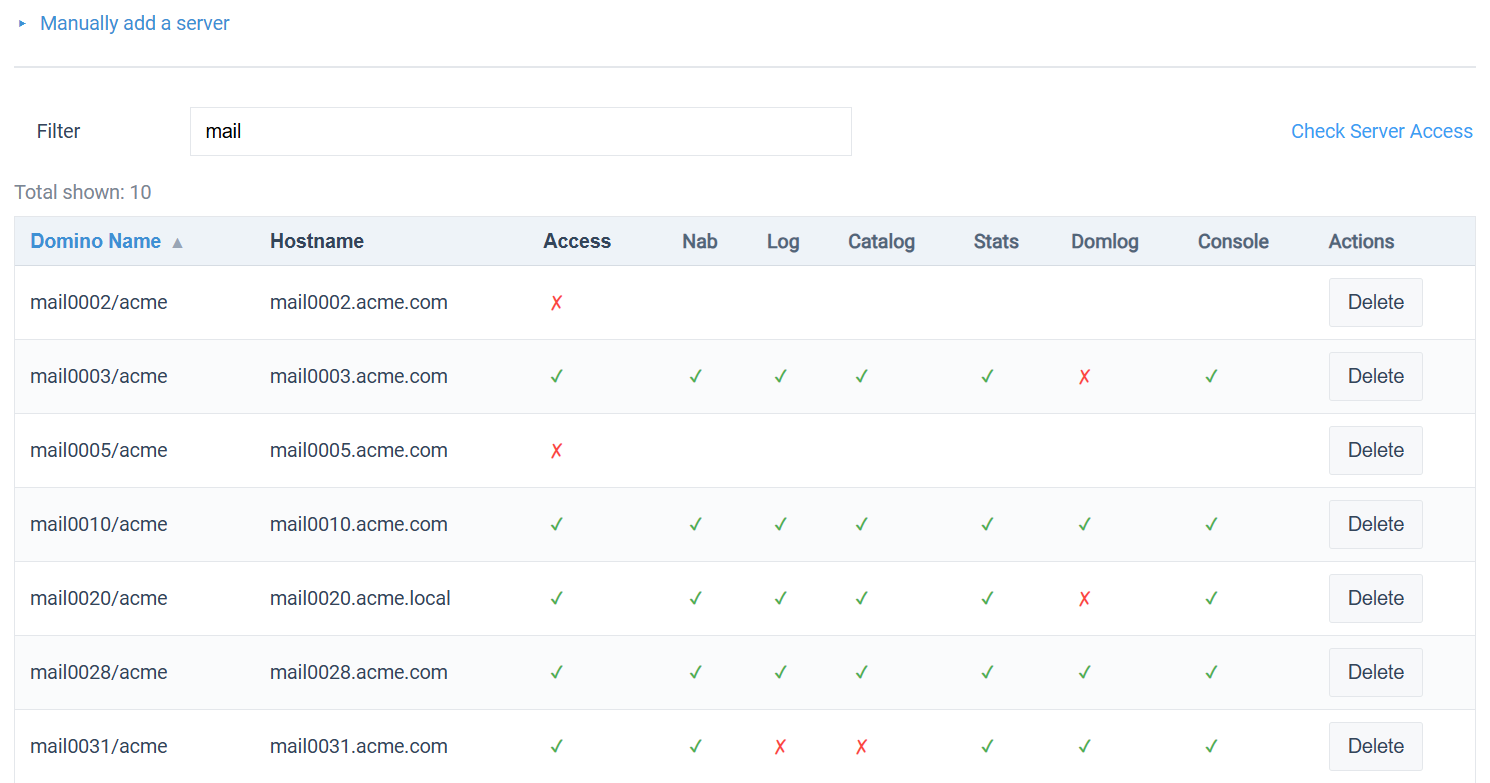
The server list shows every Domino server iDNA knows about, whether found by discovery or added manually. For each server, it shows whether iDNA can access it with the User ID:
✓ means iDNA can access it. ✗ means it cannot; hover over the ✗ to see the status code. Fix missing access before you rely on the collected data.
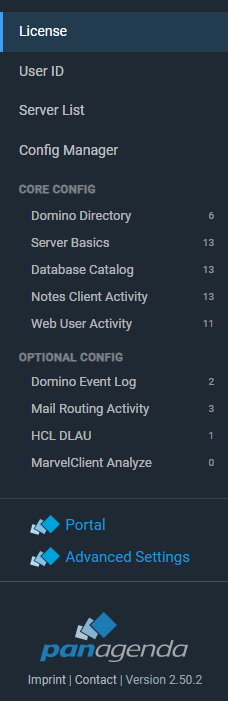
Content packages define what iDNA collects and from which servers. The sidebar lists them in two groups: [Core Config], the content packages the Config Manager sets, and [Optional Config]. The number next to each content package is the number of servers it is configured for. Only the content packages your license includes are listed.
| Content package | Group | Collects | Settings besides the servers |
|---|---|---|---|
| Domino Directory | Core | People, groups and mail-in databases from the Domino Directory | [Type]: [All NABs (incl. Directory Assistance)] (default) or [List of Databases (Comma Separated)] with the database names in [Databases] |
| Server Basics | Core | Server documents, INI settings, connection documents and statistics | none |
| Database Catalog | Core | The Notes applications from the server catalog | none |
| Notes Client Activity | Core | Notes client session activity and usage | none |
| Web User Activity | Core | HTTP/web user activity, from the Notes domlog or an HTTP resolver | [Type]: [Notes Domlog Database] (default), [HTTP Resolver with Basic Authentication] or [HTTP Resolver with Form Authentication], with the resolver's connection fields |
| Domino Event Log | Optional | Event and security log data from the Domino log database | none |
| Mail Routing Activity | Optional | Mail routing events and delivery activity | none |
| Mail Journal Activity | Optional | Mail activity from a mail journal | [Database Path] (default mailjrn.nsf) |
| HCL DLAU | Optional | Domino License Analysis (DLAU) usage data | [Database Path] (default dlau.nsf) |
| MarvelClient Analyze | Optional | Client analytics from the MarvelClient Analyze database | [Database Path] (default panagenda/mc_analyze.nsf) |
| Message Trace | Optional | Office 365 message trace data | [Username] and [Password] |
Click a content package in the sidebar to open it. The page shows its description, the same server lists as the Config Manager (including [Copy settings from another content package]) and its settings. Settings that apply per server, such as [Database Path] or the Web User Activity [Type], belong to the server selected in [Active Servers]: select a server to see or change its values. A required field that is empty is marked red, and [Save] stays disabled until it is filled. [Cancel] discards your changes; Message Trace also has [Reset Configuration], which removes its configuration.
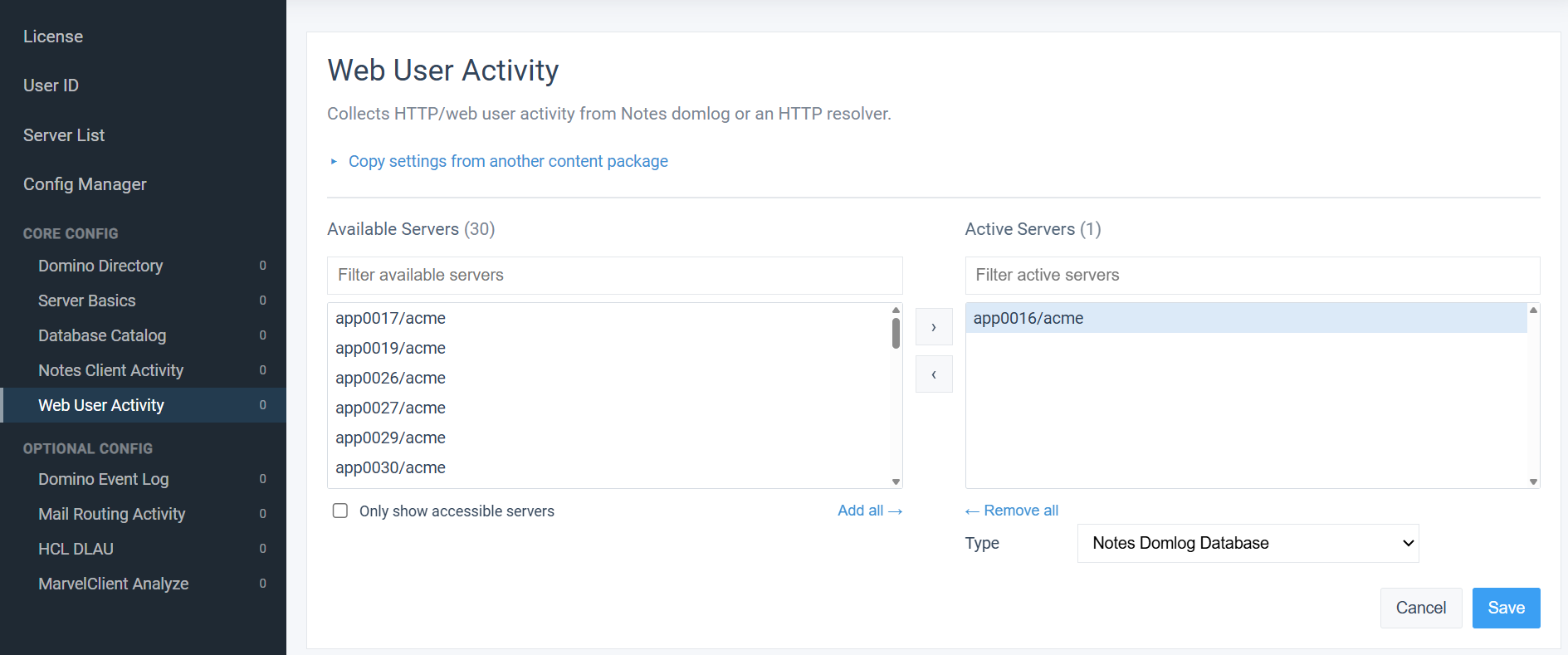
For Web User Activity with an HTTP resolver, the page asks for [Scheme], [Port], [File Path], [Username], [Password] and [Log Fields]; with form authentication also for [Action URL], [Username Field] and [Password Field].
The content packages under [Core Config] are usually set by the Config Manager. Open them directly for settings per server, such as a Web User Activity source, or to change a single content package without running the wizard.
/idna/cfgc to /idna/config. The old address redirects; update your bookmarks.| Name before 3.5.0 | Name from 3.5.0 |
|---|---|
| Directory/NAB Content | Domino Directory |
| Domino Server Basics | Server Basics |
| Session Activity | Notes Client Activity |
| Domino Web Log | Web User Activity |
| Domino Log | Domino Event Log |