You can download the data behind any TrueDEM table. How you export depends on the table type:
- Grafana-based tables, such as Call Quality Debug, consist of independent panels. You export data panel by panel, using the steps below.
- Non-Grafana dashboards: Such as User Experience – Teams call list (Follow the steps at bottom of the page)
Export data from a Grafana panel:
- Hover over the panel you want to export. Click the panel menu (⋮) in the top-right corner of the panel.
- Select Inspect → Data.
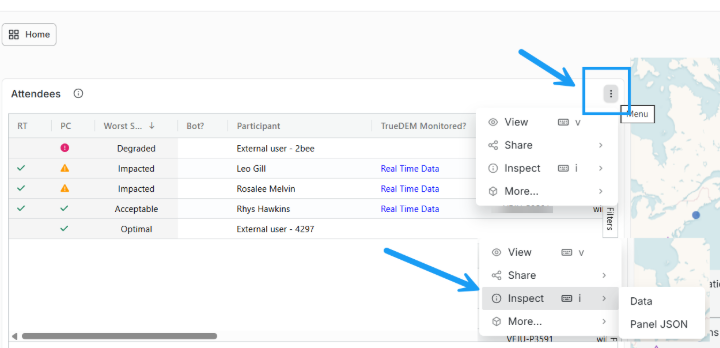
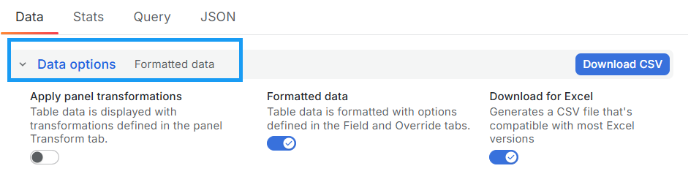
- It will show you a table of the data. Click Download CSV to export the data.
- Optionally, expand Data options to control how the exported data is presented:
Export data from a non-Grafana Dashboard.
Many TrueDEM dashboards let you export table data with a right-click. For example: User Experience, Teams Call List, M365 Service Health (Show all incidents), M365 Outage Analysis, Teams Versions Overview, and more. To Export Data:
1. Right-click on any cell in the table.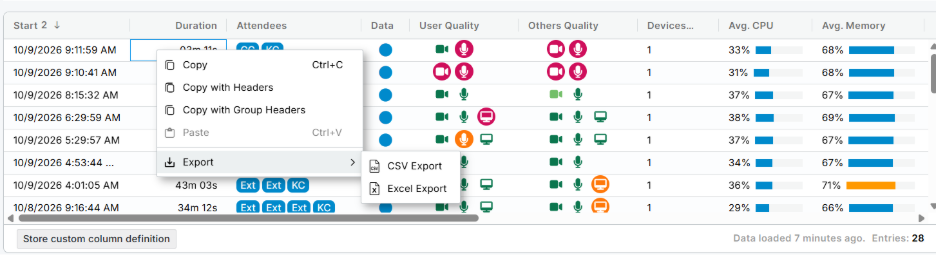
2. This will bring up the export option. Choose your data format to export the data for that dashboard. The choices are CSV and Excel.
3. Data constraints: All columns (hidden and visible) will be exported but the exported data will align to the set filters.