
Overview
Most Notes/Domino estates hold far more applications than anyone uses, and the ones still in use must run on new clients such as HCL Notes 64-bit and HCL Nomad. The Application Lifecycle, introduced in iDNA Applications 3.5.0, helps you sort your applications and plan the work. It follows every focus application through four questions, each narrowing the next:
- Keep or sunset? Which applications are still in use and should stay, and which can be retired? See Lifecycle Vector: Keep or Sunset.
- What is the route to ready? For every application you keep: is it ready for the target platform, and if not, what kind of fix gets it there most efficiently? See Modernization Vector: The Route to Ready.
- How ready is the estate? How many of the applications you're keeping are ready, and how much of your users' daily work depends on them? See Modernization Readiness: The Estate at a Glance.
- What is the plan? In which order should the work be done, so that each piece of work makes as many applications ready as possible? See Modernization Planning: Work Sessions.
The order matters: a retired application never needs modernizing, and one that's already ready never makes the work plan. Deciding what to sunset first shrinks the modernization effort.
Key Terms
- Application (replica set): iDNA treats all replicas of a database across your servers as one application, the replica set. All lifecycle and modernization results are per replica set.
- Focus application: the Application Lifecycle covers your focus databases, the databases of type Application or Mail-in DB. System databases, mail files and templates are not part of it (templates do play a role in modernization, as the masters your applications inherit from). If a database is classified wrongly, correct it with Database Recategorization.
- Modernization topic: the target platform an application is checked against. iDNA Applications 3.5.0 ships two: Notes 64-bit (Notes 64bit Readiness) and Nomad (Nomad Web, iOS, Android Compatibility). Readiness is always per topic: the same application can be ready for Notes 64-bit and still need work for Nomad.
- Findings: places in an application's code that iDNA's code analysis (Insights) flags for a modernization topic. A finding marks code that needs review for the target, not code that is certain to break.
- Vector: a label iDNA computes for every application. The lifecycle vector says whether to keep or sunset it, the modernization vector how to make a kept application ready. Both are recalculated by iDNA's nightly data processing, so a change in your environment shows up the next day.
Where to Find It
The dashboards are in the iDNA Portal under [App Lifecycle]. Each Portal page embeds an interactive dashboard; the [Explore] button next to the page title opens the same dashboard in Metabase, with all filters and drill-downs. A few dashboards exist in Metabase only: they open from links in the Portal dashboards and are described on their own pages in this section.
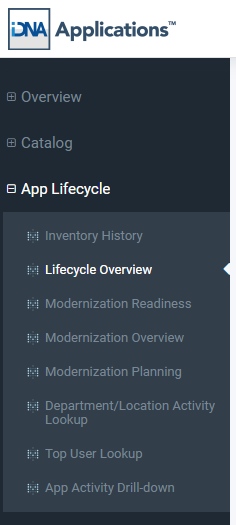
The menu also holds [Inventory History] and three dashboards about who uses an application; see Related Topics below.
Prerequisites
- Usage data: the keep-or-sunset decision is based on usage, so iDNA needs to have collected usage data for a meaningful period.
- Content analysis: the difference between archiving and deleting a sunset application comes from iDNA's content age and data retention analysis (see Content Age and Data Retention Analysis in iDNA Applications).
- Design analysis: modernization readiness comes from the code of your applications and templates, so their designs must have been collected and analyzed.
How These Pages Are Built
Each page explains one concept and the dashboard that shows it, in the same order: what it is and why it matters, where to find it, how to read it, and what to do next. They go as far as you need to understand the results and decide what to do. For the finer details, most dashboards have an [About ...] tab with iDNA's built-in explanation of how the values are calculated and what each label means.
|
With the iDNA Applications Companion set up in your AI client and connected to iDNA's MCP server, you can ask about the Application Lifecycle in plain language, for example: "Which of our applications can we retire, and which should we keep and modernize for Notes 64-bit?" The Companion answers from your live iDNA data, explains the vectors in the words of these pages and offers the next drill-down. See Setting up iDNA Applications Companion.
|
Pages in This Section
Related Topics
- Inventory History ([App Lifecycle] → [Inventory History]): how your focus inventory developed over time, how many applications were used this month, and how the applications divide by usage level.
- Department/Location Activity Lookup ([App Lifecycle] → [Department/Location Activity Lookup]): which departments and locations work with an application. Requires the organizational data described in Configuration: Usage by Organizational Units.
- Top User Lookup ([App Lifecycle] → [Top User Lookup]): the most active users of an application, the people to involve before you change or retire it.
- App Activity Drill-down ([App Lifecycle] → [App Activity Drill-down]): user activity per application within a time period.
- Consolidation Potential ([Catalog] → [Consolidation Potential]): the usage analysis behind the sunset direction.
- Content Age and Data Retention Analysis in iDNA Applications: the retention analysis behind archive and delete.
- Custom Insights: the code analysis rules behind the findings.