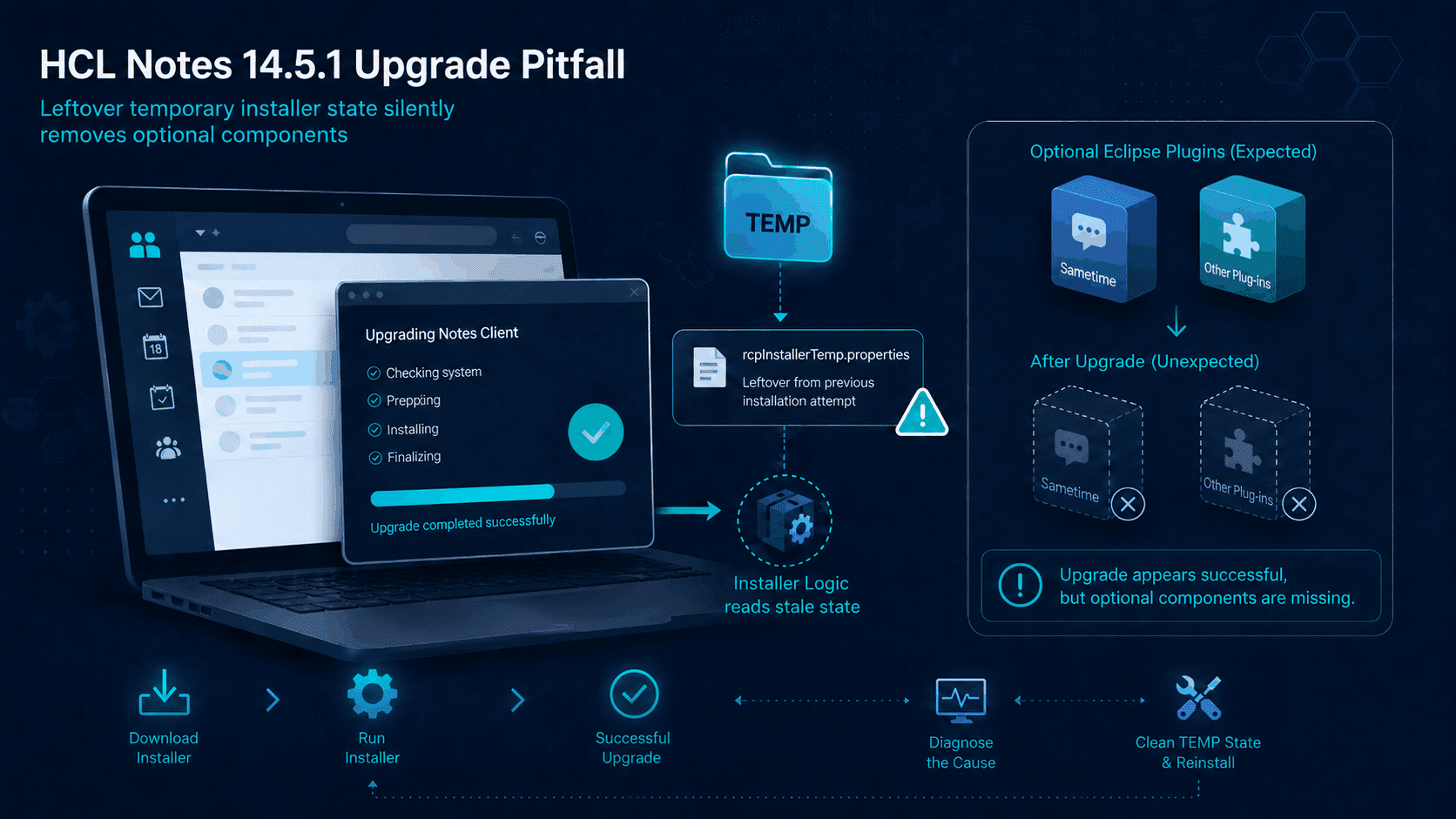
A Notes 14.5.1 upgrade can complete successfully according to the MSI log and still leave you with a client that is functionally incomplete.
We recently encountered this situation while preparing upgrades from HCL Notes 12.0.2 and earlier versions to HCL Notes 14.5.1 for several customers. The installation appeared to work correctly, but optional Eclipse/RCP components were missing after the upgrade.
Only after starting the upgraded Notes client did the real problem become visible: optional Eclipse/RCP components were missing.
Embedded Sametime was the most noticeable example, but the issue was not limited to Sametime. Other optional plugins managed through the same installation mechanism could also be removed, leaving the Notes client in a state that no customer should receive after an apparently successful enterprise deployment.
Finding the reason took us several days.
When a Notes 14.5.1 upgrade appears successful
Most troubleshooting processes begin with the obvious questions:
- Did the MSI complete successfully?
- Was the installation command line correct?
- Were the expected features selected?
- Did the RCP launcher report any errors?
- Was there a problem while extracting or registering the Eclipse components?
- Did the deployment account have sufficient permissions?
In our case, the MSI completed normally. That made the issue particularly difficult to diagnose.
From the perspective of the deployment system, the upgrade had succeeded. From the perspective of the resulting Notes installation, however, something had gone seriously wrong: optional components that should have remained installed were removed during the final stages of the installation process.
This is an important distinction for enterprise deployments. A successful MSI return code confirms that the installer completed its work. It does not necessarily confirm that the final Notes client contains every component you expected.
Why we initially could not reproduce the problem
The issue occurred at more than one customer, but our first laboratory tests did not reproduce it.
That was confusing. We used the same Notes versions, the same installation packages and comparable command lines. Yet the upgrade worked perfectly in the lab.
The reason turned out to be something many of us naturally do when testing software installations: we start with a clean system.
We removed old installation data, cleaned temporary directories or reverted virtual machines to a known state. That is normally good practice, but in this case it also removed the exact condition required to reproduce the defect.
We therefore changed our testing approach. Instead of preparing perfectly clean machines, we created virtual machines that had gone through previous Notes installations and upgrades. We deliberately stopped cleaning temporary installation data and began reproducing the installation history more accurately.
That was when the pattern finally became visible.
What causes the Notes 14.5.1 upgrade issue?
The problem occurs when the TEMP directory of the account executing the Notes 14.5.1 installer still contains the following file from an earlier Notes installation:
rcpInstallerTemp.properties
This distinction is important: we are talking about the TEMP directory of the executing security context, not necessarily the TEMP directory of the currently logged-on user.
For example:
- An installation started interactively by an administrator normally uses that administrator’s TEMP directory.
- An installation executed through a long-lived deployment service account uses the TEMP directory belonging to that service account.
- An installation running as Windows SYSTEM typically uses the system TEMP directory, often located below C:\Windows.
Temporary directories belonging to administrative accounts, service accounts or Windows SYSTEM are frequently not cleaned on a regular basis. A file created during a previous Notes installation can therefore remain in place for months or even years.
When the Notes 14.5.1 installer encounters this outdated rcpInstallerTemp.properties file, it may interpret the information inside it as valid state for the current installation.
Based on our analysis, this stale installer state can affect the final component-removal phase of the Notes 14.5.1 installation. The installer then concludes that optional Eclipse/RCP components should be removed, even though this does not reflect the intended configuration of the current upgrade.
The result is an installation that technically completes, but produces the wrong client configuration.
Why Notes 14.5.1 is affected
The Windows installation process changed significantly with HCL Notes 14.5.1.
A substantial part of the previous RCP installation logic was redesigned. Content is extracted and installed, after which the installer determines which optional components should be retained or removed based on the selected configuration.
There is nothing inherently wrong with this approach. The problem is that temporary state from a previous, independent installation must not influence the decisions made during the current installation.
In earlier installer generations, including the versions we examined from the Notes 12.0.x, 14.0.x and 14.5.0 streams, the temporary properties file was removed/cleaned early in the installation process. That prevented state from an older installation from being reused accidentally.
With Notes 14.5.1, this cleanup appears to be missing. The installer can therefore consume an outdated file that was never intended to survive beyond the previous installation run.
This is also why the issue can be so difficult to identify:
- It depends on the history of the machine and installation account.
- It may not occur on freshly prepared test systems.
- The MSI itself does not visibly fail.
- The problem becomes apparent only when the resulting Notes client is inspected or started.
- Different installation accounts can produce different results on the same machine.
Which environments should pay particular attention?
In our tests, the problem was not tied to a specific Notes 12.0.2 Fix Pack. It was also independent of whether the previous Notes installation was 32-bit or 64-bit.
Organizations should pay particular attention when the following conditions apply:
- An existing HCL Notes 12.0.2 or older installation is being upgraded to HCL Notes 14.5.1.
- The upgrade is executed by an administrative account, deployment service or Windows SYSTEM.
- The TEMP directory belonging to that account still contains rcpInstallerTemp.properties from an earlier installation.
This makes the issue especially relevant for enterprise software distribution.
Manual test installations are often performed with relatively clean user profiles. Production deployments, on the other hand, commonly run through accounts and services that have existed for a long time. Their temporary directories may contain artifacts from numerous previous installation attempts.
The conditions found in a production deployment can therefore be very different from those in a clean test environment.
Workaround for the Notes 14.5.1 upgrade issue
Before starting an HCL Notes 14.5.1 upgrade, remove the following file from the TEMP directory of the account that will execute the installation:
rcpInstallerTemp.properties
The crucial part is identifying the correct execution context.
Deleting the file from your own user profile will not solve the problem when the installation is actually performed by Windows SYSTEM or by a separate deployment account.
The safest approach is to include a pre-installation step in the deployment process that:
- Resolves the TEMP directory in the same security context that will run the installer.
- Checks for rcpInstallerTemp.properties.
- Removes the file before launching the Notes 14.5.1 installation.
After removing the outdated file, we were no longer able to reproduce the unwanted removal of the optional Eclipse/RCP components.
From a support case to an official HCL defect article
Once we had isolated and reproduced the issue, I opened a support case with HCL and provided the technical findings, affected scenarios, suspected root cause and proposed workaround.
I also explicitly asked HCL to publish a public defect article. This was important to us because the installation does not visibly fail, making it extremely difficult for other customers and partners to identify the cause independently.
HCL has now published the following article:
Notes 14.5.1 Upgrade Removes Sametime Plugin — HCL Defect Article KB0132505
Although the article title refers specifically to Sametime, administrators should keep in mind that Sametime is the most visible example of a broader issue involving optional Eclipse/RCP components.
Publishing the article makes the issue searchable, gives customers an official reference and documents the required workaround. We have also asked HCL to address the underlying behaviour in a future Notes installer release.
At the time of writing, we hope that a permanent correction will be included with HCL Notes 14.5.2. Ideally, future installer versions will either remove obsolete state reliably at startup or use a unique temporary directory for every installation process.
MarvelClient Upgrade customers are already protected
Customers using the current version of MarvelClient Upgrade 14.5.22 and higher are protected against this Notes 14.5.1 upgrade scenario.
We have already updated MarvelClient Upgrade to handle this scenario automatically. Before the HCL Notes 14.5.1 installation is executed, MarvelClient Upgrade removes or avoids the outdated temporary installer state that triggers the problem.
As a result, the issue described in this article cannot occur when the upgrade is performed using the current MarvelClient Upgrade version.
As always, customers should ensure that they are running an up-to-date MarvelClient release before beginning a major Notes client upgrade.
More information is available on the MarvelClient Upgrade Release Notes page.
Final thoughts
This case is a good reminder that installation problems do not always produce installation errors.
The most difficult defects are often caused by invisible state: an old file, a persistent service account, a temporary directory that is not really temporary or a previous installation that continues to influence the next one.
Clean laboratory environments remain essential, but they do not always represent the history and complexity of real enterprise endpoints. Sometimes the decisive troubleshooting step is to stop cleaning the test environment and reproduce the imperfections of production instead.
For organizations deploying HCL Notes 14.5.1 without MarvelClient Upgrade, add the removal of rcpInstallerTemp.properties to your pre-installation checks.
For MarvelClient Upgrade customers, the current version 14.5.22 and higher already takes care of it.