
If you work in first-level support, you have heard this one before: „My Teams calls are perfect, but Outlook keeps hanging on ‚Trying to connect‘.“ Same user, same laptop, same office. So, it can’t be the network, right?
Wrong. In my recent webinar „Seeing the Unseen“ I showed real customer cases where exactly this happened. The answer is rarely in the client, and often not in the ISP either. It is in the way Microsoft lets users into its network, and that differs from service to service. So, let’s dive into the topic.
One tenant, two kinds of doors
Microsoft’s message to every customer is pretty simple: bring your users onto the Microsoft global network as close and as fast as possible. Before that edge, your egress, DNS and ISP decide. After it, Microsoft does.
What many people don’t realize: M365 services do not all pick that entry point the same way. Basically, there are different mechanisms:
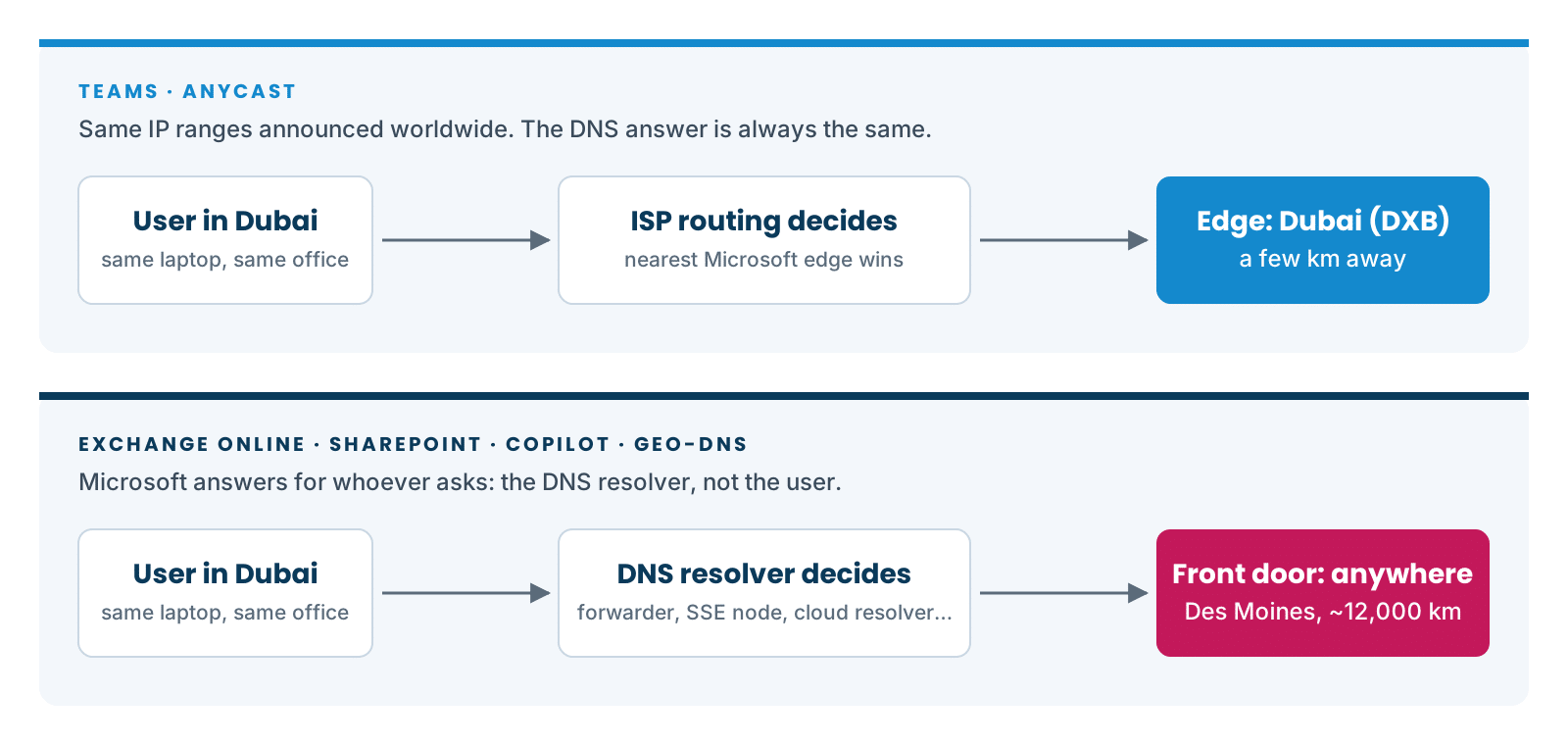
- Anycast (e.g. Teams, except media relays): the same IP ranges are announced worldwide, so the DNS answer is always the same. Your ISP’s routing decides which edge you land on.
- Geo-DNS (e.g. Exchange Online, SharePoint): outlook.office365.com resolves to a regional front door based on who is asking. And „who is asking“ is the DNS resolver, not the user.
That single difference explains the ticket. Teams can look perfect while Outlook crawls, because the two services walk through different doors.
When DNS lives somewhere else
Now you could argue: every one of my locations has its own DNS server, so Geo-DNS will always find the closest front door. Conceptually you would be right. However, think about the following:
- Your local DNS server may forward requests to Google, Cloudflare or whomever. Suddenly Microsoft sees an external resolver, somewhere else.
- Your SSE or proxy (Zscaler, Prisma Access, etc.) may resolve DNS at its own node. The front door then follows the node, not the user.
- You may run centralized DNS in the cloud.
One customer did exactly that: an Azure DNS Private Resolver in Singapore for their APAC branches. A user in Hong Kong breaks out locally, asks for outlook.office365.com, and Microsoft answers for the resolver: „Use the Singapore front door.“ Even though closer ones exist.
By the way, Microsoft is aware of this pattern. Their own connectivity test tool flags a DNS resolver more than 800 km (500 miles) away from the user.
What it looks like in real data
Let’s look at a user in a Dubai branch office, measured over two weeks. On his home network, Exchange Online always entered Microsoft in Dubai. On the managed office network, the entry point flipped back and forth between Dubai and Des Moines (Iowa), every day.
So was the ISP routing him around the globe? No. In the same two weeks, Teams entered Microsoft in Dubai (DXB20) on both networks, every single time.
The proof is in the DNS answer. Eight lookups on the same afternoon, from the same DNS server:
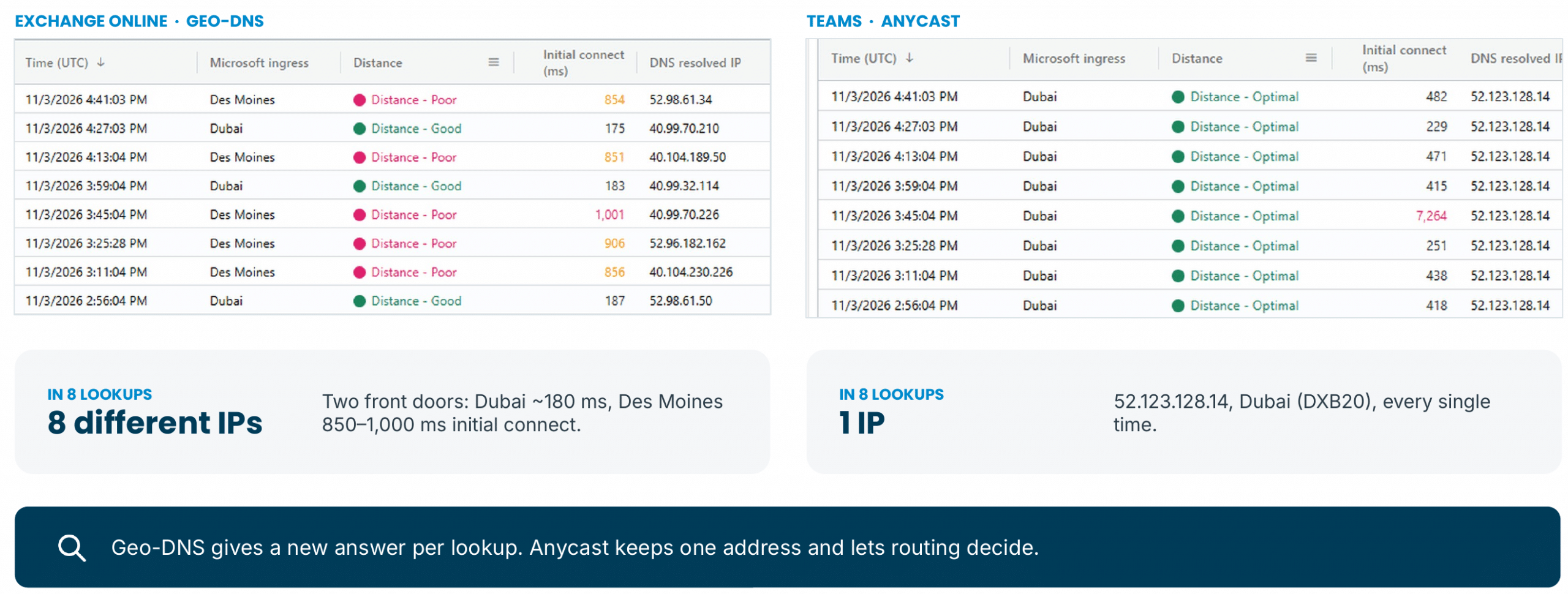
And the user feels it. A new connection to the Dubai front door took around 180 ms, to Des Moines 850 to 1,000 ms. That is pure connection setup, before Outlook has sent a single byte. The potential root cause: a DNS misconfiguration, partly related to the SSE in place.
What you can check yourself
The next time complaints like „Teams fine, Outlook slow“ land on your desk, a few quick checks get you a long way:
- Find the front door. Run nslookup outlook.office365.com a few times. Does the answer stay in your region, or does it jump around?
- Compare with Teams. If Teams lands close by and Exchange doesn’t, look at DNS before you call your ISP.
- Know your resolver. Which DNS server does the client use, where does it forward to, and does your SSE resolve DNS itself?
- Align DNS and egress. Make sure Microsoft 365 names get resolved where the traffic actually leaves your network.
The catch: a single test only shows you that moment. The flipping in Dubai only became visible because it was measured continuously over two weeks.
So, perhaps it’s time to add „where do my users enter Microsoft?“ to your troubleshooting checklist with the help of TrueDEM?